


Typescape: Typographic Textures
WI State Standards:
- AA Cr10h
Investigate: Engage in critical thinking, problem solving, and research through elements and principles of art and design studio practices and processes.
(aesthetics / problem solving) - AA Cr12h
Make: Create works of art that introduce students to media, care of tools, and basic craftsmanship skills.
(skills) - AA Pr10h
Develop meaning: Create s body of work incorporating personal, historical, and contemporary art to communicate one or more points of view.
(aesthetics / communication)
Learning objectives
- graphic problem solving
- creative project: planning and executing
- creating visual textures
- typography
- edit and transform tools in Illustrator
- implied values
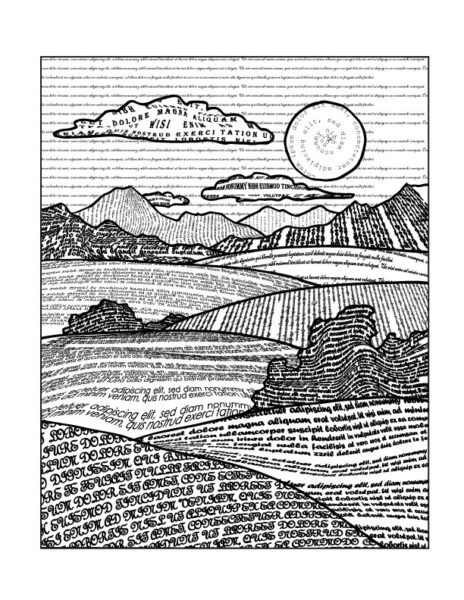
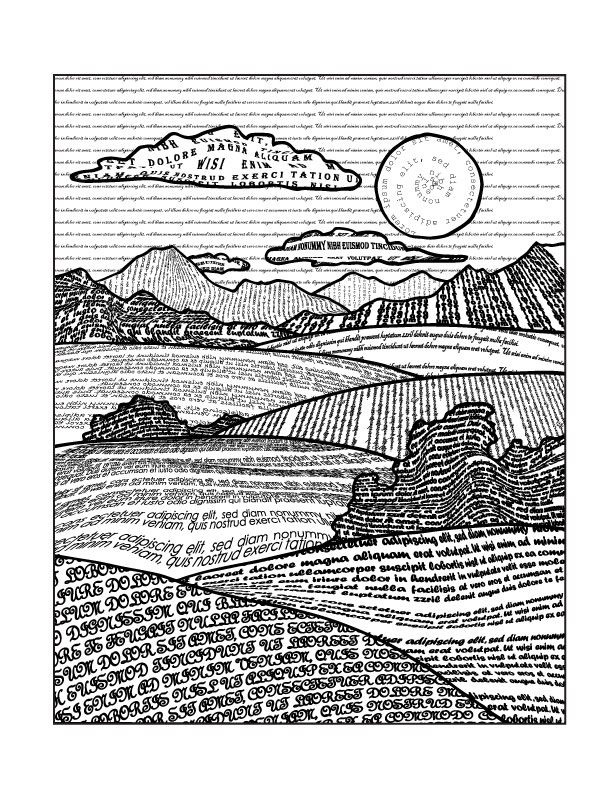
Use typography to fill in the landscape.
Attempt to create different values and textures:
- darker and larger elements in the foreground
- smaller and finer fonts in the background
- choose round, pointy, heavy, and thing typefaces for different textures.
STEPS
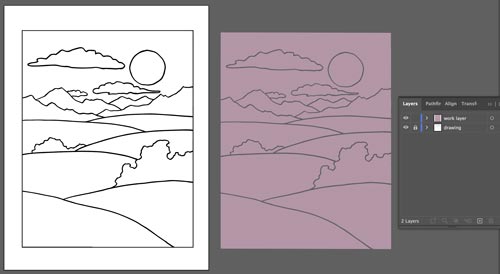
Open the file.
There are two layers in the file:
- Drawing layer (locked) – holds the image template. Do not do anything on that layer!
- Work layer – holds the shapes (pink) to use for clipping groups with the text areas.
Start with the foreground area:
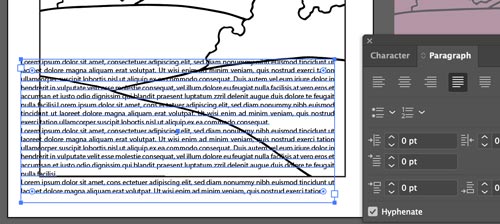
Draw a text box for the front shape.
Make it bigger than the shape.
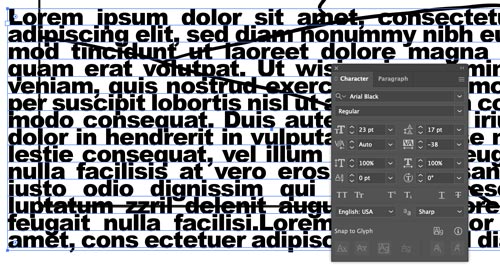
Experiment with font settings (Character panel). This area being the closest – you want to make it dark and detailed. Look for a detailed, but bold font.
- Use "Justify" paragraph setting.
- Then experiment with tracking and leading.
- Type > Type Orientation
- Consider using Type on Path tool.
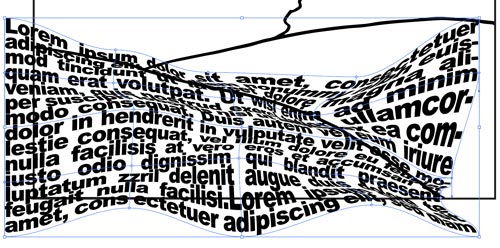
To curve the text – use any of the following:
- Object > Envelope Distort > … with Warp
- Object > Envelope Distort > … with Mesh
- Effect > Warp > Arch (and the rest of the options)
For extra texture – try:
- Effects > Distort > Roughen
- Effects > Distort > Pucker & Bloat
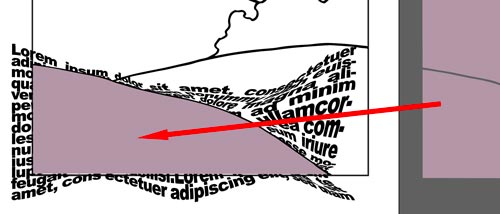
Once you are done with the texture and the font appearance – use the appropriate shape on the right and drag (option-drag) it over the front shape.
Object > Arrange > Bring to front – to bring the pink shape above the text area.
Now you can use it as a Clipping shape.
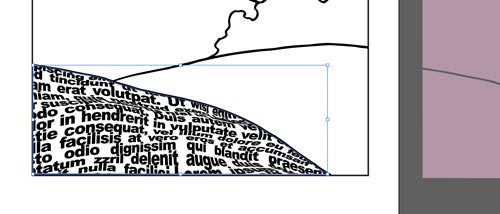
Select the text area and the pink shape.
Object > Clipping Mask > Make
You are done with the first shape!!!
Continue with the rest of the shapes.
Have fun!