Layout: Newsletter
WI State Standards:
- AA Cr10h
Investigate: Engage in critical thinking, problem solving, and research through elements and principles of art and design studio practices and processes.
(aesthetics / problem solving) - AA Cr12h
Make: Create works of art that introduce students to media, care of tools, and basic craftsmanship skills.
(skills) - AA Pr10h
Develop meaning: Create s body of work incorporating personal, historical, and contemporary art to communicate one or more points of view.
(aesthetics / communication)
Learning objectives
- graphic problem solving
- creative project: planning and executing
- InDesign page structure
- using grid and guides
- communicating ideas and concepts
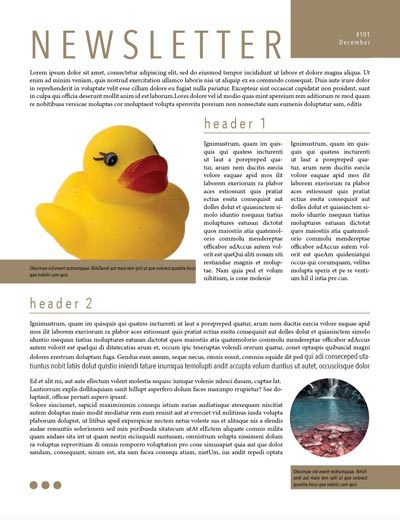
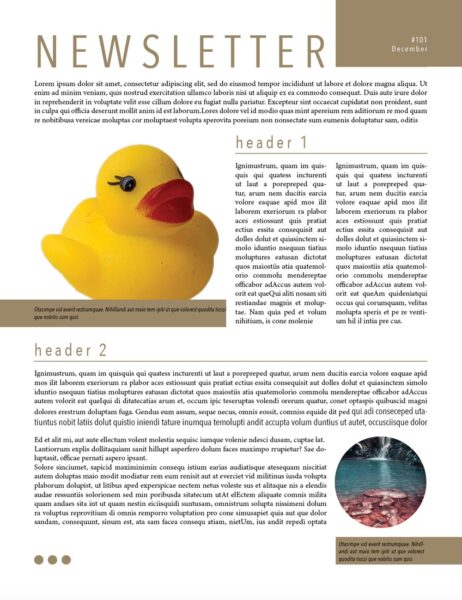
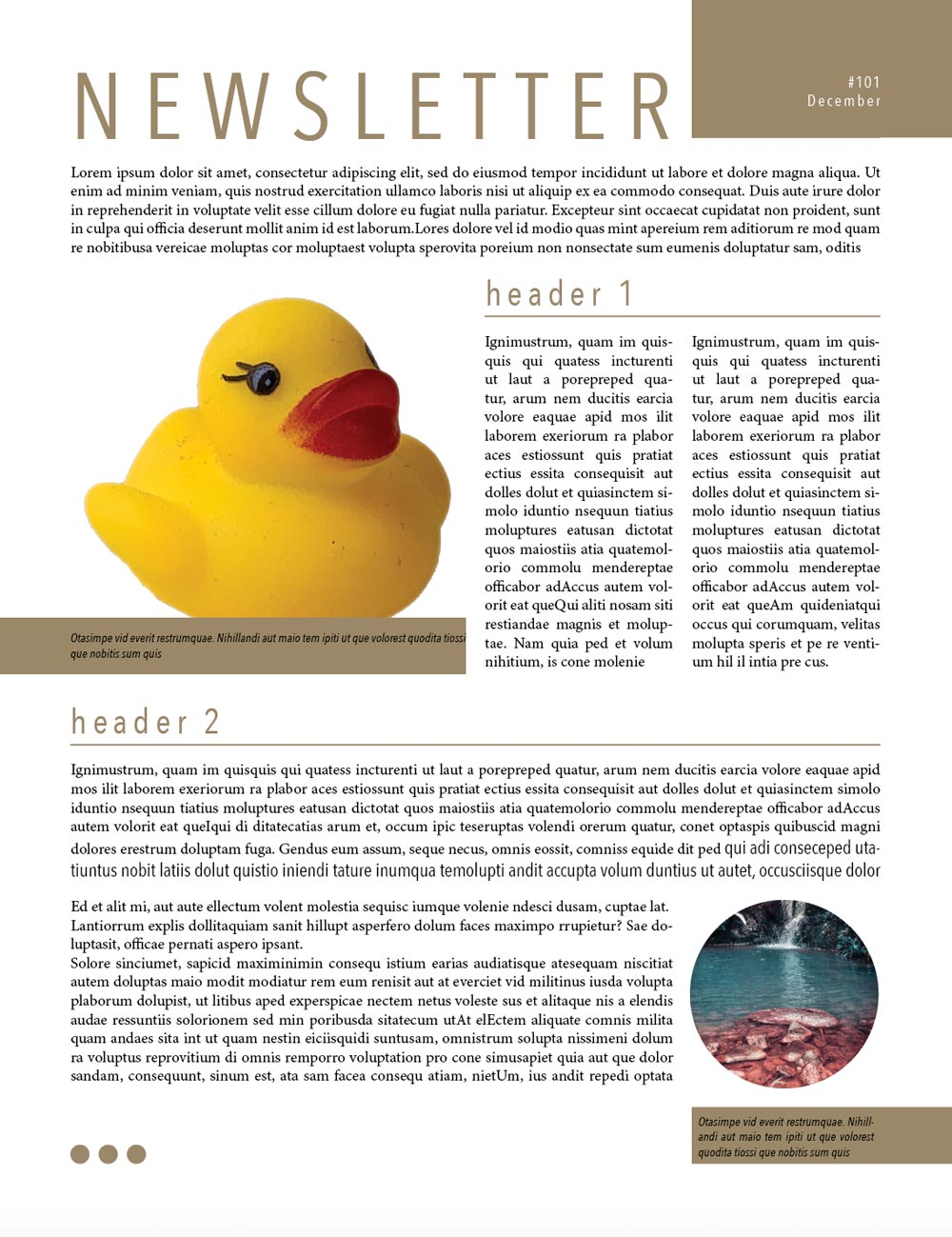
Use the grid template to design a layout of a newsletter.
The theme is up to you: your school year, family, friends, fun stuff, your interests, etc.
You need to include:
- Header
- One or more sub headers
- At least 2 images
- Image captures
- Text
You do not need to use up the entire format, but you do need to use the grid.
Make sure you have Snap to Grid option checked.
examples:
STEPS
In InDesign:
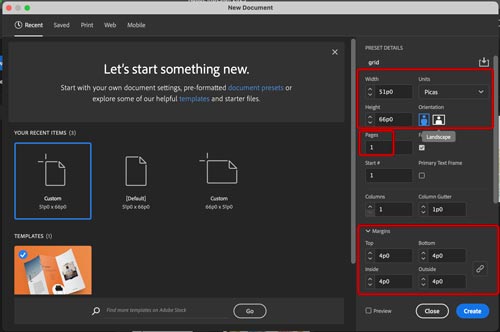
Create a new document.
Units: Picas
Width: 51p0
Height: 66p0
Pages: 1
Margins: 4p0
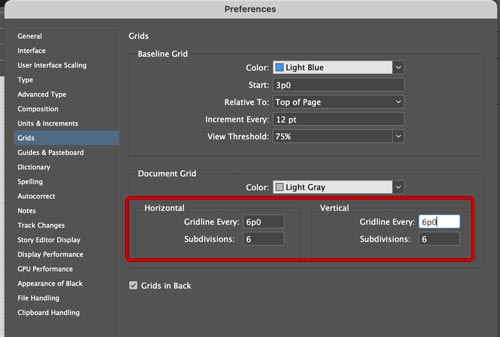
Set Document grid:
Horizontal and Vertical:
Gridline every 6p0 (there are 6 picas in 1 inch)
Subdivision: 6
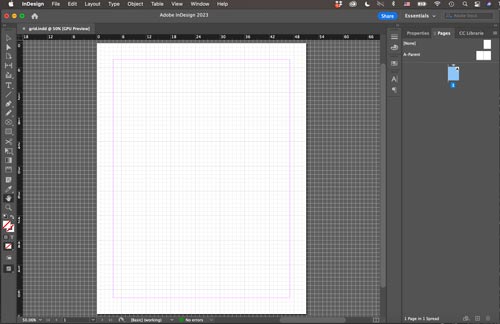
Now the document is ready for the next step.
Make sure you save it.
Pages vs. Parents
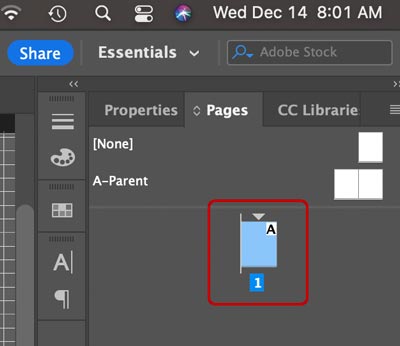
Open Pages panel
The lower pane shows the selected page you are working on.
If you have more than 1 page in your document – this is where you can navigate between the pages.
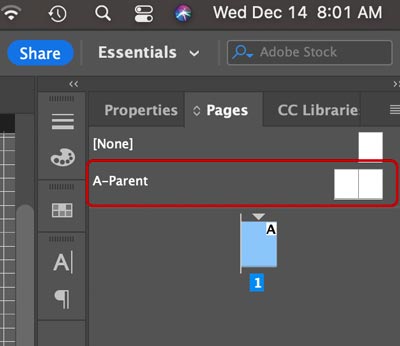
The upper pane shows your Parent (Master) spreads.
Master spreads or pages are like templates that you design to keep the document layouts consistent.
You can have more than one Parent spreads.
By default your Parent-A spread comes as a 2-page spread.
Any change you do to a parent page will result in affecting all pages that are linked to that Parent. (Think: symbols and symbol instances).
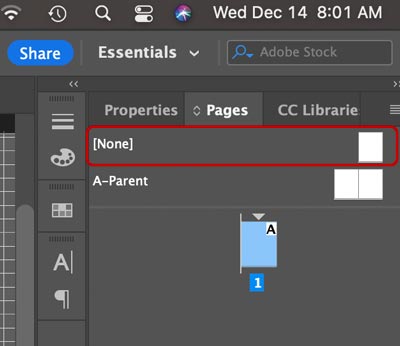
For a blank page with not pre-designed layout choose "none".
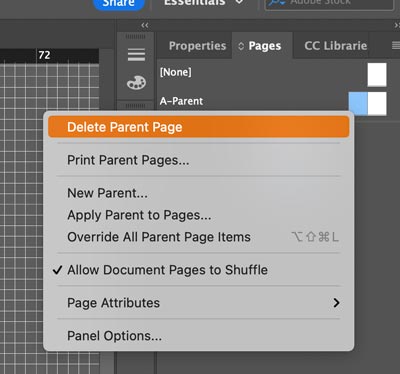
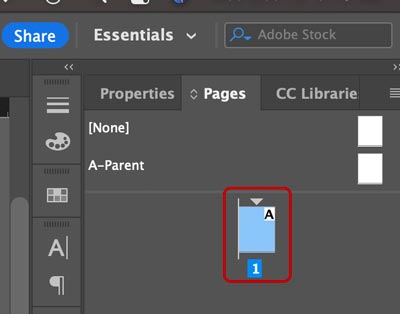
Let us delete one of the pages in the Parent A spread:
Right-click on a Parent-A page:
Delete Parent page
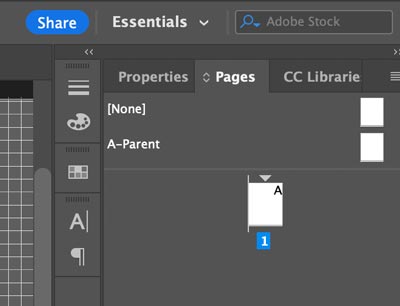
This is what the Pages panel should look like.
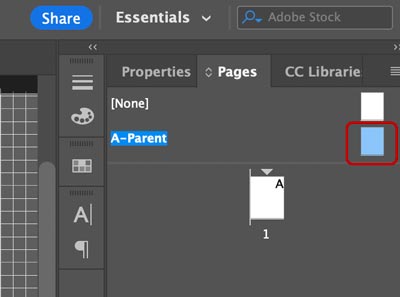
Let’s create a modular grid on Parent A page:
Double-click on the thumbnail.
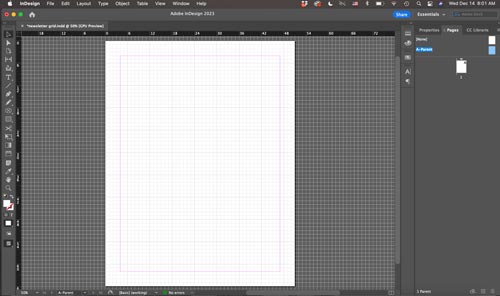
This will open the Parent A view.
It looks exactly as a regular page, but anything you add to the layout here will show on your page that is liked to it.
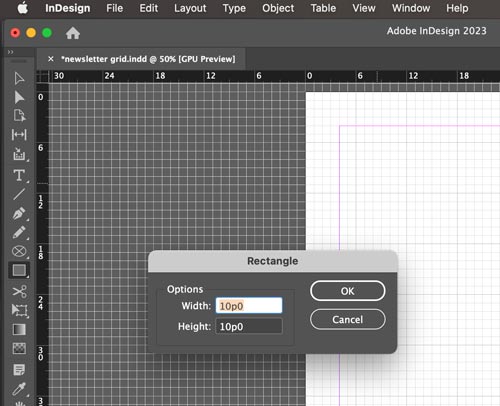
Create a module 10 x 10 picas
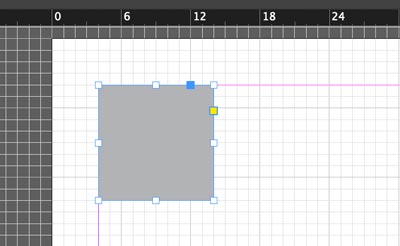
Apply any fill color.
Align it with the upper left corner of your margin outline.
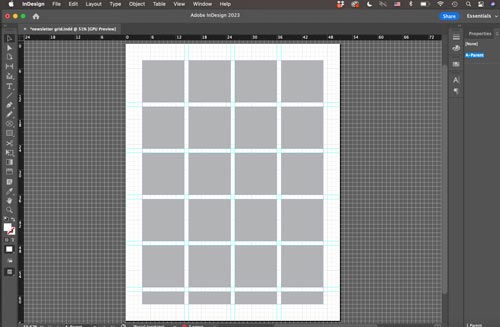
Duplicate the module leaving 1 pica between the modules.
The last row will thinner.
Drag the guides.
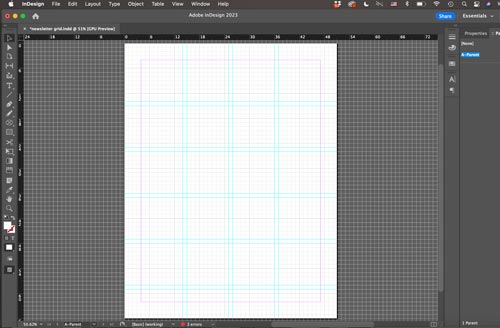
Lock the guides and delete the modules.
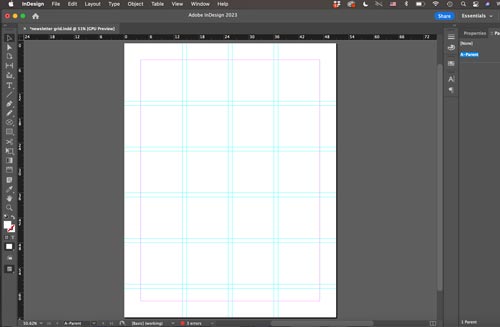
Hide Document Grid.
Save.
Now double-click on your page 1.
This will bring you back to your page view.
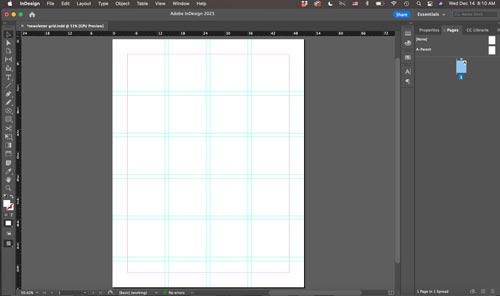
Your page has the grid now.
Text blocks
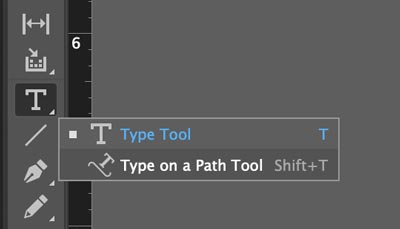
Select the Type tool.
Click and drag a text frame and start typing.
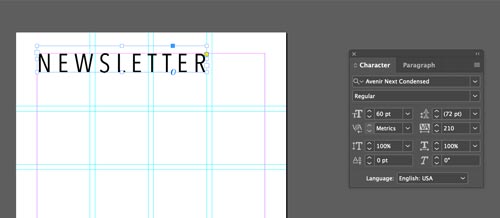
Type in the main document header
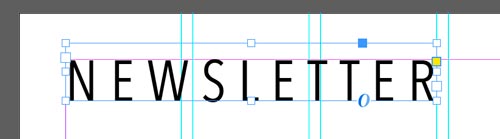
Alignment is important!
Make sure the letters are aligned with the grid.
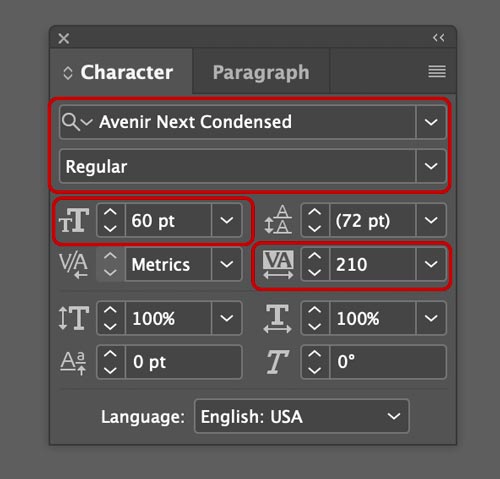
Use Character panel to change the font settings.
Use Paragraph panel to change paragraph settings.
Both panels you can find in the menu bar: Window > Type & Tables > Character
Adjust the typeface, the font weight, and tracking.
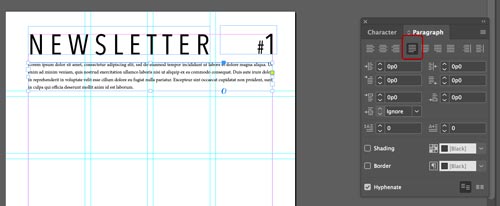
Continue adding text frames for the text body and subheaders.
In Paragraph panel: choose justify left setting.
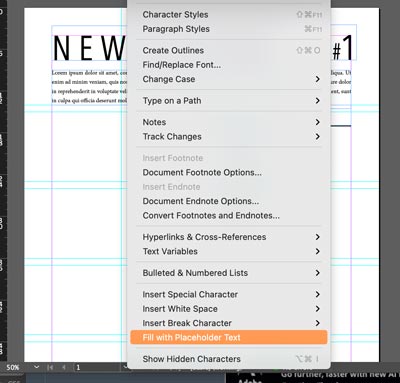
You can use a placeholder text before you place your own text:
Type > Fill with Placeholder Text.
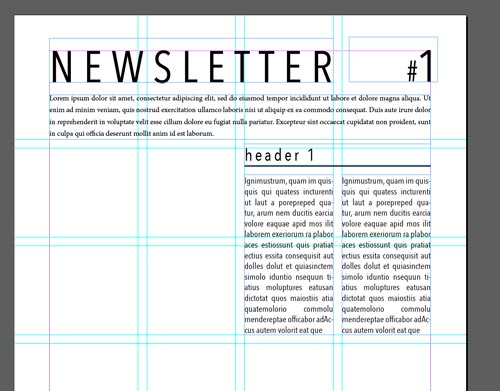
Experiment with text frames and columns.
placing your text
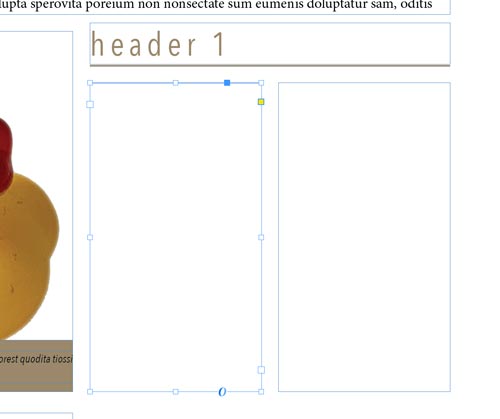
Delete the placeholder text.
Paste your own text.
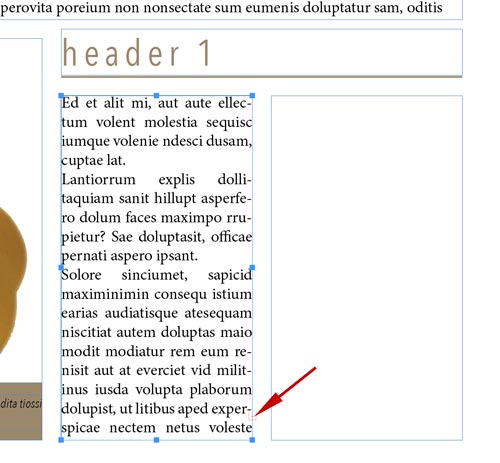
If the entire text does not fit into selected text area – you will see the red square symbol at the bottom right corner – it is called an "out port". You will need to "thread the text frames – so that text continues to flow into another frame.
Choose Selection tool.
Click on out-port.
Then click inside the next text frame.
The rest of the text will show in the second frame.
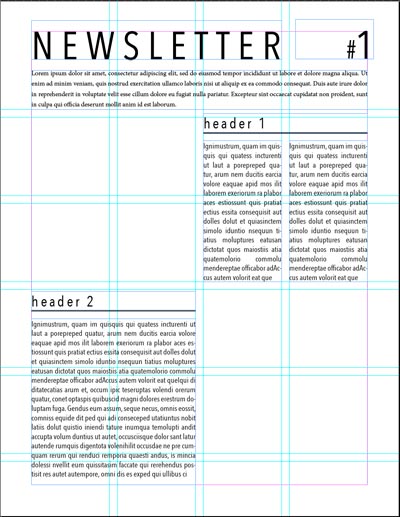
Continue adding text to the format.
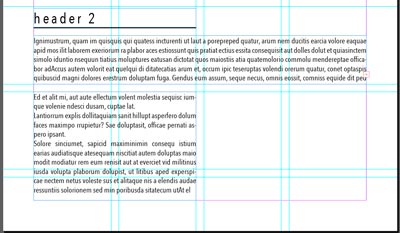
Experiment with different layouts.
To copy text formatting properties (color, font, size, etc.):
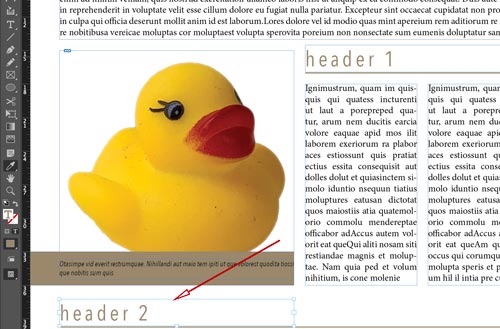
Select the text block you want to apply the text format to.
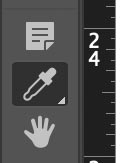
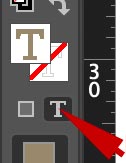
Select the Eyedropper tool.
Important:
Click on "Text Formatting" to copy the TEXT properties.
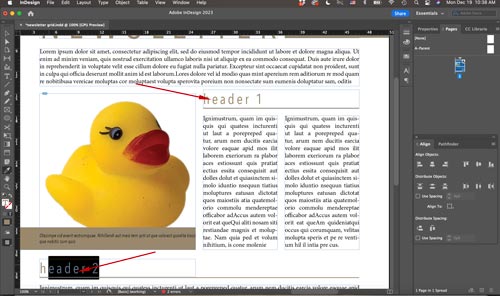
Click on the formatted text (header 1)
Then highlight the text you want to be formatted (header 2).
Add images
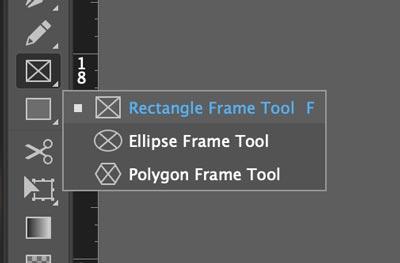
To add an image to the document you need to create a frame that will hold it.
Frame defines the placement and the area of the image to be displayed.
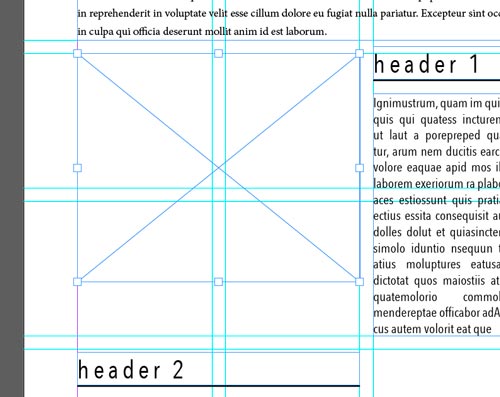
Click and drag a frame.
Use grid for alignment.
Leave some space for the caption.
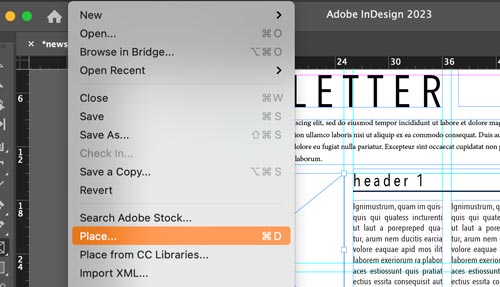
To insert an image into the frame:
File > Place
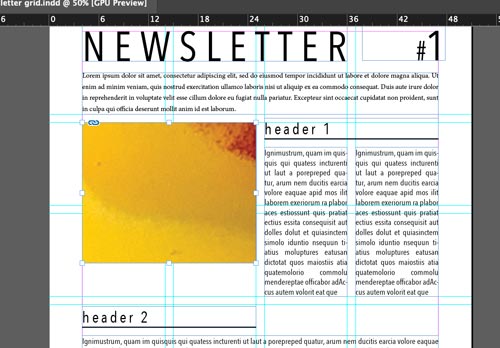
Image is now placed inside the frame based on its original dimensions.
You will see only the area inside the image frame though.
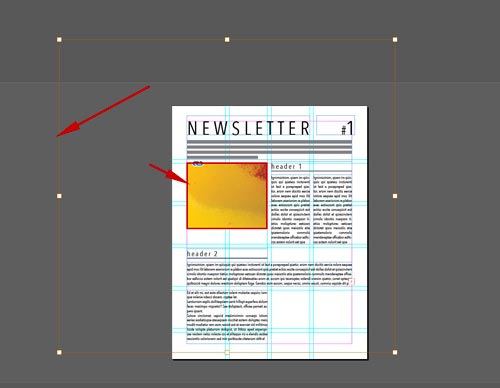
Double-click on the image to the the yellow bounding box of the image.
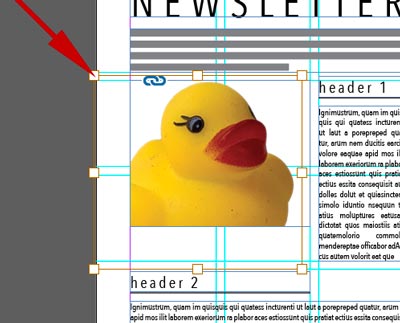
To resize – make sure you hold SHIFT.
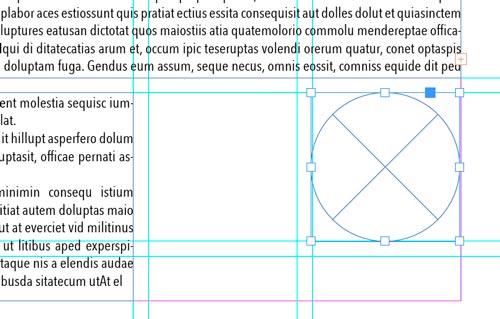
You can use any shape as an image frame.
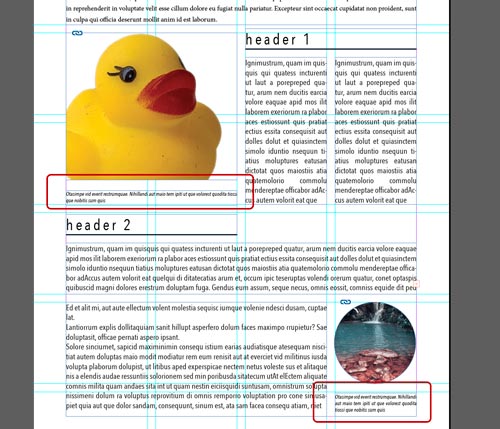
Add captions under the images.
Use the same font family, but change the size or the style (like italic?)
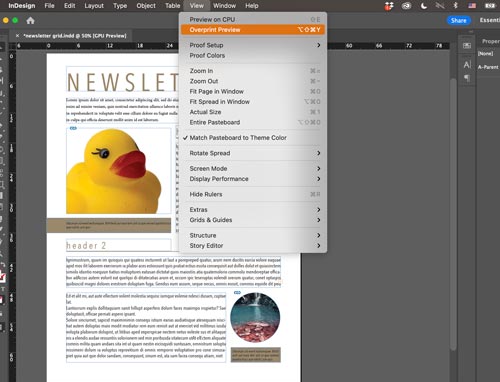
Preview the document:
View > Overprint Preview
This will hide all frame outlines.
You can also hide the guides to see what the document looks like.
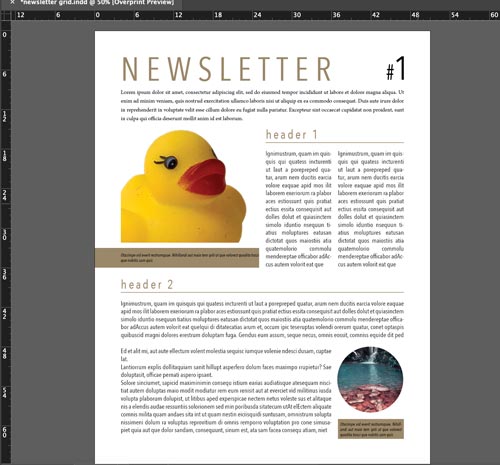
Now is time to get creative:
Add extra graphics if you need to.
Modify text colors and fonts if needed.
Move the modules around.
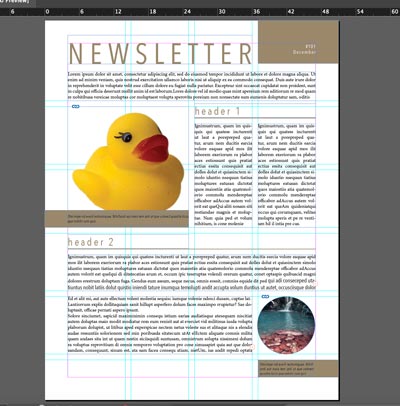
Consider using underlay elements or images with contrasted text over it.
Do not forget the grid structure!