Image Trace

convert bitmap to vector
WI State Standards:
- AA Cr10h
Investigate: Engage in critical thinking, problem solving, and research through elements and principles of art and design studio practices and processes.
(aesthetics / problem solving) - AA Cr12h
Make: Create works of art that introduce students to media, care of tools, and basic craftsmanship skills.
(skills) - AA Pr10h
Develop meaning: Create s body of work incorporating personal, historical, and contemporary art to communicate one or morepoints of view.
(aesthetics / communication)
Learning objectives
- graphic problem solving
- creative project: planning and executing
- manipulating images
- editing tools
- converting bitmap to vector
Image Trace lets you convert raster images (JPEG, PNG, PSD etc.) to vector artwork.
Using this feature, you can easily base a new drawing on an existing piece of artwork by tracing it.
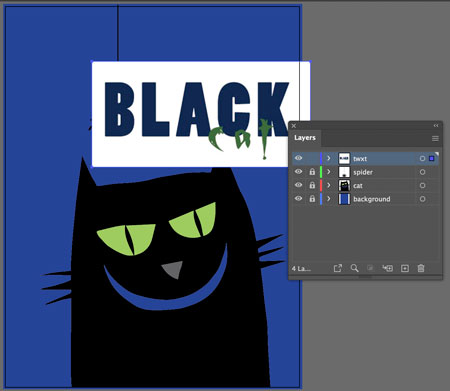
example

STEPS

Create a new document in Adobe Illustrator:
Artboard: letter (8.5" x 11"); units: inches

Draw a rectangle and apply fill color #2B3990
Name the layer "background" and lock it.
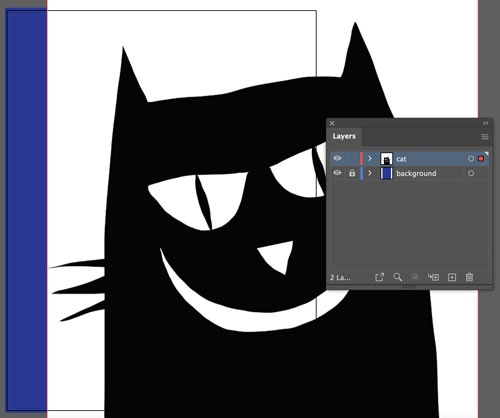
Create a new layer.
Copy the cat image.
Paste it onto the new layer.
Name the layer "cat".

If you zoom into the image – you will see pixels.
This is a raster image! Keep it selected.
In the Menu bar:
Object > Image Trace > Make and Expand
This option works perfectly for black-and-white images.

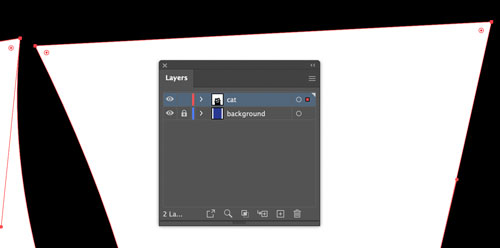
Now it’s a vector object.

You can see paths and anchor points.

Use Direct Selection tool. Click on the white background.


Hit Delete key to remove the background

Continue using Direct Selection tool to select objects and apply color to them.
To match the mouth color with the background – use Eyedropper tool.

Lock the cat layer and create a new one.
Name it "spider".
Paste the spide image onto the layer.

This is a .PNG image with a transparent background.
The spider is not a black-and-white image – it has different shapes and different colors. So we are going to use a different approach.

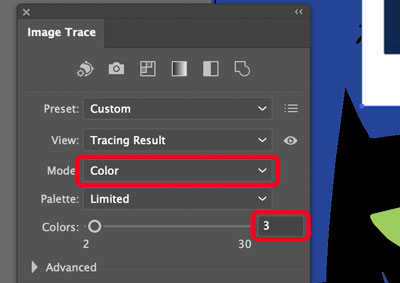
Instead of going directly to Image Trace from the menu bar – go to Window > Image Trace.
This will bring up a panel with Image Trace settings.

Choose Grayscale mode.

Now each color became a separate shape with a shade of grey.
Transparent background becomes white.
Use Direct Selection tool to select shapes and apply fill colors.

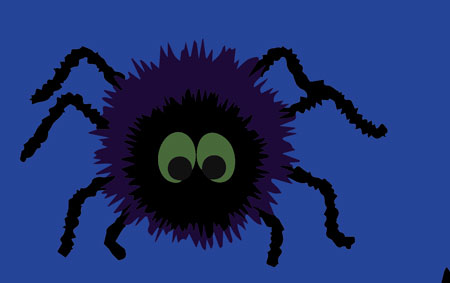

Resize the spider now.
Add a straight vertical line for the spiderweb.