Cooking Recipe Layout

WI State Standards:
- AA Cr10h
Investigate: Engage in critical thinking, problem solving, and research through elements and principles of art and design studio practices and processes.
(aesthetics / problem solving) - AA Cr12h
Make: Create works of art that introduce students to media, care of tools, and basic craftsmanship skills.
(skills) - AA Pr10h
Develop meaning: Create s body of work incorporating personal, historical, and contemporary art to communicate one or more points of view.
(aesthetics / communication)
Learning objectives
- graphic problem solving
- creative project: planning and executing
- communicating ideas and concepts
- create a flow in layout
- using InDesign
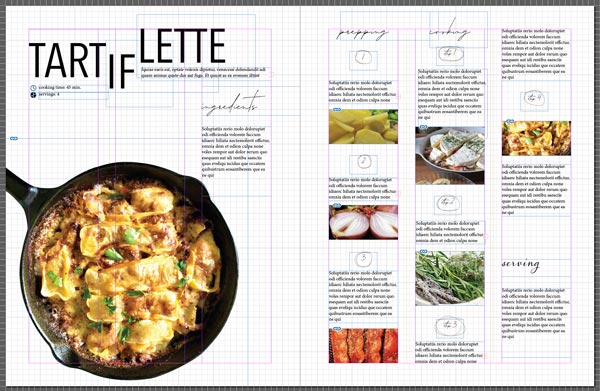
- grid layout
Find a cooking recipe to design.
Collect all necessary information:
- Name
- category (soup, snack, desert, etc.)
- cooking time
- number of servings
- ingridients
- preparation steps
- images
- symbols / graphics / icons (optional)
- resource
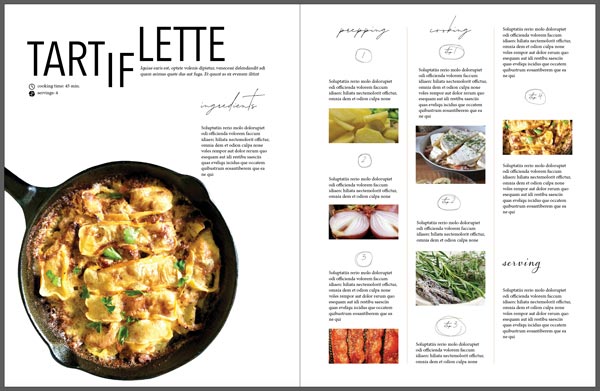
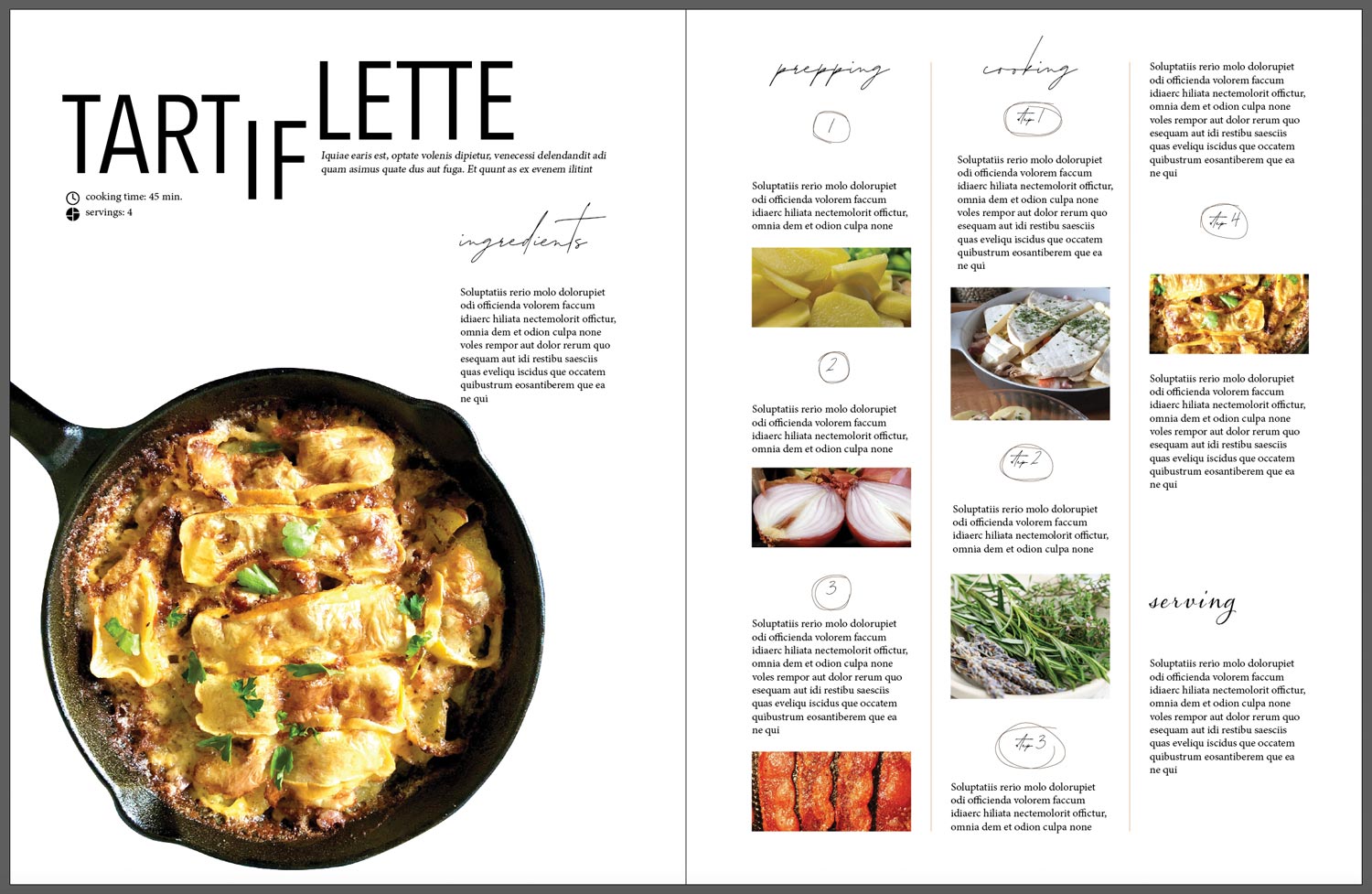
examples:
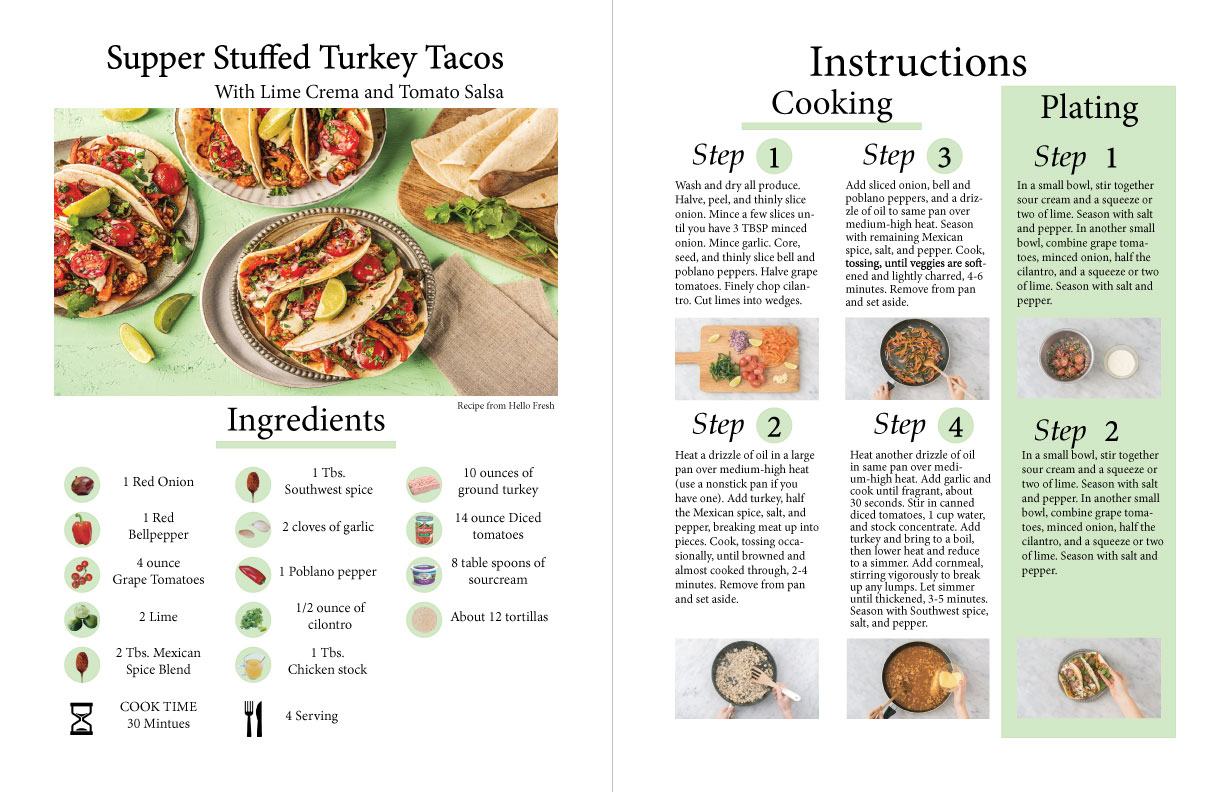
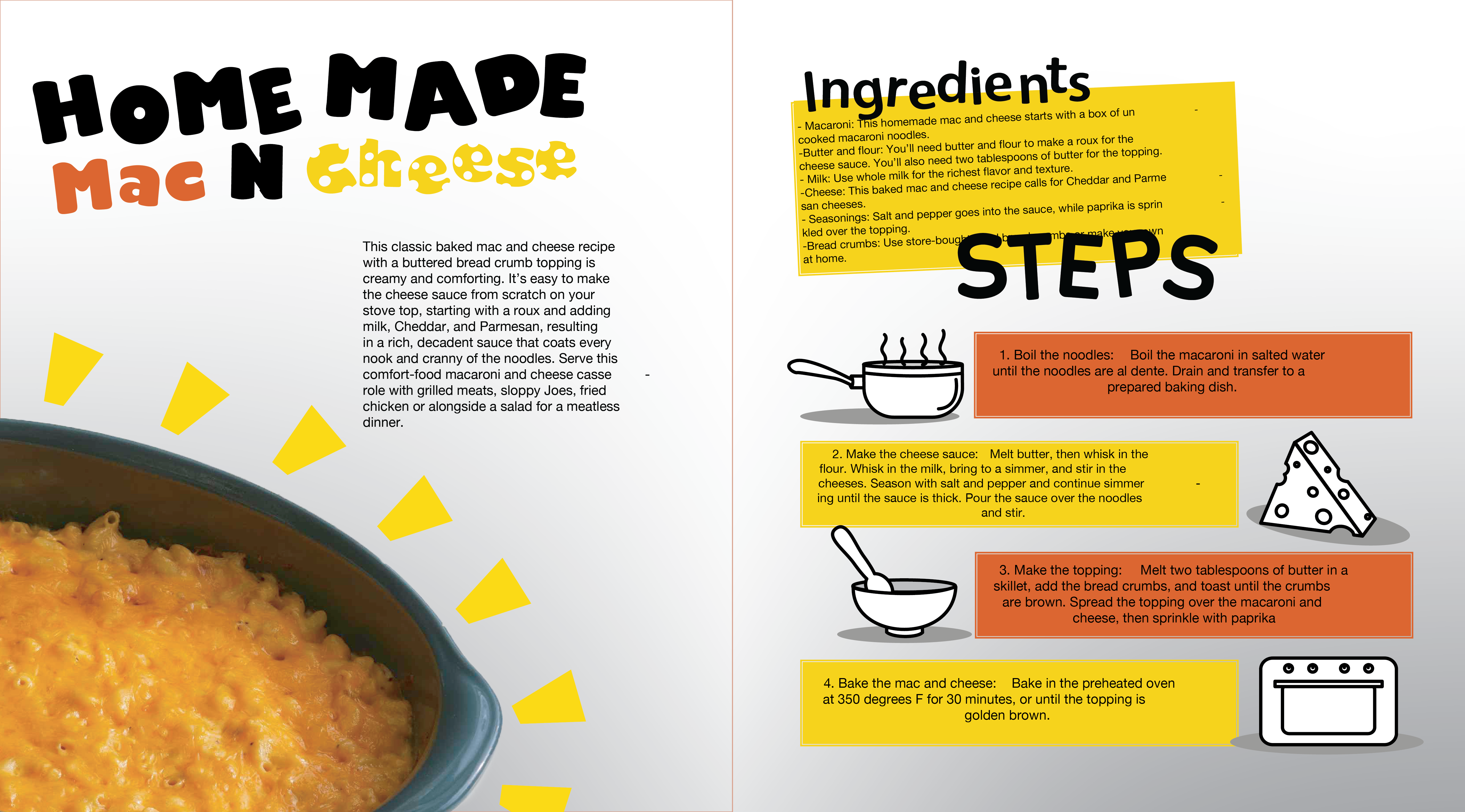
Organize
Divide data into parts.
Organize the parts with headers and sub-headers. (Hierarchy!!!!!)
Use a 2-page spread for the recipe layout.
Things to consider:
1. Where do the viewer start on the first page?
2. What are the key-points (key-elements) that you want to use as anchors for the flow? Highlight them. These should be the headers and sub headers, lists, important points, images, other supporting graphics.
3. What is your goal as a designer? To keep the viewer engaged.
4. How you do that? By creating your own flow. By emphasizing the key elements, adding images / photos, supporting graphics (lines, shapes, color, etc), and enough white space (negative space) to keep it simple and elegant.
5. Use paper and pen to sketch a new layout for each page.
6. Both pages should work together.
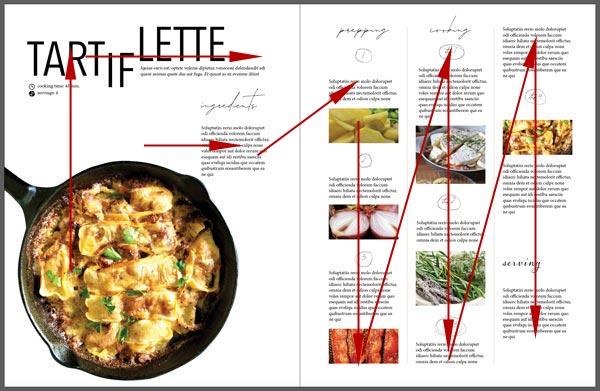
7. Draw arrows on you sketches to show your intended flow. Show it to me before you finalizing.
8. PLEASE!!! Use grid structure!!!!!!! (Align!!!!)))
9. Look for appropriate graphics to add.
10. You need to be able to defend the use of each additional graphic element!
11. Fonts: use up to 2 fonts that work together.
12. You should end up with a layout that looks engaging and easy to follow.
13. Don’t overdo things!!!!
14. no more than 2 extra colors
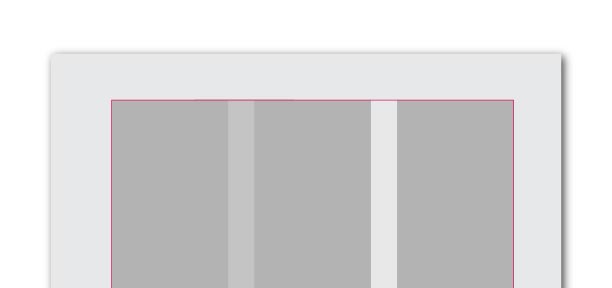
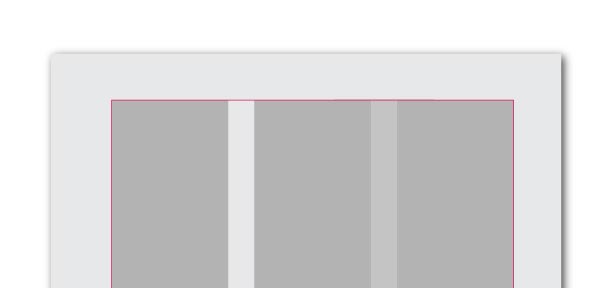
Based on your sketches:
- How many columns do you have?
- How much space should be between the columns?
- Are you combining any columns?
Make image decisions:
- What is your main image?
- Do you need to Photoshop your images? (remobe background, improve quality, etc.)
- Do you have an image for each step? (not necessary, by the way)
- Do you need to create symbols / icons ? other graphics? (you can use Illustrator for that)
Do the math:
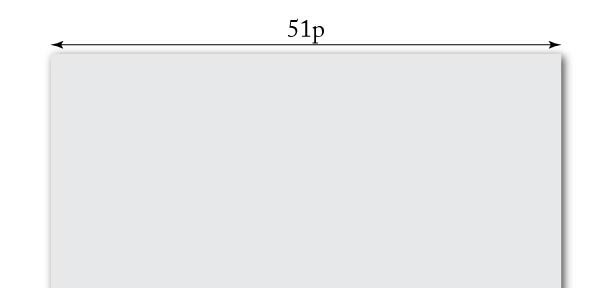
The width of your page is 51 picas
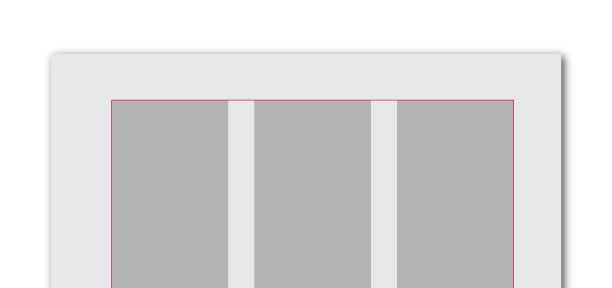
You will need to calculate margins, column width and gutters (space between columns).
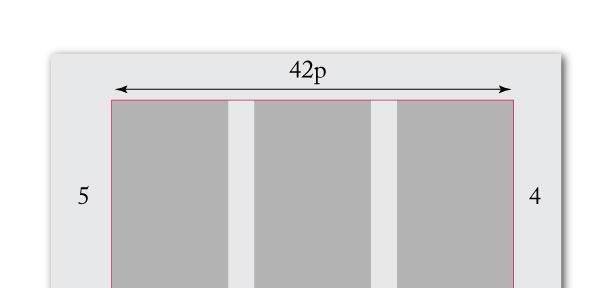
Margin width is usually 4 picas all around.
In order to fit 3 columns – the content area should be divisible by 3
So I added 1 pica to the inner margin.
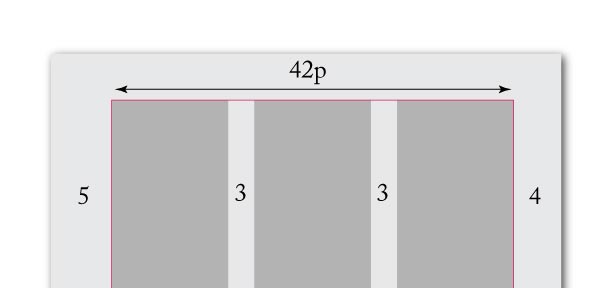
How much space you want between the columns?
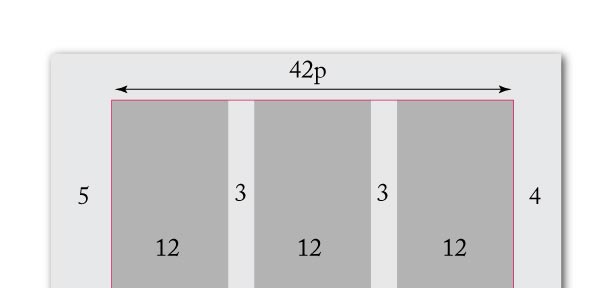
That leaves the column width 12 picas.
You will use these numbers for setting up your grid in InDesign.
in InDesign:
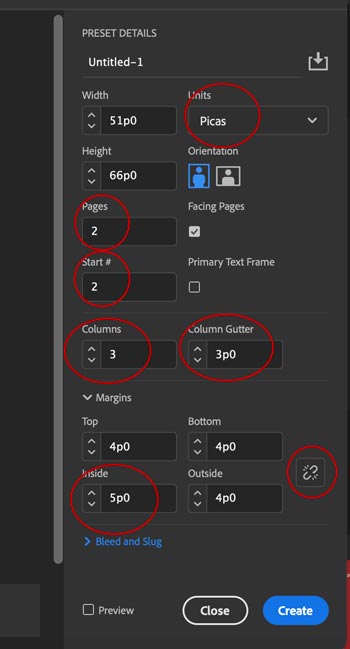
Create a new 2-page spread:
Start with page 2 (to view them side by side)
Insert number of columns and cutter value
If you need to change the margins – unlink the values and input your number.
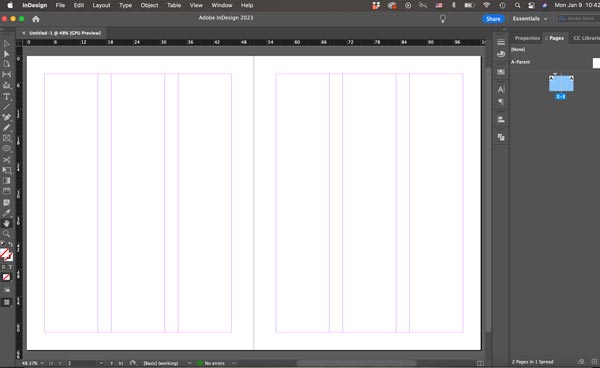
You are almost ready to start.
View > Grids & Guides > Show Document Grid … > Snap to Document Grid
Adjust the grid:
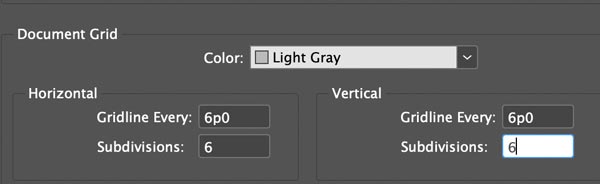
Use grid for additional alignment.
Start creating text frames and image frames.