


Color Wheel Project

WI State Standards:
- AA Cr10h
Investigate: Engage in critical thinking, problem solving, and research through elements and principles of art and design studio practices and processes.
(aesthetics / problem solving) - AA Cr12h
Make: Create works of art that introduce students to media, care of tools, and basic craftsmanship skills.
(skills) - AA Pr10h
Develop meaning: Create s body of work incorporating personal, historical, and contemporary art to communicate one or more points of view.
(aesthetics / communication)
Learning objectives
- graphic problem solving
- creative project: planning and executing
- dominant colors
- color schemes
- using Adobe Illustrator
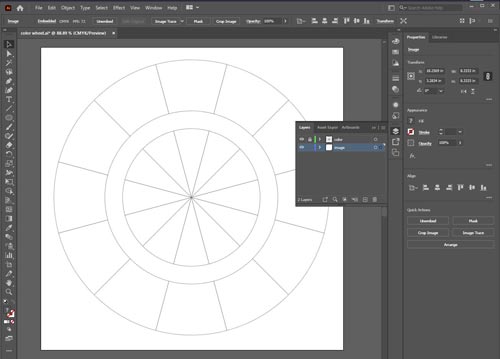
This assignment is focusing on using dominant colors in design.
Start with the attached file. Open it in Adobe Illustrator.
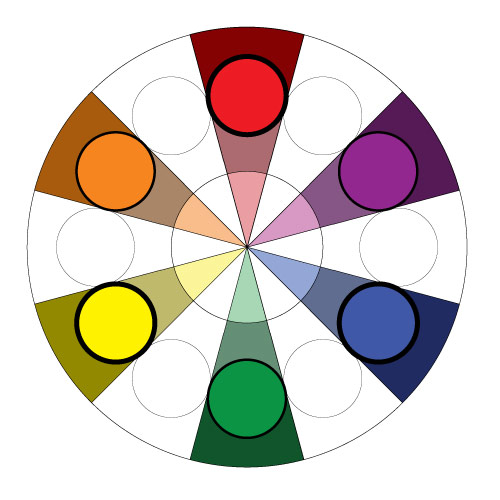
You should see a color wheel template with 12 sections (for primary, secondary, and tertiary colors).
The outter circle is for images, the inner circle is for sapmled colors.
You will:
1. Find an image with a dominant color that fits each section.
2. You will learn to use Clipping masks and editing Clipping Groups in Illustrator
3. You will learn to sample colors in Illustrator
examples:

STEPS
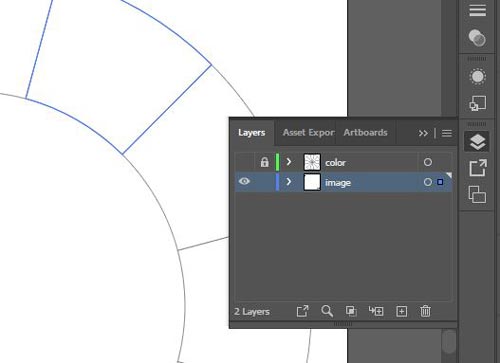
There are 2 layers in your file.
Lock and hide the top layer ("color").
Select the bottom layer ("image")
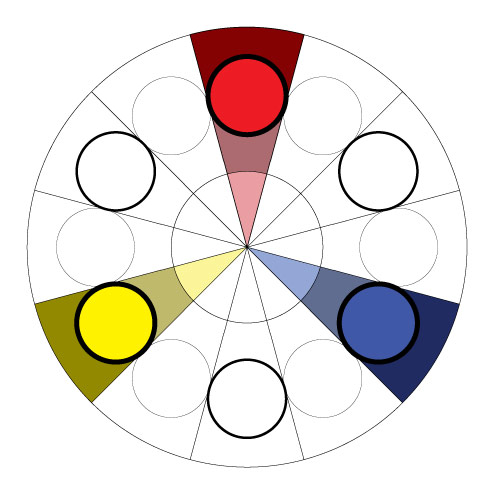
Start with primary colors.
Red, Yellow, and Blue.
They should be spaced out evenly.
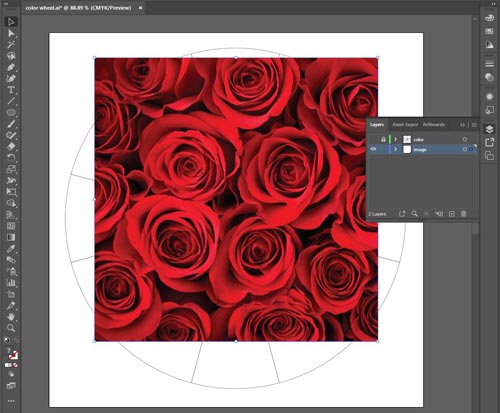
Let’s go with Red first.
Think of an object or a theme that would have red ads a dominant color in a picture.
I think roses.
Copy an image from your browser and paste it into the file.
If the image is too big – resize it. Remember to hold Shift to constrain proportions.
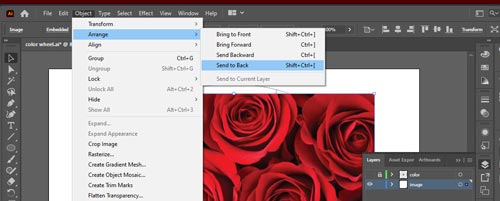
The next step is to position the photograph behind the circle.
Object > Arrange > Send to back
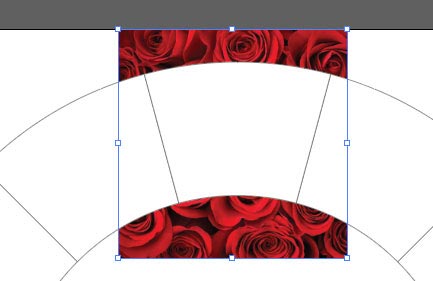
Select both – the imge and a section of the color wheel.
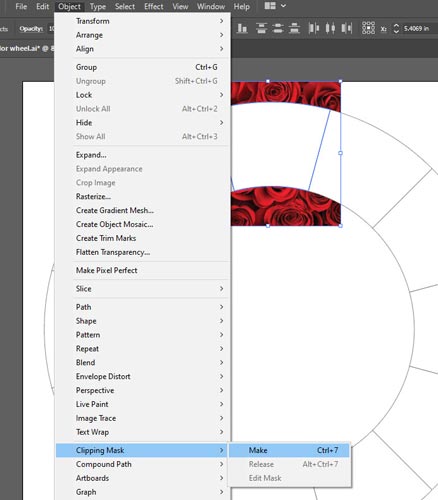
Object > Clipping Mask > Make
This creates a Clipping Group, where the top shape becomes a "cookie cutter" for the rest of the group.
It hides everything outside the top shape, and reveals, like a window, what’s inside.
Clipping groups cand be edited or released at any time.
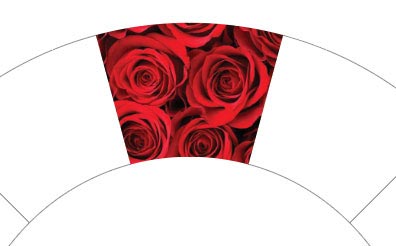
This is what a clipping group looks like.
The top shape looses it properties (color and stroke) and stays only as a path.
So it does not matter what color is the top shape!
Complete all primary colors!
Secondary colors next!
Orange, Green, Purple
Place them between the primaries.
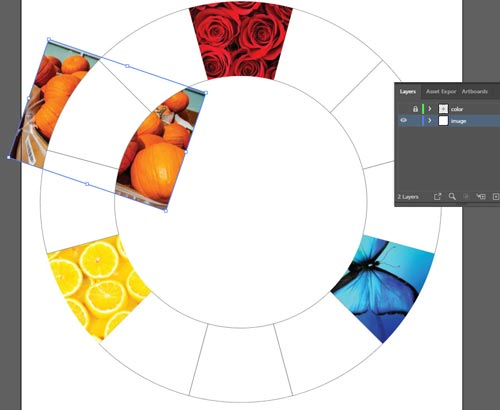
You can rotate the images to position them just perfect.
Then apply the Clipping mask.
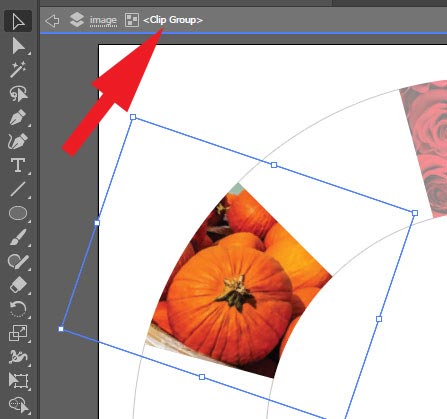
If you want to edit the image after you’ve applied a clipping mask – double-clicl in it.
It will take you to the clipping group mode.
You can move, rotate, or resize the image without affecting the top shape.
But!!!
You can also change the clipping shape. Just not for this assignment :))
You can return to the standard mode by using the arrow at the top left of the window.
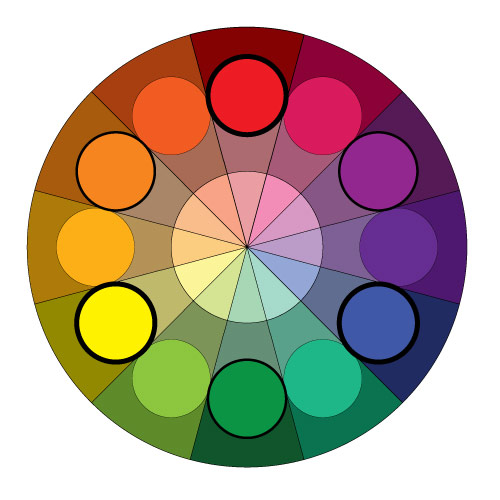
Tertiary colors next.
Red-orange
Yellow-orange
Yellow-green
Blue-green
Blue-purple
Red-purple
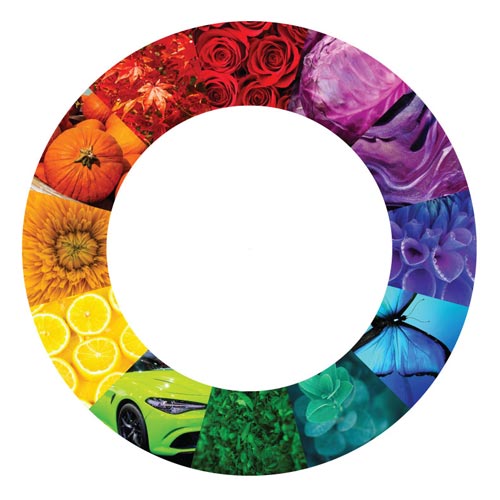
Done!!
Save.
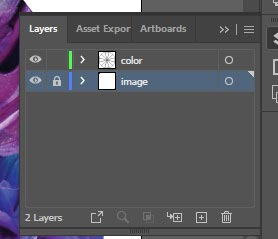
Lock the "image" layer, make visible and unlock the top "color" layer.
Select the top layer.
We are going to use the "eyedropper" tool to apply some selected colors to the center circle.
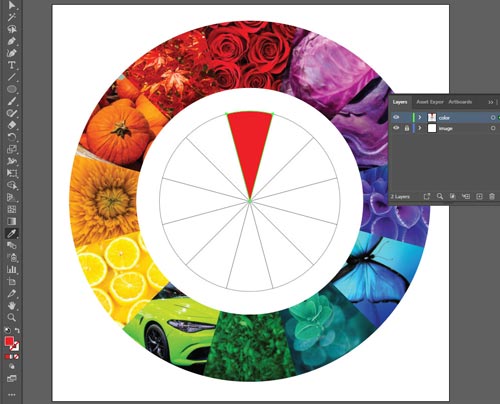
Use Direct Selection tool to select a segment next to the red area.
(We need to use Direct Selection tool instead Selection tool because all segments are groupped together).
Then choose the Eyedropper took and click inside the red photograph to sample a good vibrant red.
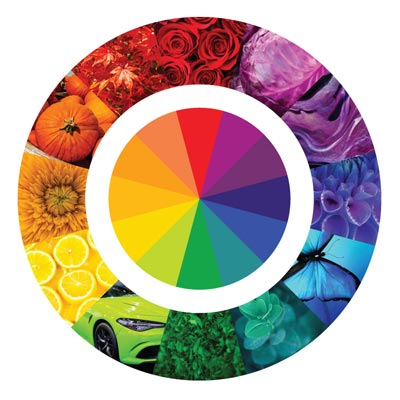
Continue sampling colors for the rest of the segments.