


Toucan

Illustrator: drawing with shapes
WI State Standards:
- AA Cr11h
Plan: Formulate original concepts by practice, experimentation, and revision. (planning/experimentation) - AA Cr12h
Make: Create works of art that introduce students to media, care of tools, and basic craftsmanship skills.
(skills) - AA Pr10h
Develop meaning: Create s body of work incorporating personal, historical, and contemporary art to communicate one or morepoints of view.
(aesthetics / communication)
Learning objectives
- modifying simple shapes
- editing tools
- pathfinder
- gradients
Recreate this toucan by modifying shapes in Illustrator.
Follow the steps. Pay attention to how everything is done. Do not skip steps.
finished image

STEPS
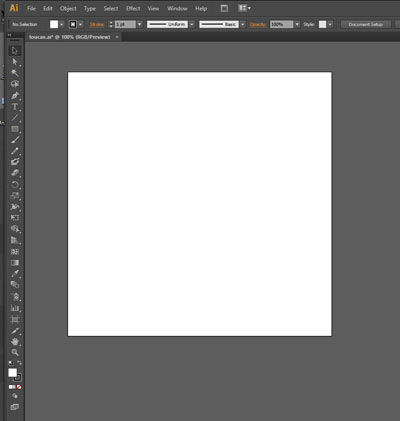
step 1
File > New
8" x 8"
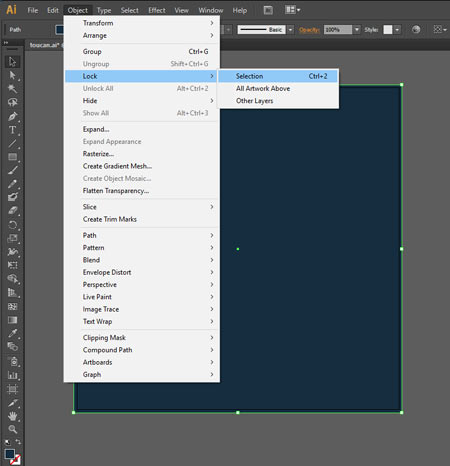
step 2: background
 Use Rectangle tool, hold Shift and draw a square that is slightly bigger than the artboard.
Lock the square so you don’t accidentally move it or edit:
Object > Lock > Selection
step 3: body

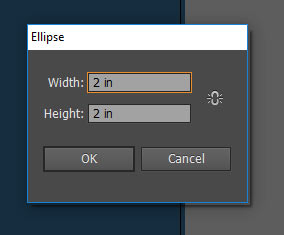
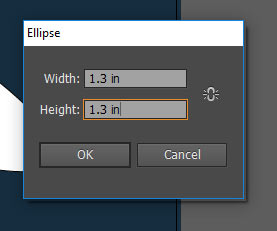
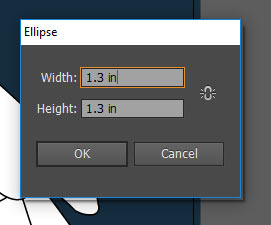
Click on the artboard with Ellipse tool.
Set the dimensions as shown
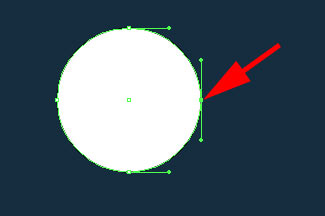

Select the right anchor point with Direct Selection tool.
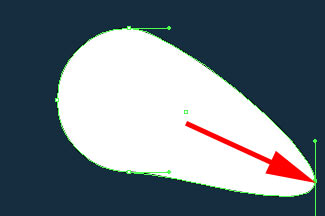
Drag it as shown.
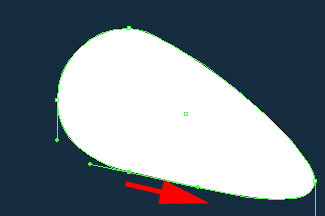
Manipulate the bottom anchor point’s handles to smooth the shape.
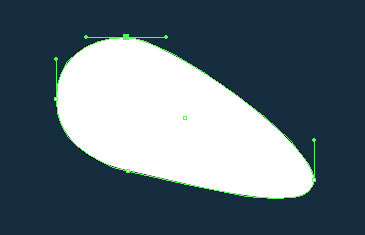
Adjust the top anchor point if needed.
step 4: head
Click on the artboard with Ellipse tool.
Set the circle dimensions.
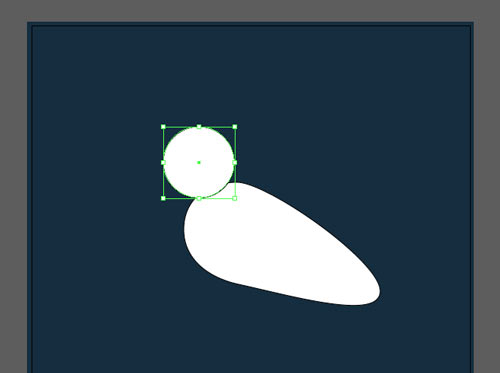
Position the circle as shown.
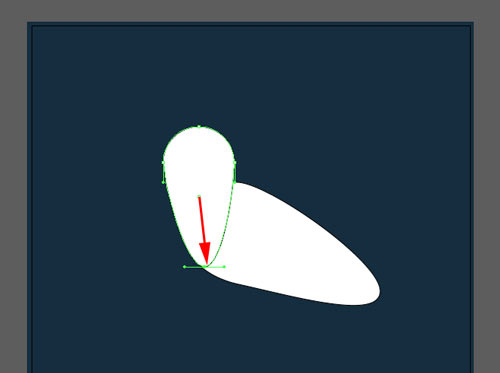
Drag the bottom anchor point down until you reach the previous shape outline.
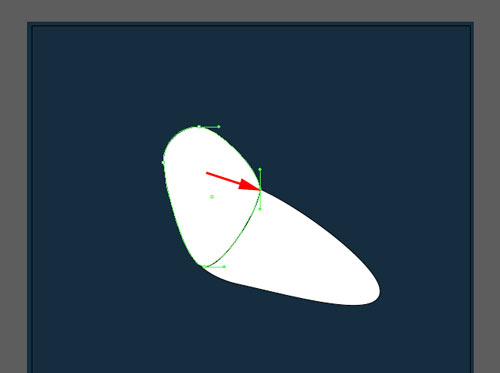
Drag the right anchor point to the previous shape outline.
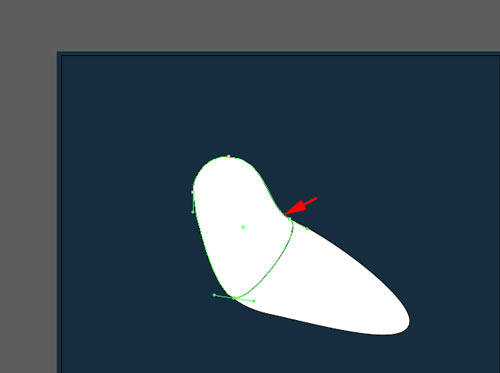
Manipulate the direction lines for a nice curve.
step 5: combine shapes
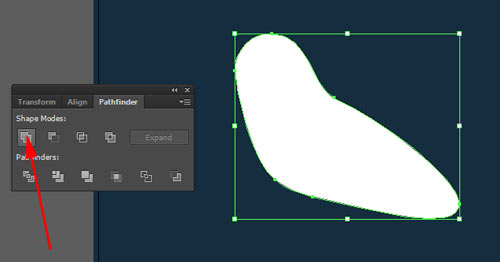
Select both shapes.
In Pathfinder palette:
click Unite button
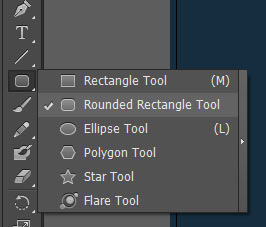
step 6: chest
Add a shape for the bright colored chest part.
Choose Rounded Rectangle Tool
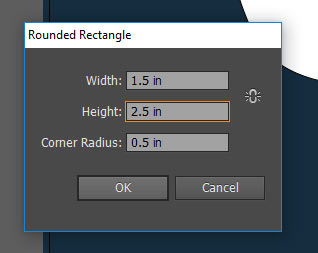
Click on artboard.
Set the dimensions.
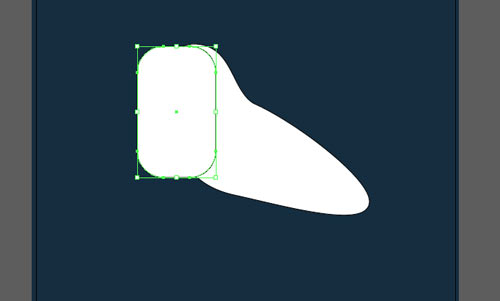
Position as shown.
The top of the chest shape should be close to the top of the body.
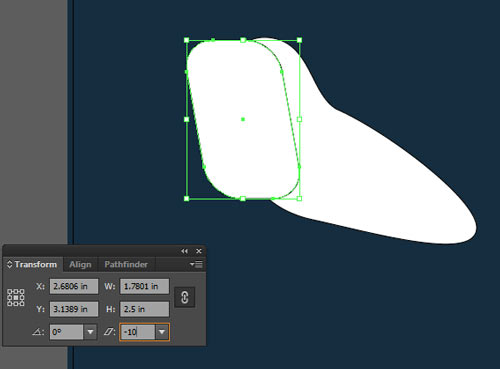
To tilt the chest shape:
Go to Transform palette.
Type -10 in Shear Setting.
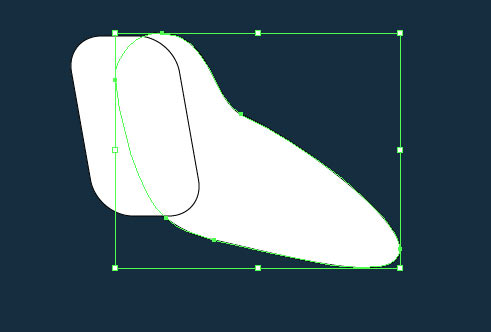
Cut the top shape to match the body shape:
1. Select the body shape
2.Copy (Command/Ctrl C)
3. Paste in Front (Command/Ctrl F)
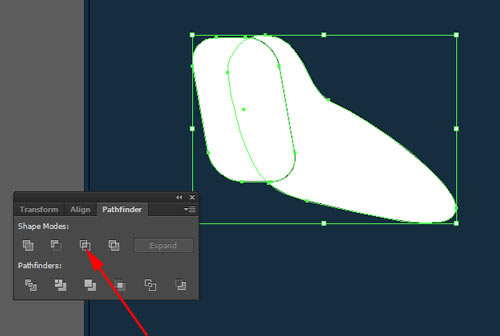
Shift-click on the chest shape to add it to selection.
Now you have 2 shapes selected (the copy of the body and the chest).
In Pathfinder palette: click on Intersect button.
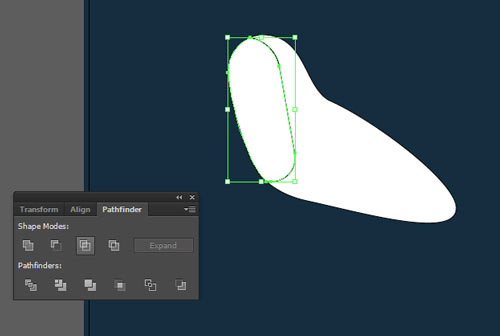
It will keep the shape that is a result of overlapping of these two shapes.
The parts that are not overlapped will be gone.
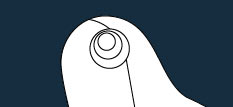
step 7: eye
Draw 3 circles as shown.
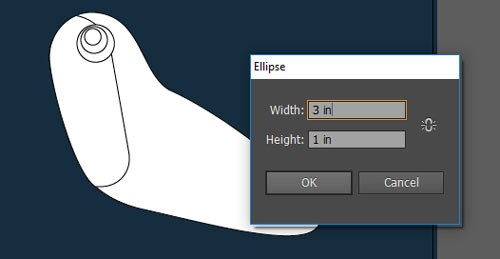
step 8: beak
Click on the artboard with Ellipse tool.
Set dimensions.
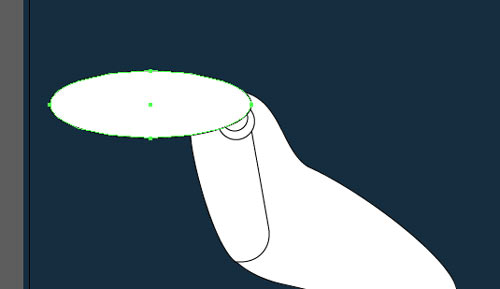
Position the oval as shown.
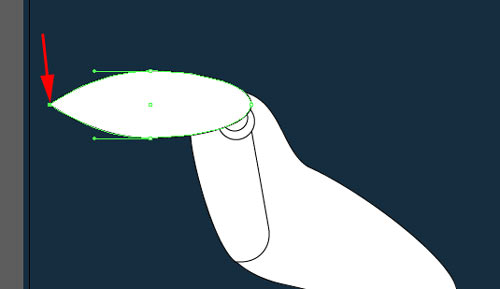

Use Convert Anchor point tool and click on the left point.
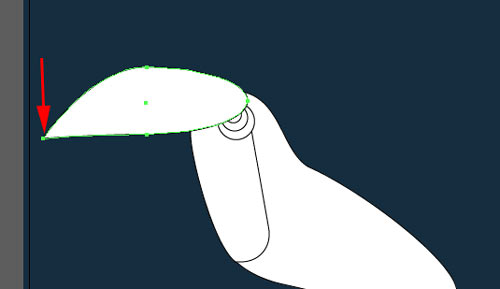
Use Direct Selection tool to drag the left point down.
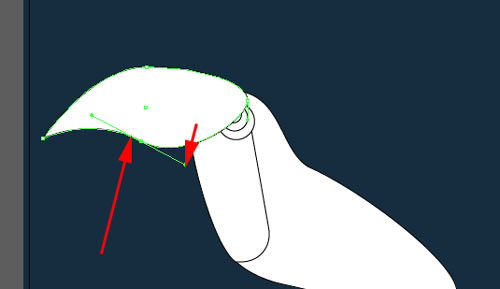
Adjust direction lines for the bottom anchor point.
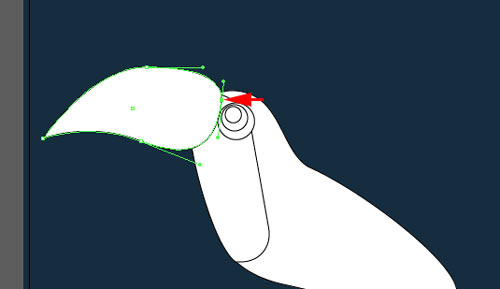
Move the right anchor point to the left.
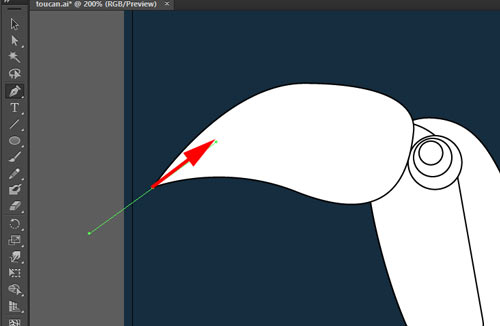
 To split the beak shape into two parts:
Use Pen tool and start a path from the left point as shown.
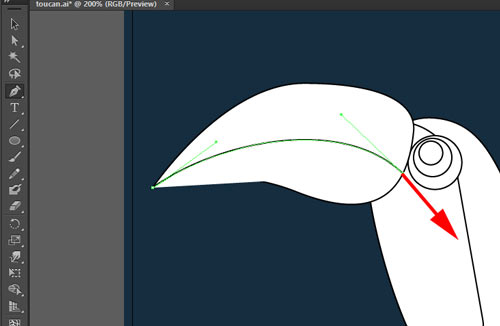
Second anchor point.
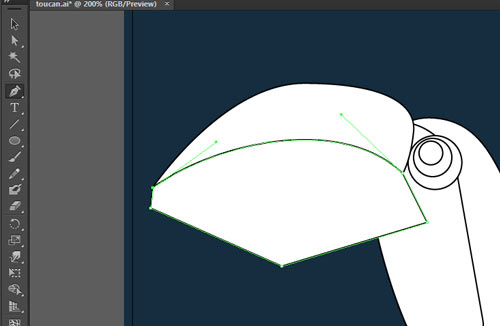
The next few points need to be placed outside of the beak shape.
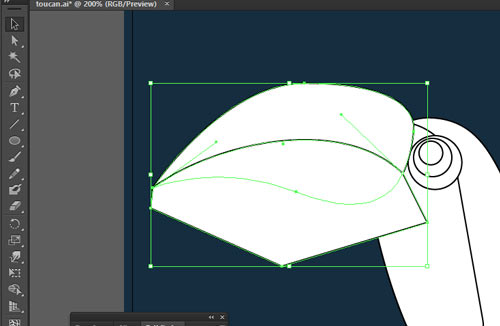
Select the beak and the new shape (use Shift).
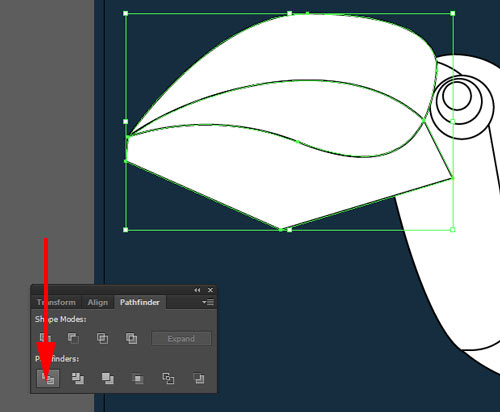
In the Pathfinder palette:
Click Divide button.
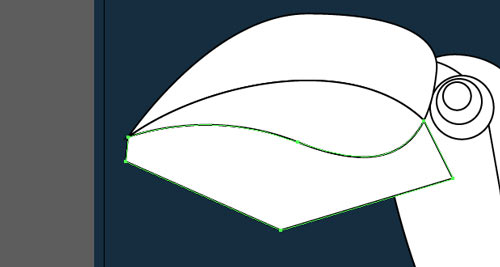
Then select the extra shape below the beak…..
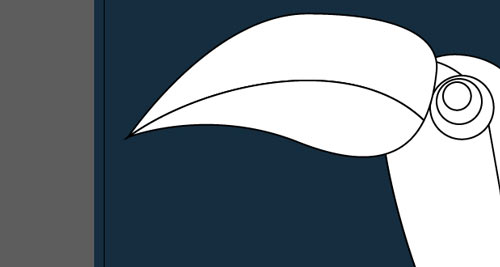
Delete it.
step 9: wing
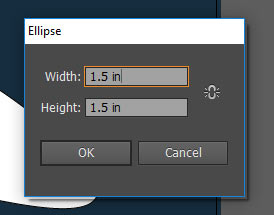
Start with a circle.
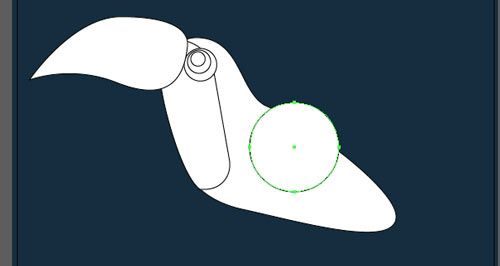
Position it as shown.
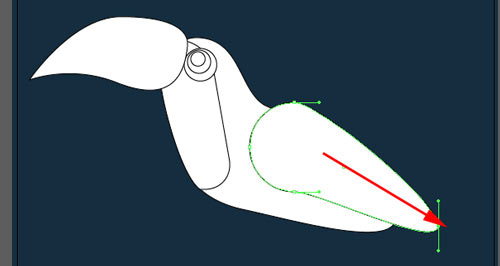
Use Direct Selection tool to drag the right anchor point as shown.
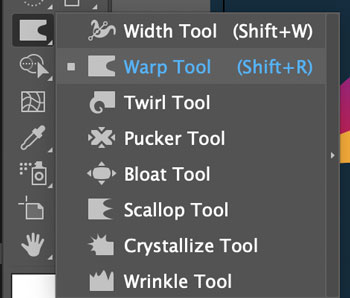
To distort the bottom part of the wing – we are going to use Warp tool.
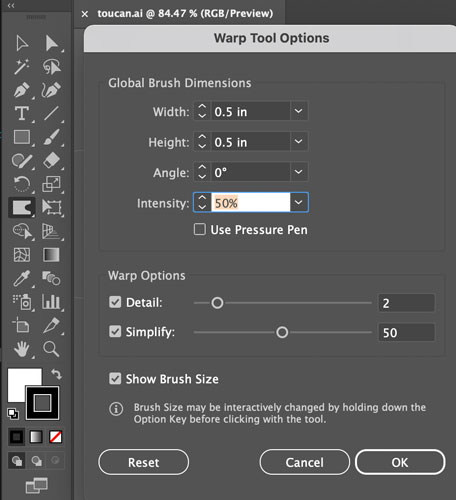
First we need to set the size option for the tool.
Double-click on the tool to get options pop up.
Set the brush size to 0.5" x 0.5"
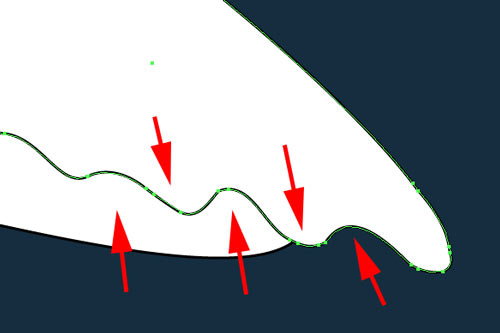
Push the outline in and out for a nice wave.
step 10: legs
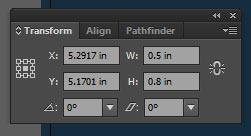
Start with drawing an oval.
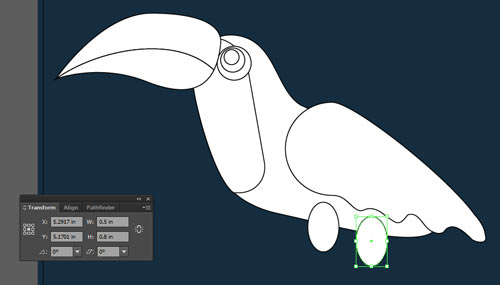
Duplicate the oval.
step 11: branch
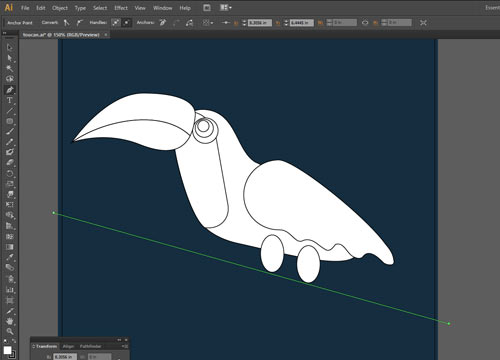
Use Pen tool (or Line Segment tool) to draw a path as shown.
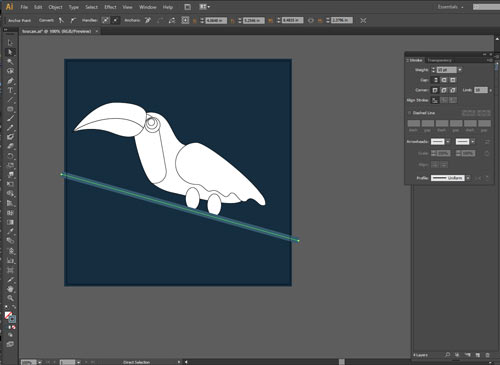
Apply a stroke to the path.
Pick a color (Color Picker or Swatches palette)
Set a weight for the line (Options bar or Stroke palette).
step 12: feet
Select Rounded Rectangle tool from the Tool box.
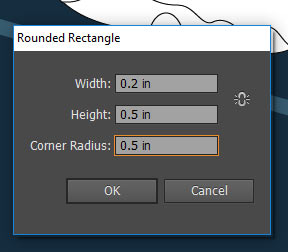
Click on the artboard.
Set dimensions.
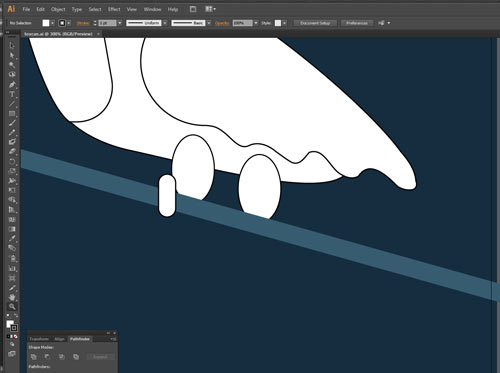
Position as shown.
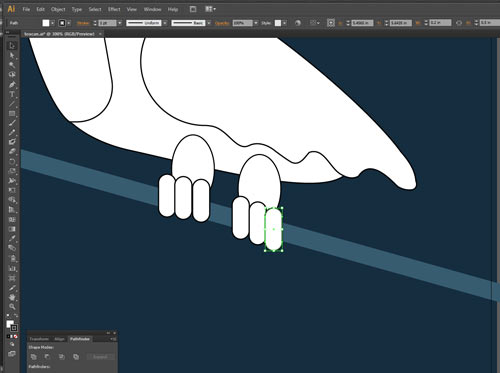
Duplicate (Option/Alt drag)
File > Save
step 13: tail
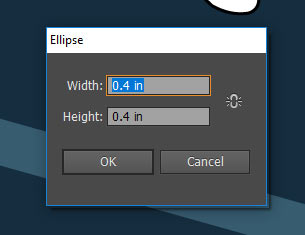
Start with a circle.
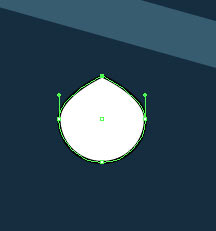
Convert the top anchor point.
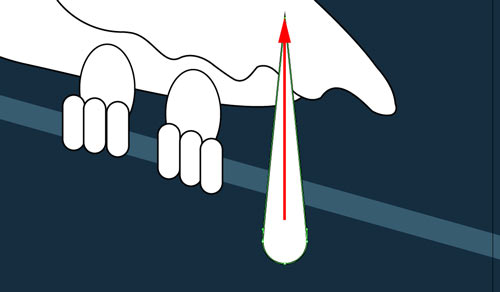
Drag the top point up.
You can use arrow key on the keyboard.
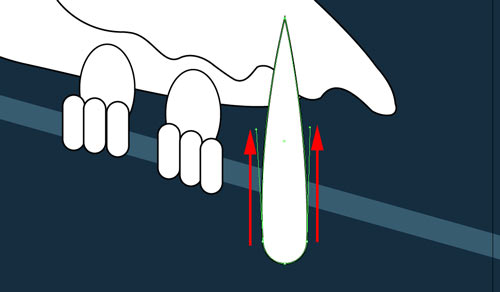
Adjust the side points by dragging direction lines up.
This will make the feather wider.
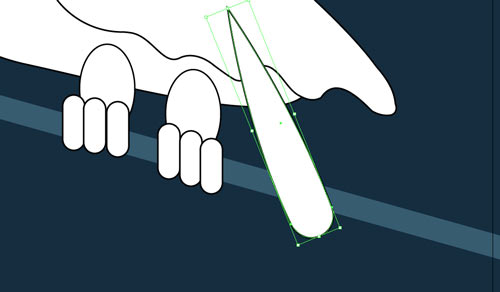
Select the feather with Selection tool.
Rotate the shape.
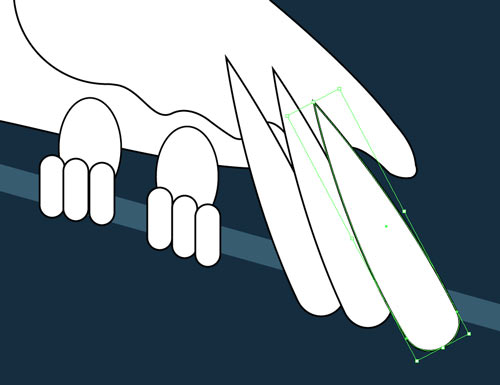
Duplicate feathers.
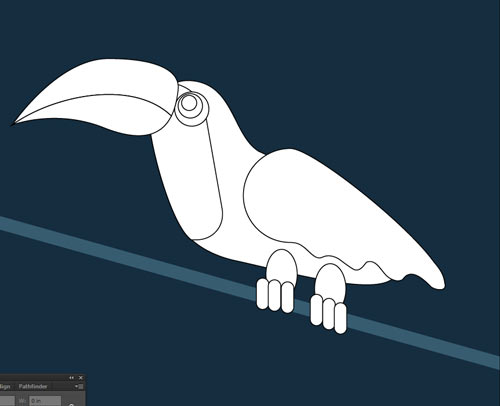
To place the tail behind the body:
Select all three feathers.
Edit > Cut (Command/Ctrl X)
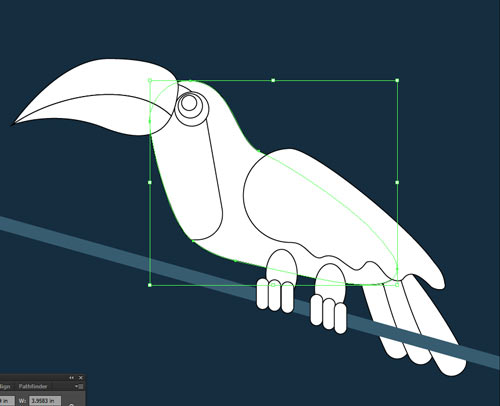
Select body shape.
Edit > Paste in Back (Command/Ctrl B)
File > Save
step 14: leaf
Start with a circle.
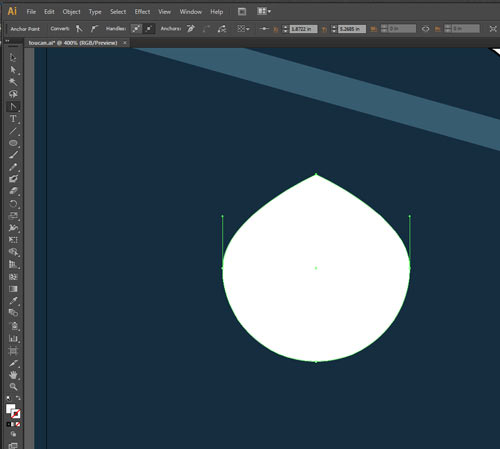
Zoom in the area.
Convert the top anchor point.
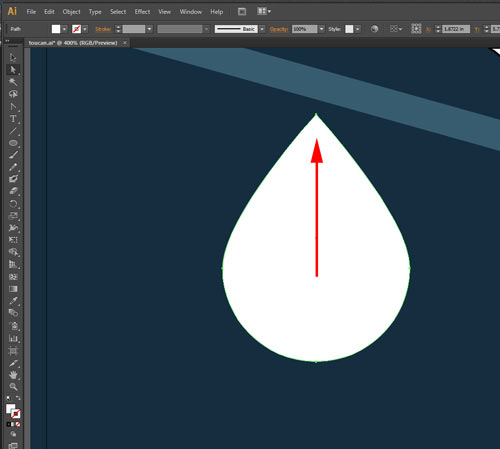
Drag the top point to form a leaf shape.
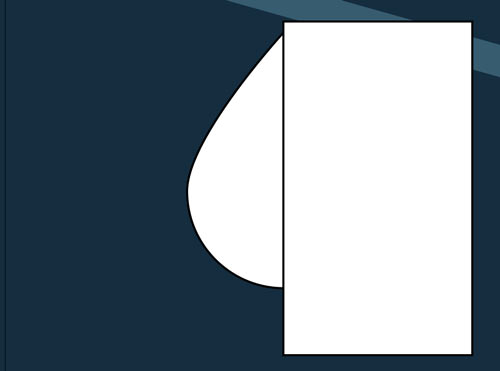
Draw a rectangle over one half of the leaf.
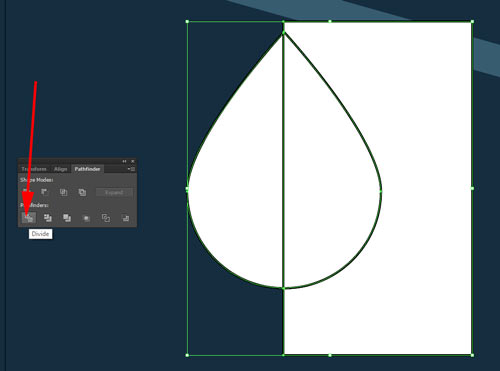
Select both shapes.
In Pathfinder palette:
Click Divide.
All three shapes are grouped.
To select just one of them – use Direct Selection tool.
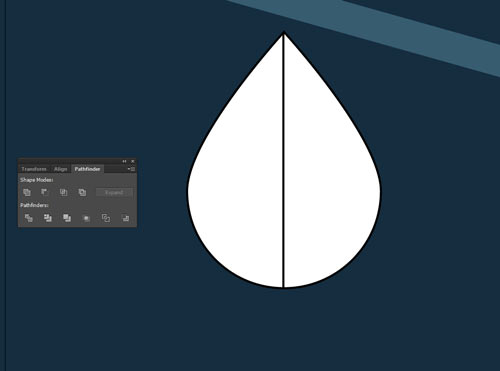
Select the extra shape .
Delete it.
File > Save
step 15: color the toucan
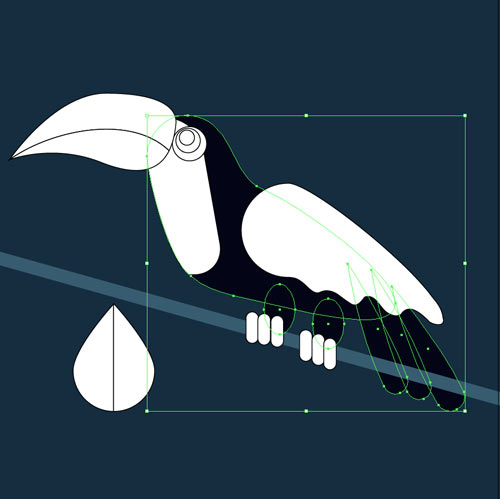
With Selection tool: select body, tail, and legs.
Select Black for fill color
No stroke.
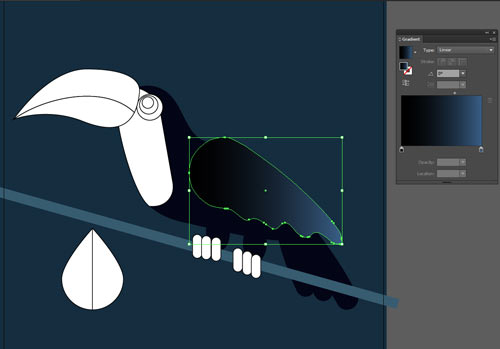
Select the wing.
Set fill option to Linear Gradient.
In Gradient palette set colors to Black and dark Blue.
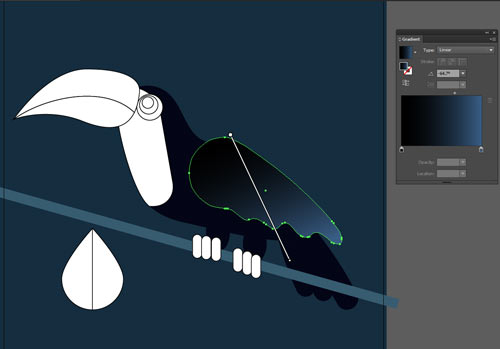

Choose Gradient tool.
Click and drag the gradient at a slight angle (as shown).
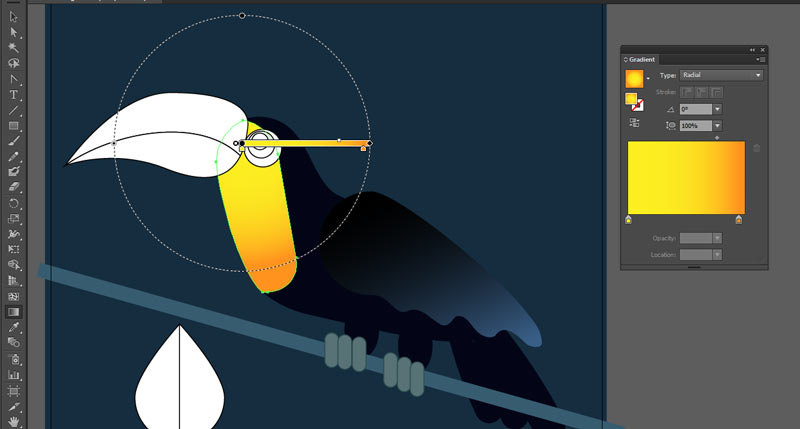
Select the chest shape.
No stroke.
Fill type: Radial Gradient.
Colors: Yellow to Orange.
With the Gradient tool: resize the gradient.
Select feet shapes:
fill: solid color
stroke: yes, darker shade
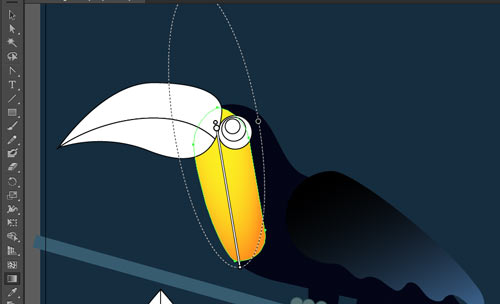
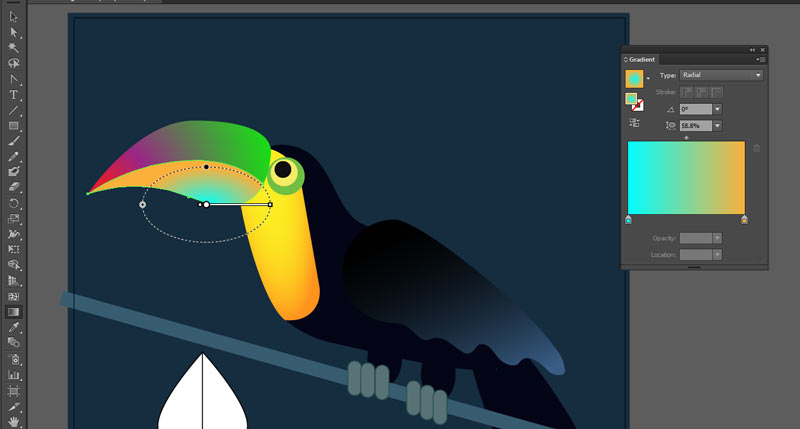
Modify gradient to an oval shape.
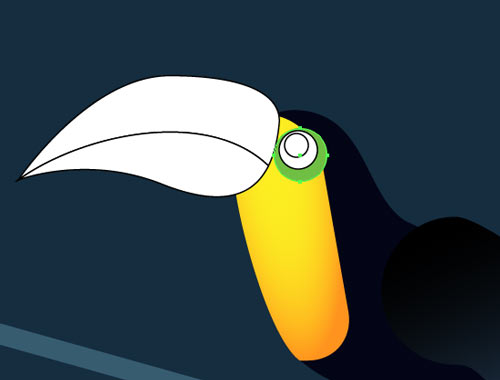
Eye:
bottom circle – yellow-green, no stroke.
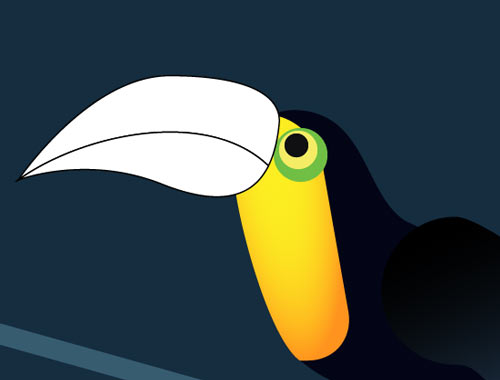
middle circle – yellow fill, no stroke
inner circle – black
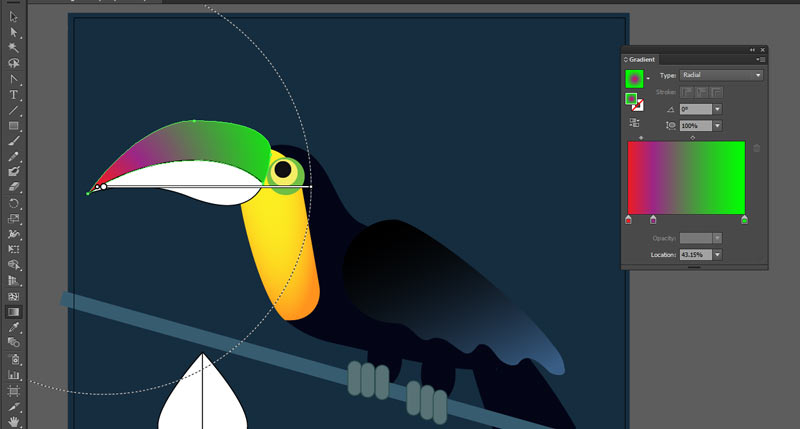
The beak will be more complex:
Select the top part with Direct Selection tool.
Choose Radial gradient fill, no stroke
Create custom gradient as shown
Apply gradient to the bottom part of the beak.
Use settings as show.
step 16: color leaves
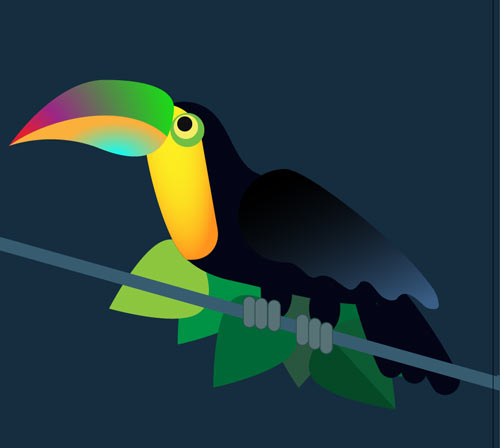
Duplicate the leaves.
Rotate them.
Place them behind toucan:
1. Select all leaves except one (keep it in front for the foreground)
2. Cut
3. Select feathers (these are the shapes that are the furthest)
4. Paste in Back
Apply different shades of green.
Leaves in the background can be simplified by having both sides be the same color.
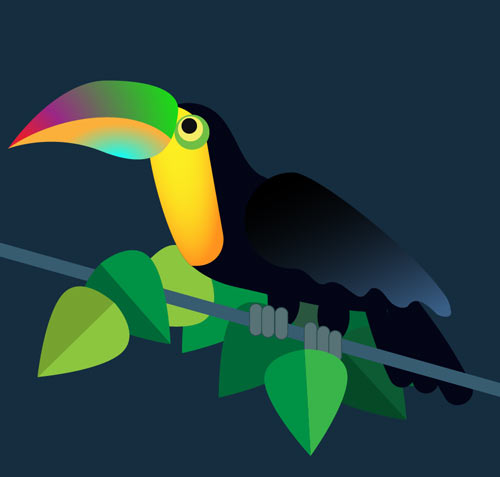
Add a few leaves in the foreground.
You are done!
File > Save
Don’t forget to sign!