


Spherize Filter
WI State Standards:
- AA Cr10h
Investigate: Engage in critical thinking, problem solving, and research through elements and principles of art and design studio practices and processes.
(aesthetics / problem solving) - AA Cr12h
Make: Create works of art that introduce students to media, care of tools, and basic craftsmanship skills.
(skills) - AA Pr10h
Develop meaning: Create s body of work incorporating personal, historical, and contemporary art to communicate one or morepoints of view.
(aesthetics / communication)
Learning objectives
- creative project: planning and executing
- making selections
- editing tools
- following directions
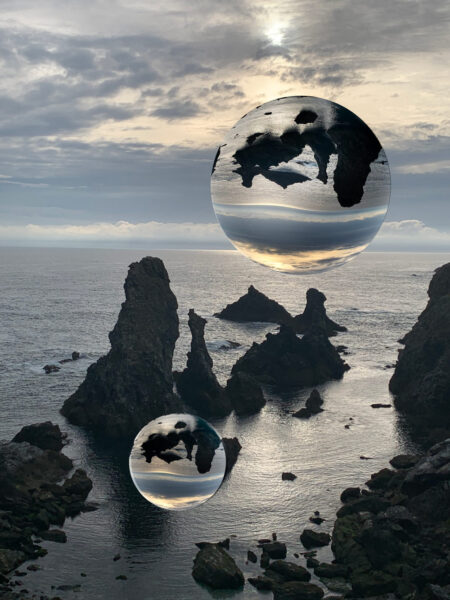
example

STEPS

Open up your image in Photoshop. You can use mine if you wish to, but feel free to find your own. Look for something dramatic!

Duplicate the background layer.
Improve Levels for more drama and contrast.

Create a new layer.

Select the Elliptical Marquee Tool in the toolbar.
Drag out a circular selection in the center of the image by holding Alt + Shift to draw a perfect circle.
Scale it to the desired size of your sphere.

Next, fill that circle with black.
Edit > Fill > Black (or Foreground Color – if it is at default setting).
Then deselect the circle(Ctrl D).

Move the Background Copy to the top.
Keep it selected.

Go to Filter > Distort > Spherize.
Max out the amount to 100%.
The filter will be applied to the entire image. The bubble will take the shape of the image.

Then press Ctrl + T to transform and scale it down to the same size of the black circle layer.
You’ll need to scale non-proportional to make it fit perfectly.
Temporally reduce the opacity of the bubble to match the black circle.

Hold the Ctrl/Cmd key and click on the layer thumbnail of the black circle layer to load its selection then add a layer mask to the Background Copy layer.

It should trim away the square corners.

We’ll add a Twirl Effect.
Go to Filter > Distort > Twirl. Add around 50% twirliness to distort the image slightly.

Add a new layer and select the Brush Tool.
A soft tip with 0% hardness.
Ctrl/Cmd click on the black circle layer to load the selection again.

Paint black on one side of your sphere to add some shading.
Swap the foreground and background color and paint with white on the opposite side to add some highlights.

Change the blending to Soft Light and reduce the opacity to around 40%

Double click the main sphere layer and add an Inner Glow Layer Style
Copy my settings.


You can add another layer for more highlights or light reflections.
Group all glass ball layers together.

You can flip the main sphere layer to make the balls look more realistic.
Then you can hide the black circle layer as we do not need it anymore.
Duplicate the group if you want more glass balls floating.

You can add different effects and filters to your image.
For example, you can use Filter > Render > Lens Flare
Experiment!