


Shelves with Jars

WI State Standards:
- AA Cr10h
Investigate: Engage in critical thinking, problem solving, and research through elements and principles of art and design studio practices and processes.
(aesthetics / problem solving) - AA Cr12h
Make: Create works of art that introduce students to media, care of tools, and basic craftsmanship skills.
(skills) - AA Pr10h
Develop meaning: Create s body of work incorporating personal, historical, and contemporary art to communicate one or morepoints of view.
(aesthetics / communication)
Learning objectives
- review Photoshop selection and editing skills
- removing objects in PS
- matching colors and contrast
- blending modes and effects
You should:
1. Remove all unwanted objects from the foreground.
2. Add a jar to each shelf.
Make them look as they belong on these shelves. Manipulate colors, contrast, levels, saturation, etc.
3. Emphasize on of them by making it glow.
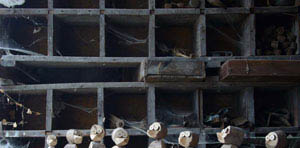
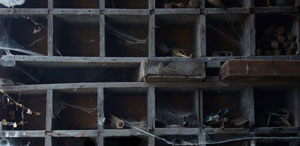

example
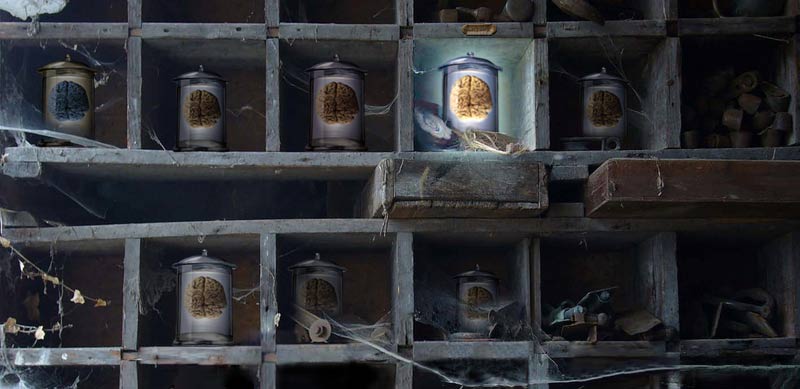
STEPS
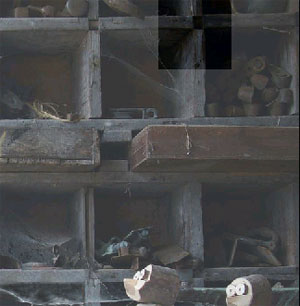
Select an area of the image that can be used to cover the objects and to match the background.
Most of the time that would be an area close to what you want to cover.
It does not have to be this particular area. You can select your own. But it has to work!!!!
Make a selection. Copy. Paste.
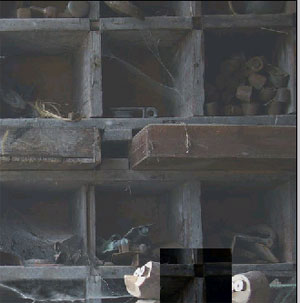
Now move this new "patch" to cover the objects.
Don’t worry if it does not fit perfectly… That’s why we have all these Transform Tools!!!
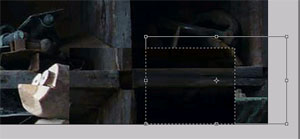
Once you adjusted the center, select a side of the "patch" and stretch it to cover all objects. (Free Transform, Distort, Warp, etc.).
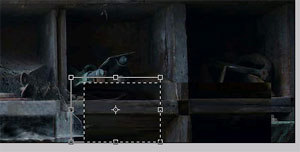
Repeat the steps for the other side of the "patch"
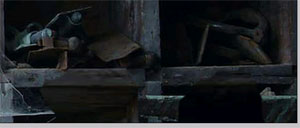
Once the objects are covered – try to align the boards.
Use Distort and Warp options.
Match the colors and values.
Use Soft eraser to blend the "patch" into the background.
Restore spider webs and the tools on the shelves that were covered by the objects.
Quick refresh on the tools to use:

Healing Brush and Patch Tool work after you merge the layers.
They are perfect foot fixing the edges of the "patch".
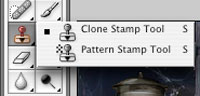
To restore webs and tools – use Clone Stamp Tool.
If you choose "Sample All Layers" option – you won’t have to merge the layers.
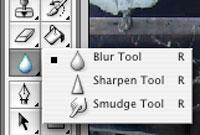
You might use Smudge Tool for blending.
Just don’t overdo it!!!!
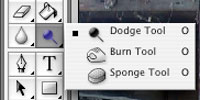
Remember:
Dodge Tool makes it lighter. Burn Tool makes it darker.
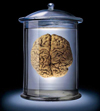
Add the jars!
Start with removing the background.
Experiment with layer blending modes, layer opacity, image adjustment options (color balance, levels, hue, saturation, etc.)
Use Layer Masks to remove/hide parts of the image.
Use Layer styles and filters to make one jar glow.