


Shapes Animation

WI State Standards:
- AA Cr10h
Investigate: Engage in critical thinking, problem solving, and research through elements and principles of art and design studio practices and processes.
(aesthetics / problem solving) - AA Cr12h
Make: Create works of art that introduce students to media, care of tools, and basic craftsmanship skills.
(skills) - AA Pr10h
Develop meaning: Create s body of work incorporating personal, historical, and contemporary art to communicate one or morepoints of view.
(aesthetics / communication)
Learning objectives
- shape animation in After Effects
- using timeline and keyframes
- editing properties
- opacity animation
Create a short animation that includes:
- duration of the video: 4 and a half seconds
- ground: solid layer
- 3 shapes: circle, square, and star (3 separate shape layers)
- all shapes start and end movement at different times
- Star: shoot across from one side of the screen to another – become smaller and disappear (become very small).
- Circle: bounce at least 3 times, gradually become smaller, and disappear (become transparent)
- Square: Drop from the top while rotating and changing colors.
STEPS
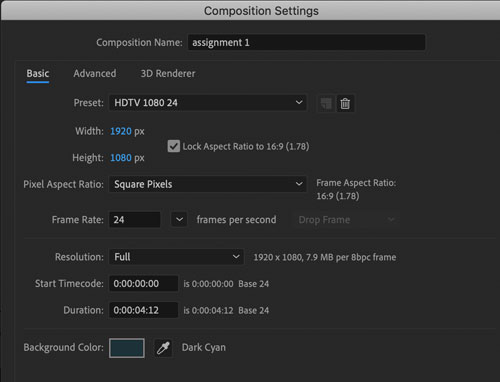
New composition.
Choose a background color.
ground

Create a new Solid layer and choose a ground color.
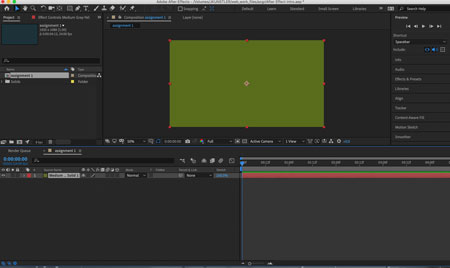
The Solid will take up the whole screen.
Choose Anchor point tool.
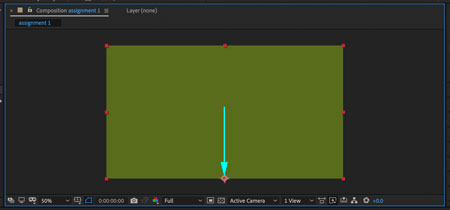
Move the Anchor point down.
Hold Ctrl/Command to snap it to the point.
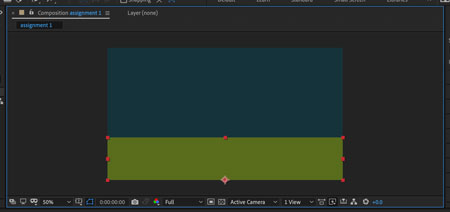
Resize the Solid as shown.
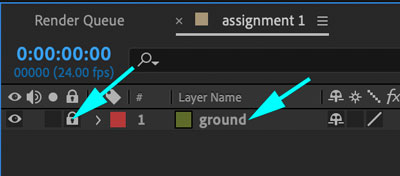
Rename the layer (right-click)
Lock the layer.
shooting star
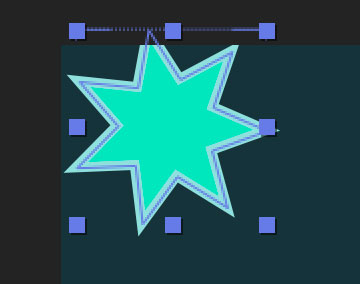
New Shape layer.
Draw a star. Use up or down arrow keys on your keyboard to add or remove points as you drag.
Choose colors for fill/stroke.
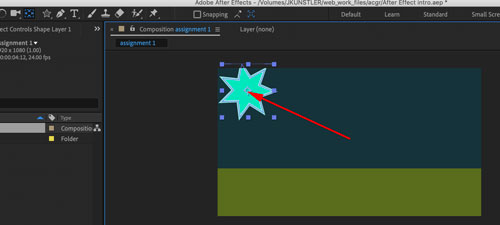
Move Anchor point to the star center (hold Ctrl/Command).
Rename the layer: star.

Define the time span for your shooting star by dragging the ends of the blue bar in the timeline.
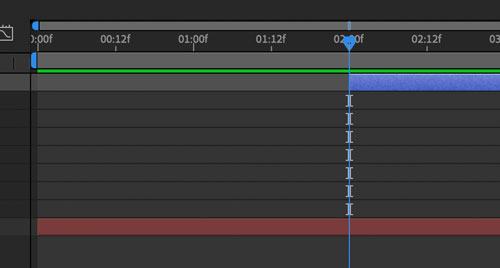
Move Time Indicator needle to the start of the animation.
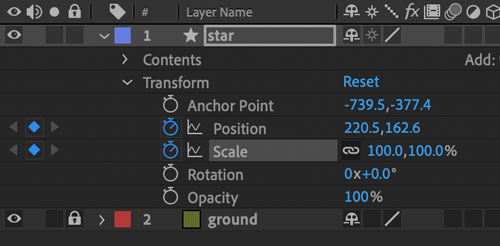
In Transform menu (not Content):
Place the keyframes for Position and Scale.
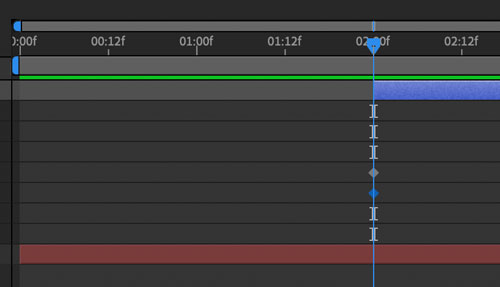
Keyframes will be placed.

Place the Time Indicator needle at the end of the animation.

Move the star.
Use direction lines to create a nice curved Moving path.
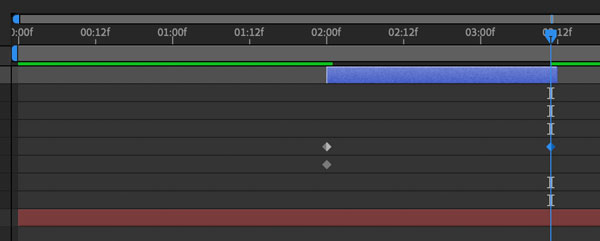
Once you moved the star – a new keyframe is automatically generated in the timeline for Position property.
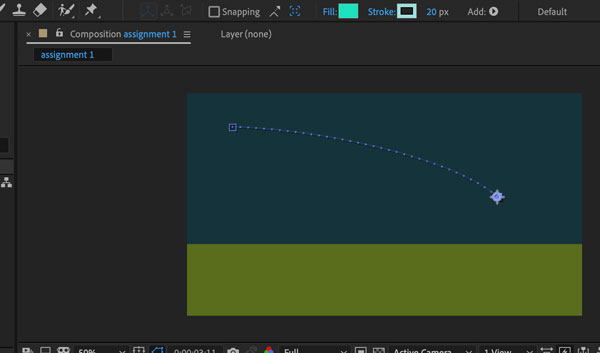
Stay on the same frame.
Change Scale property to 0.

A keyframe will be generated for this frame for Scale property.
Lock the layer.
circle
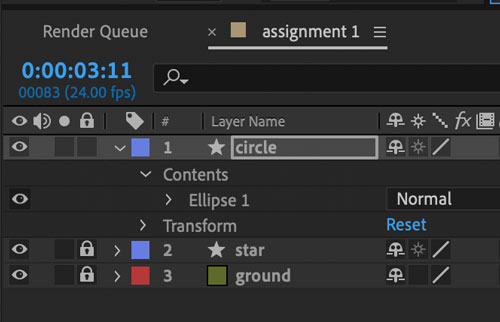
Create a new Shape layer.
Rename it "circle".
At this point you can hide the "star" layer.
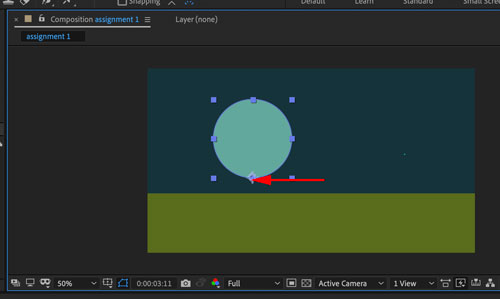
Draw a circle on the "circle" layer.
Move the Anchor point to the bottom of the circle (hold Ctrl/Command).
Choose colors for fill/stroke.

Move the circle off the screen.
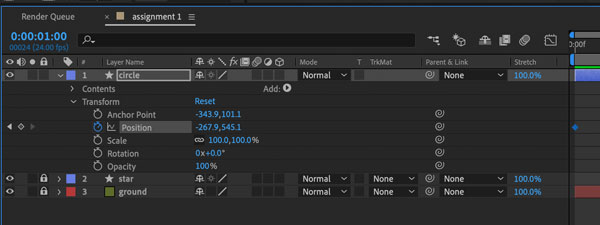
In the Layer Transform menu:
Click on the stopwatch of Position property to place the first keyframe.

Move the Time Indicator to 1 sec. mark.

Move the circle down.
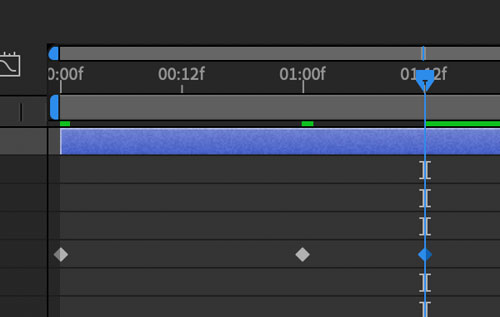
Move the Time indicator to 01:12f mark.
Move the circle up, but not as high as the starting point.
You should see 3 keyframes in your timeline.
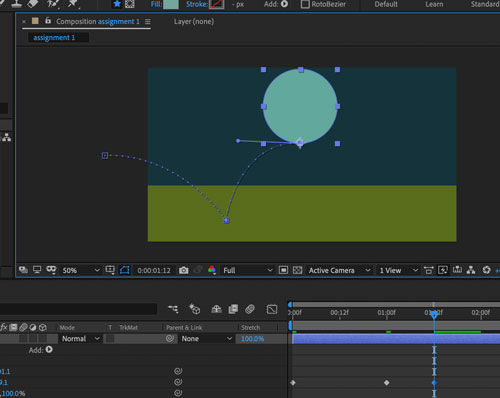
If your moving path does not look like this – you need to create a corner point for the bottom point.
creating corner points
There are two ways to create a corner point in After Effects.
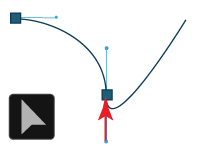 1. Using Selection tool – move the second direction line into the point.
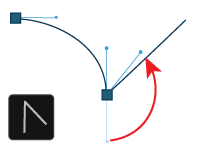 2. Using Convert Vertex tool (in Pen group) drag the direction line to start a new curve direction.
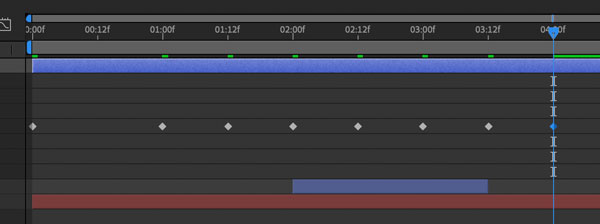
Continue moving the ball and adding keyframes at
to convert a point
 Use Convert Vertex tool
and drag to the direction you want your curve to go.
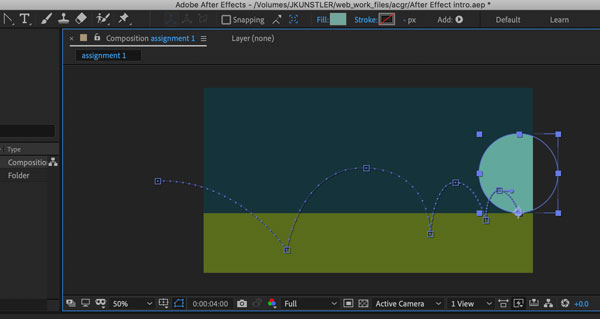
Create a path all the way to the right side of the horizon line.

Return to the beginning of the layer animation.
Create a keyframe for scaling transformation.

Move the time indicator to the end of the animation.
Scale the circle down to 20% or less.

Back to the start of the animation.
Place a keyframe for Opacity transformation.
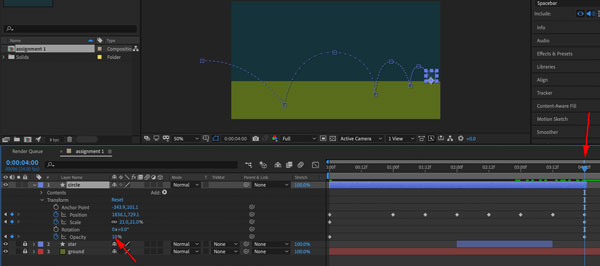
At the end of the animation: opacity 0%.
Save.
Preview.
square

New shape layer.
Start animation at second 2.
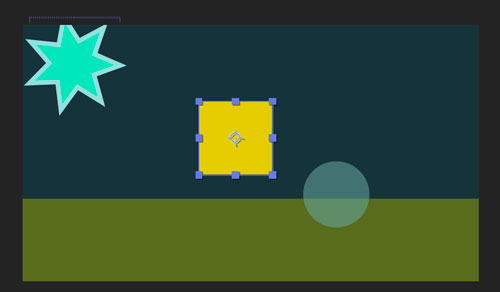
Draw a square.

In the timeline:
Contents > Rectangle 1 > Fill
Insert a keyframe at second 2.
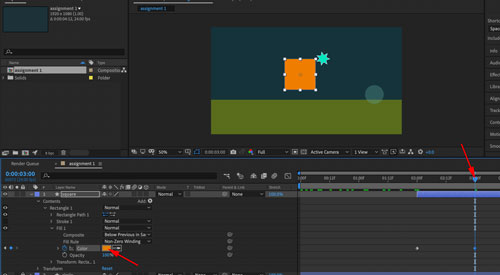
At second 3 – change the fill color.
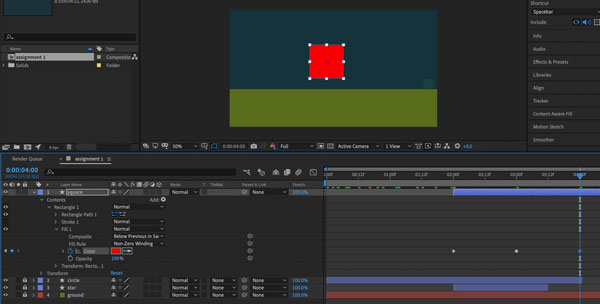
Change the color again at frame 4.

And one more time at the end of the animation.
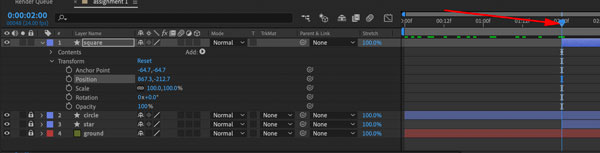
Now let’s animate the position of the square.
Back to frame 2. Insert keyframe.
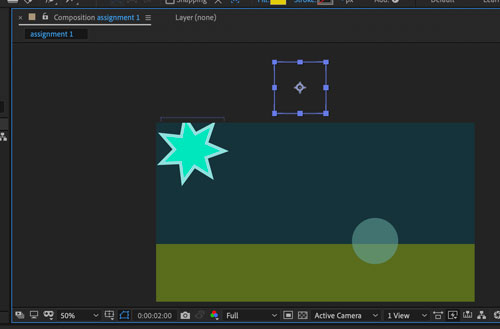 Move the square up, above the composition.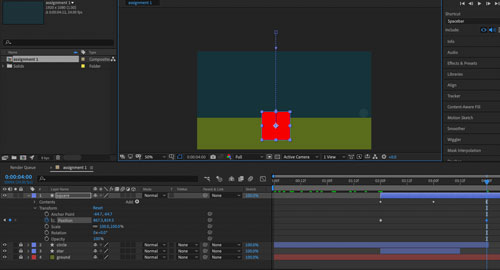
At frame 4 – move it down.
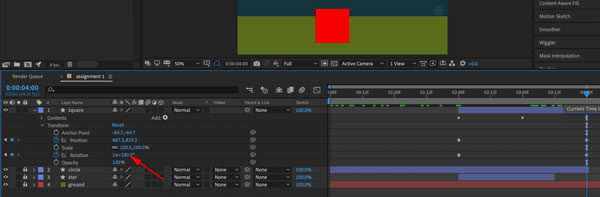
Add rotation transformation between frames 2 and 4.
Preview.
Save.
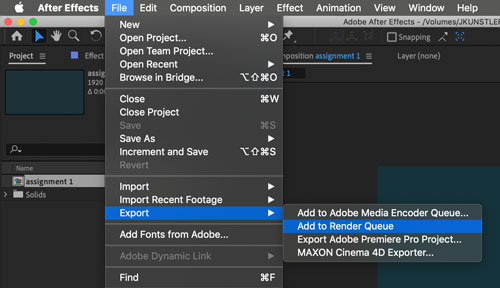
Now it’s time to save the video.
File > Export > Add to Render Queue.

At the Render panel:
Check the composition to export.
Choose the destination.
Hit Render button.