


Self Portraits
WI State Standards:
- AA Cr11h
Plan: Formulate original concepts by practice, experimentation, and revision. (planning/experimentation) - AA Cr12h
Make: Create works of art that introduce students to media, care of tools, and basic craftsmanship skills.
(skills) - AA Pr10h
Develop meaning: Create s body of work incorporating personal, historical, and contemporary art to communicate one or morepoints of view.
(aesthetics / communication)
Learning objectives
- creative project: planning and executing
- making selections
- editing tools
- matching elements
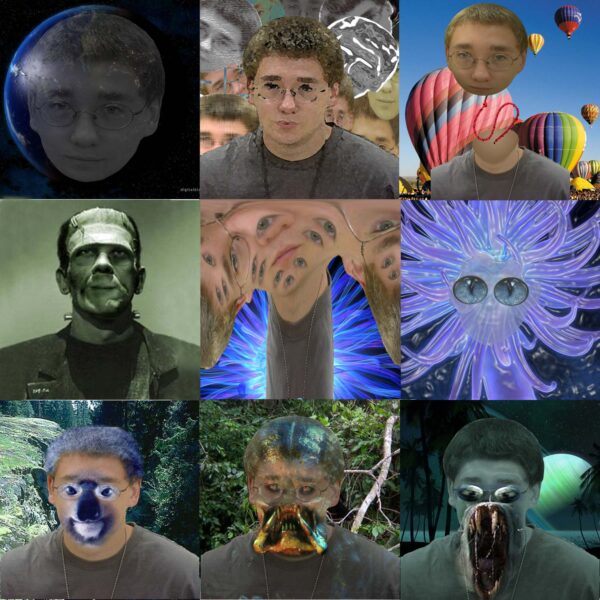
Create nine self-portraits using pictures of yourself and images from the web.
Turn your face into something (or somebody) you are not. Place your face onto other people’s bodies or turn yourself into a fish, an elephant, or whatever your heart desires.
Here are some ideas:
- animal
- alien
- vintage poster
- horror movie ad
- vegetable
- underwater
- object
- painting
- cartoon character
- old photo
- jellyfish
- ghost
- food item
- etc….
The nine self-portraits should be done using different techniques and approaches (do not place your face over somebody’s photo 9 times!)
Do not use filters to just add a "cool effect". All filters should be justified!!!!
examples


STEPS
Step 1 – photos
Download a picture of yourself to the computer. You can use the same photograph for all nine portraits, or use different ones.
Download photographs that you want to use for your portrait "transformation".
All photographs should be good quality.
Keep in ming that the final portrait will be a square. That means that some cropping will occur.
Step 2 – combining photos (files 1-9)
Create a new file in PS:
- Resolution: 200
- Image size: 5" x 5"
Work on one portrait at a time. Be creative.
You can create a new file for each of the nine portraits. This will keep the file size manageable.
Save each portrait as a separate file.
Special attention to the quality of the selections, blending techniques, color and contrast matching.
Save each file separately.
Important!
Complete all 9 portraits before moving to the next step!!!
Step 3 – putting together (file 10)
Make sure you have all your portraits done, all nine of them, before putting them together.
1. Open New file: 15 x 15 inches, resolution 200ppi.
Save it.
2. Place the grid: View>Show>Grid
3. Set the grid size:
Edit>Preferences>Guides, Grid&Slices
Grid line every: 5 in Subdivisions: 1
Step 4
Have your final file open.
From a finder window – drag each one of your nine portraits onto the image window.
This will create 9 layers with linked images.
At this point, if you want to change something in any of your portraits, do so by opening the file and make the changes. After you resave it, the final collage will get updated automatically.
Step 5
Arrange the images layer by layer, snapping them to the grid.
Step 6
Export the final collage into a JPEG format and submit.