


Quick Mask & Channels

WI State Standards:
- AA Cr11h
Plan: Formulate original concepts by practice, experimentation, and revision. (planning/experimentation) - AA Cr12h
Make: Create works of art that introduce students to media, care of tools, and basic craftsmanship skills.
(skills) - AA Pr10h
Develop meaning: Create s body of work incorporating personal, historical, and contemporary art to communicate one or morepoints of view.
(aesthetics / communication)
Learning objectives
- learn to use channels and Quick mask for selections
- saving selections
- modifying selections
- using level adjustments
- filters and effects
Masks let you isolate and protect parts of an image while making a selection.
Temporary masks are called Quick Masks
Permanent masks are called Alpha Channels and are stored in Channels panel.
finished image

STEPS
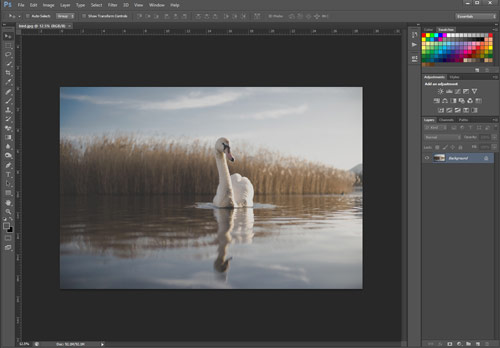
Download and open the Swan image in PhotoShop.
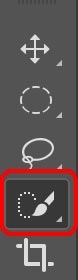
Let’s start with selection the swan.
Choose Quick Selection tool.
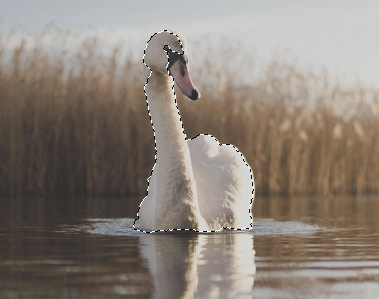
Select most of the swan.
Don’t worry if you didn’t get it all or selected too much. We are going to edit this selection in the following steps.
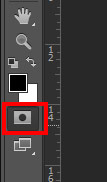
In the tool box:
Choose Quick Mask Mode
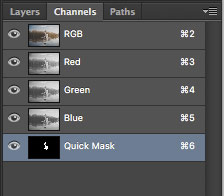
Open Channels palette.
Quick Mask channel will appear at the bottom.
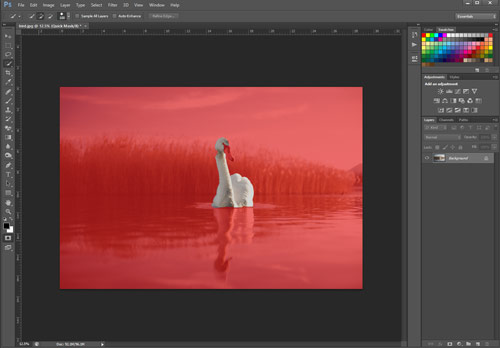
Red overlay – is masked area. It protects the area outside the selection.
To edit the masked area you can use eraser or brush tools.
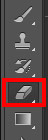
Choose Eraser tool.
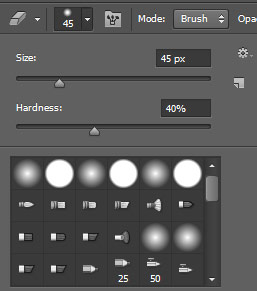
Select a medium size eraser option and a medium hardness.
You will be changing the size of the Eraser tool as you edit your mask.
[ key to decrease the size, and ] key to increase it.
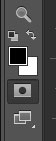
Check your color swatches in the tool box.
They should be set to default colors:
Black foreground
White background.
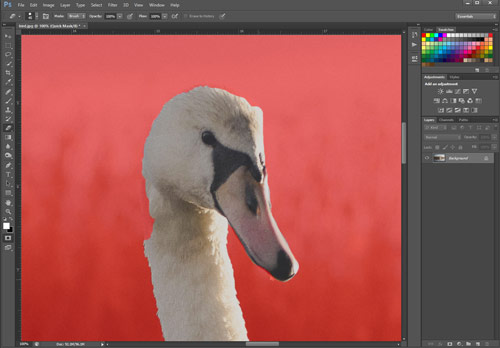
Zoom in the swan image for more accurate selection.
Erase all areas of the red mask that you want to remove from the selection.
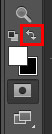
If you have erased too much and need to paint the mask back on – swap the colors.
Option 2: switch from Eraser tool to Brush tool.
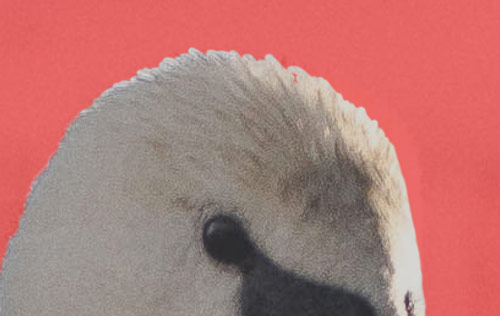
Get as detailed as you can with refining the selection of the swan.
Alter the tool size as you work.
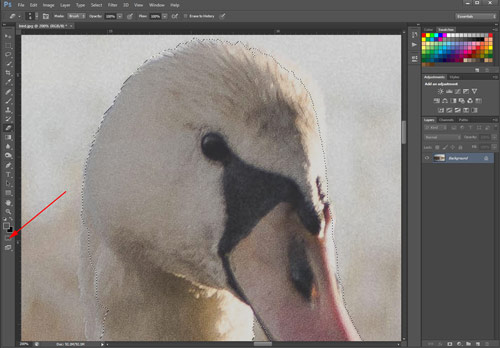
To preview the selection at any time – click on Quick Mask Mode button to return to Standard Mode.
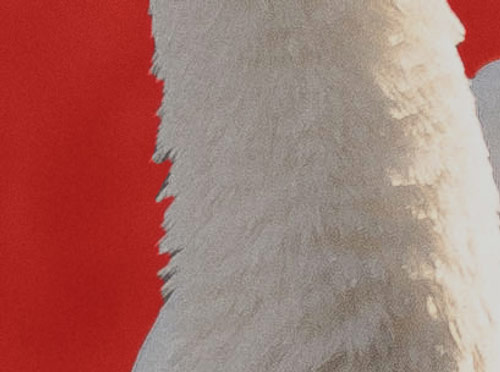
If you see that you need to continue editing the selection – return to Quick Mask Mode again.
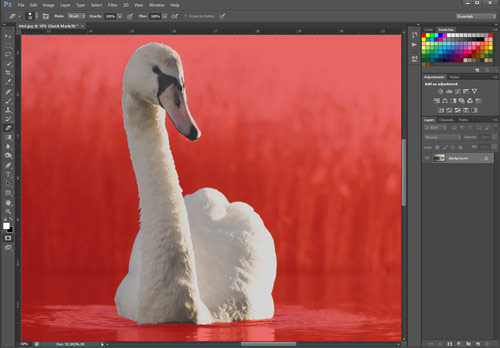
Once the swan is carefully selected….
Switch to Standard mode.
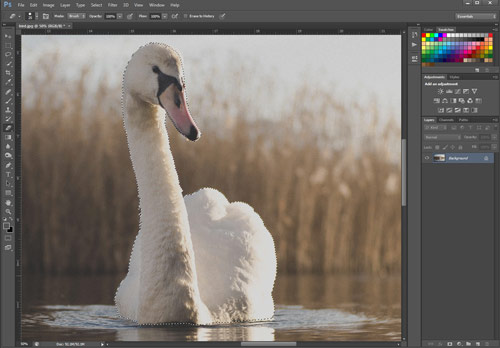
Now it’s time to save the selection of the swan.
After all you spent a lot of time on it!
The only way to save a selection is to save it as an Alpha Channel.
Open your Channels Palette
(Window > Channels)
Channels are grayscale images that store different types of information
color channels
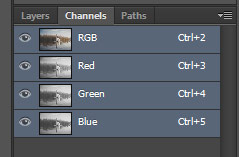
The first four channels hold color information:
Color information channels are created automatically when you open a new image. The image’s color mode determines the number of color channels created. For example, an RGB image has a channel for each color (red, green, and blue) plus a composite channel used for editing the image.
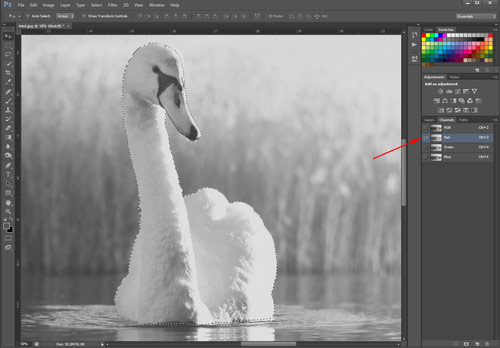
If you click on Red channel -the image will appear black-and-white.
But don’t worry. You did not change the image.
What you see is the amount of red color in the picture – darker the area – more Red color
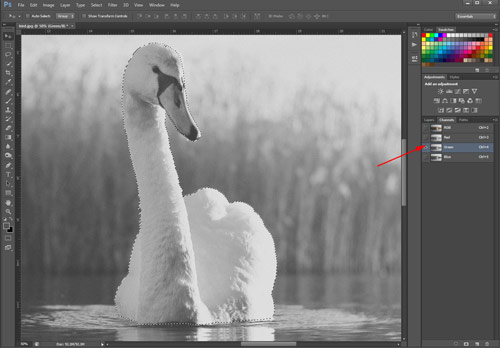
Click on Green channel – you’ll see the amount of Green color…
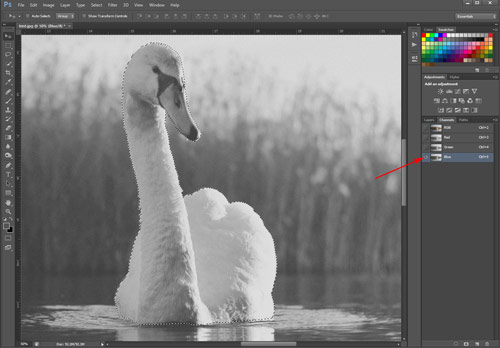
Blue channel – Blue color.
See the different color channels? They all look different because the amount of each color varies.
Click on RGB channel – it will display all three channels – the full color image.
alpha channels
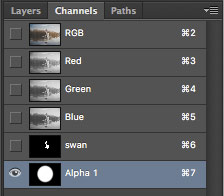
Any selection can be saved in Channels palette as an alpha channel.
Before you have saved the selection – it appears as Quick Mask channel. Quick Mask temporal channel is only visible in Quick Mask mode.
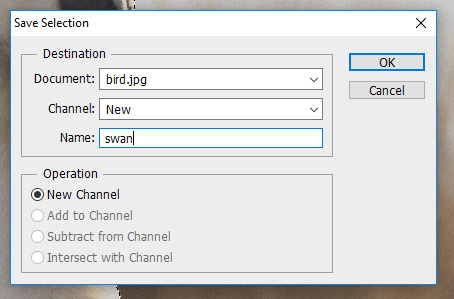
To save your selection:
Select > Save Selection
Name the selection ("swan")
Click OK

See a new channel appeared in the palette. It replaced the temporary Quick Mask.
To view the image in full color make sure the RGB channel is selected .
Save.
It is safe to deselect the swan now:
Command/Ctrl D
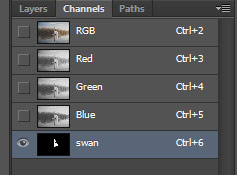
Click on "swan" channel.
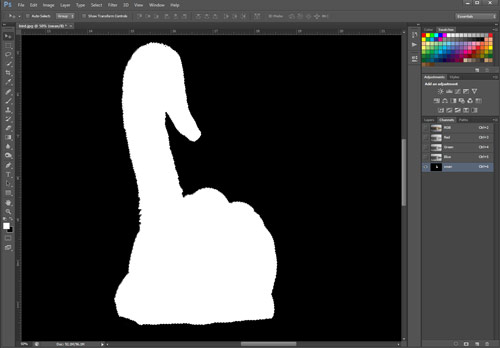
You can edit the selection again if you need to clean up your mask (there might be a few spots that you overlooked).
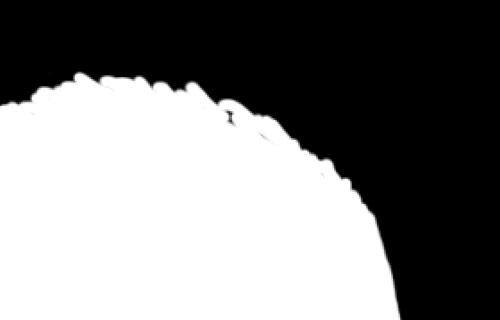
Zoom in and move around the selection to see any spots left.
When done – click on RGB channel.
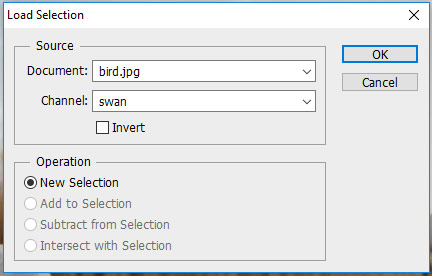
Place the selection back onto the image:
Select > Load Selection
Choose "swan" channel
OK
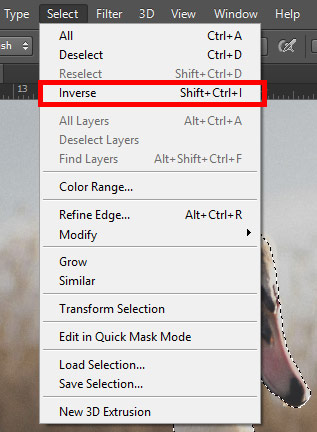
Now you are going to select the background – the area around the swan.
With the swan still selected – see the selection outline around the bird?
Select > Inverse
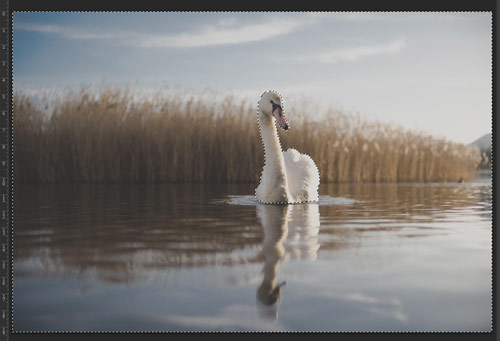
Now you should see the selection outline around the perimeter of the image and around the swan.
The swan is masked now (protected).
You can manipulate with the background without affecting the swan.
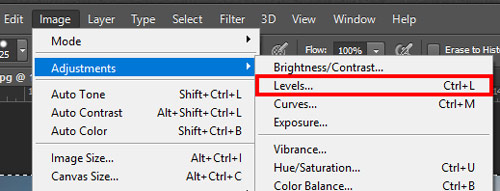
You are going to adjust the tonal balance of the background.
Image > Adjustments > Levels
Increase the contrast of the photograph – make the lightest pixels white, and darkest – black (right now the lightest pixels are light grey, and the darkest are dark grey, as you see from the image on the left).
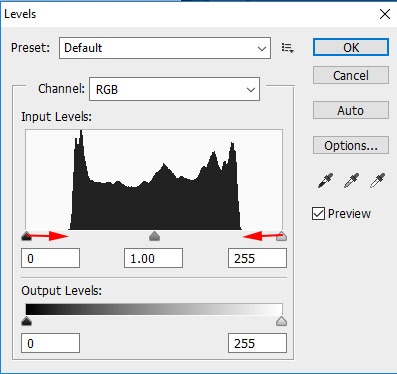
You are going to define the lightest and the darkest pixels as white and black.
To do so:
Drag the left (black) slider to the start of the graph.
Drag the right (white) slider to the end of the graph.
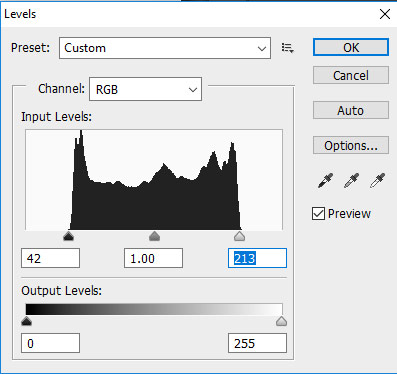
If you wish to adjust mid-tones – slide the middle (grey) slider.
Make sure the Preview option is checked.
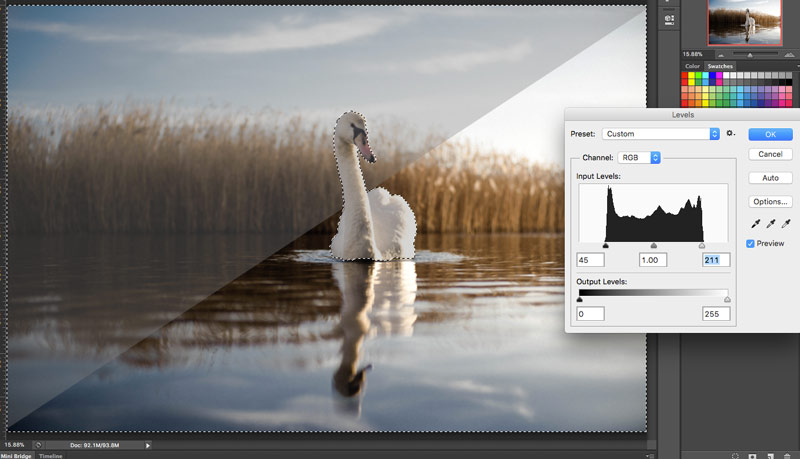
This is what the image looks like after we have improved the tonal values.
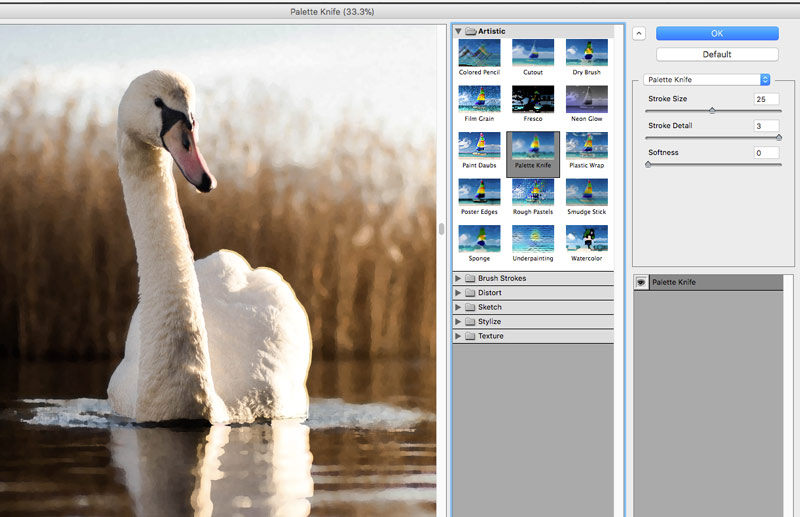
Let’s apply an artistic filter to the background while it is still selected.
From the Menu bar: Filter > Filter Gallery
Choose Palette Knife filter. Experiment with settings. You will see the changes in the preview window. As you see – the filter is applied only to the background. The swan has not been edited.
Click OK when you like what you see.
Deselect!!
Save.
Now it’s time to improve the colors of the swan.
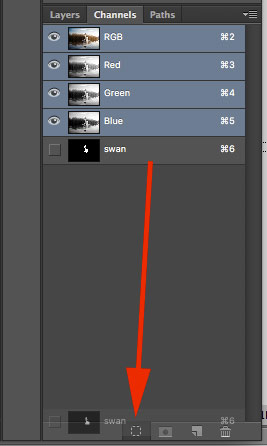
Load the swan selection.
You can do it by dragging the channel onto "selection" button at the bottom of Channels palette.
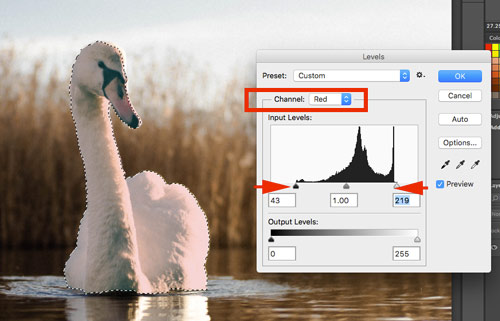
Because the swan is the focal point of the image – we’ll use more elaborate way to improve the colors and contrast.
Image > Adjustments > Levels
Instead of adjusting RGB channel (all three colors), we are going to adjust each color channel individually for more accuracy.
Start with Red channel.
Drag the sliders to the histogram as shown.
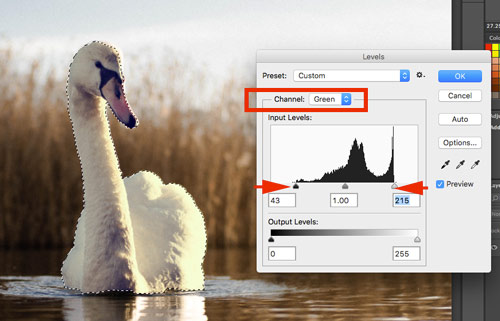
Switch to Green channel.
Adjust levels.
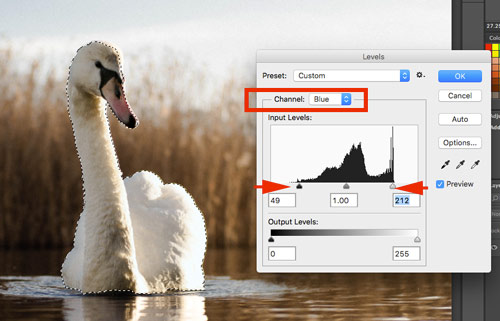
Adjust Blue channel.
Click OK.
Deselect.
Save.
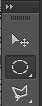
Choose Elliptical Marquee tool from the Tool Box.
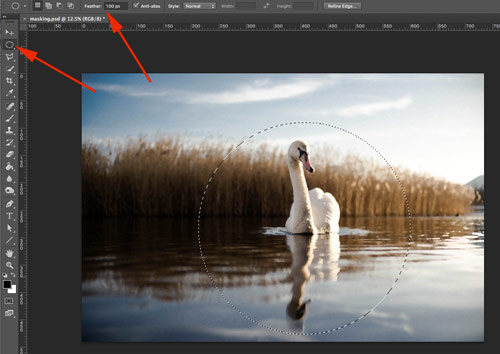
Change Feathering option to a higher number (50 – 100 px.).
Hold Shift and Command/Option and drag a selection around the swan.
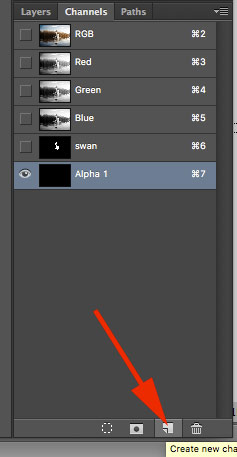
Create a new Alpha channel by clicking on the New Channel button.
Your image window will display the new channel.
The new channel is solid BLACK because there is no selections on it… yet….

In the Menu bar:
Edit > Fill
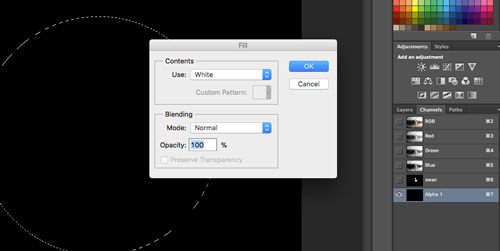
Choose WHITE for Contents.
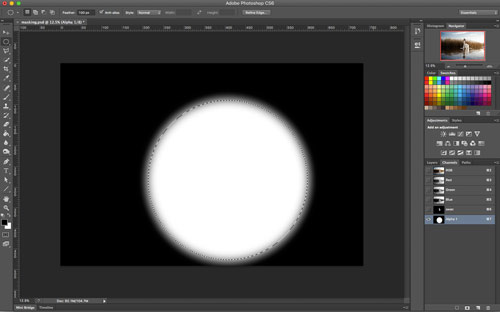
You will see a white circle with fading edges.
White color shows your selection
Black color shows what’s not selected, masked, protected
Range of Greys shows pixels with a range of transparency: lighter the grey – more transparent the pixel.
Deselect
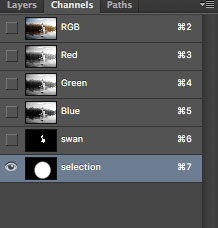
Rename your Alpha channel as "selection" or any other descriptive name.
Now your fading circle is saved as "selection" channel.
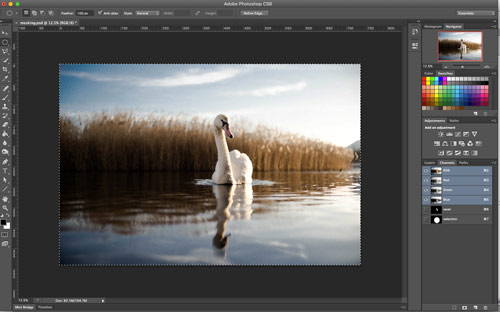
Click on RGB channel to return to full color view.
Next step is to remove the background around the round selection.
Select the entire image:
Command/Ctrl A
You should see the selection border around the perimeter of the image.
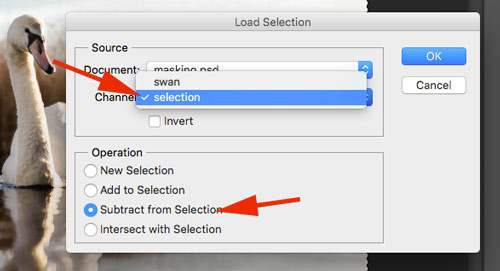
To remove the circle from the "all image selection":
Select > Load Selection
Choose your "selection" channel
Choose "Subtract from Selection" option
Click OK
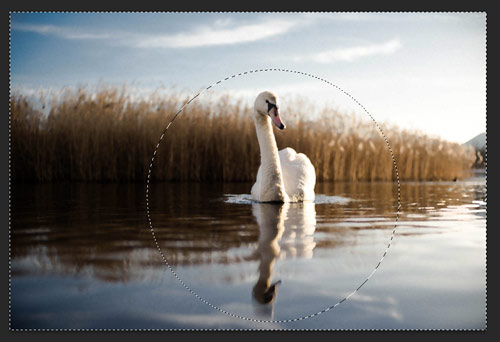
Now you see the background selected with a "hole" in it.
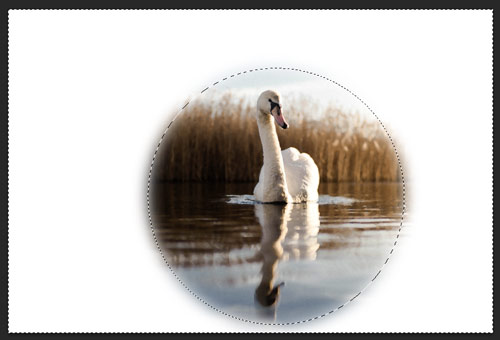
Delete the background:
Edit > Clear
Deselect
Save
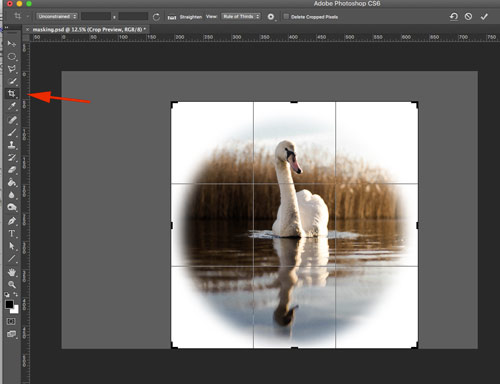
Use Crop tool to remove the extra space.
Don’t forget to hit ENTER
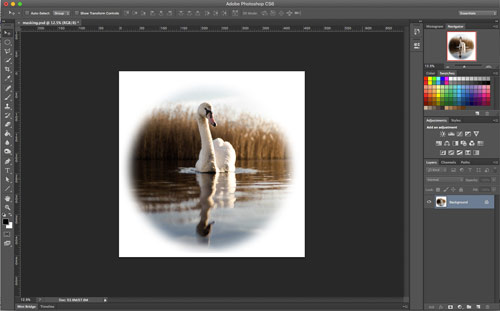
Save as .JPG and submit.