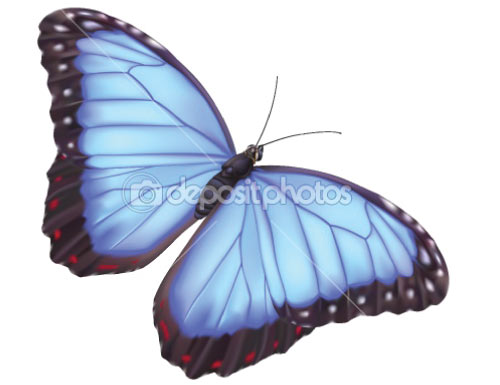
Photo to Vector

WI State Standards:
- AA Cr10h
Investigate: Engage in critical thinking, problem solving, and research through elements and principles of art and design studio practices and processes.
(aesthetics / problem solving) - AA Cr12h
Make: Create works of art that introduce students to media, care of tools, and basic craftsmanship skills.
(skills) - AA Pr10h
Develop meaning: Create s body of work incorporating personal, historical, and contemporary art to communicate one or morepoints of view.
(aesthetics / communication)
Learning objectives
- creative project: planning and executing
- manipulating images
- editing tools
- communicating ideas and concepts
Assignment details:
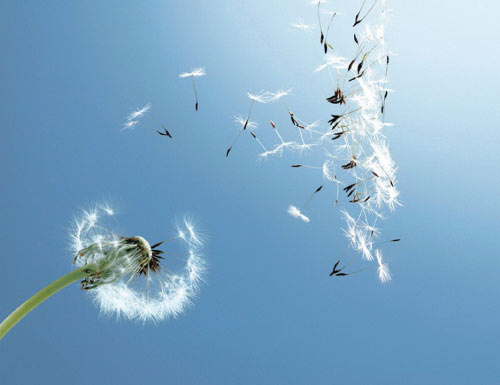
Find a photograph of an object or a creature that you would like to redraw.
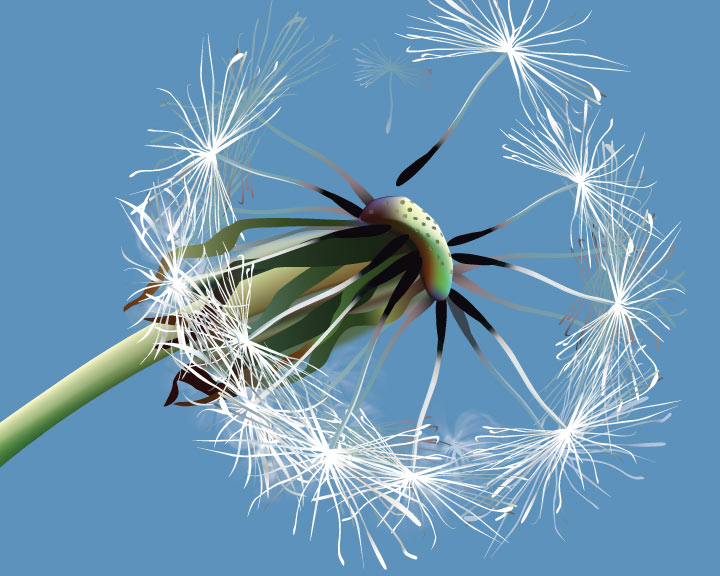
Use all available Illustrator tools to recreate it as a vector image.
Keep colors consistent with the original.
Add background – even if it is just a color (or gradient)
Your image should look three-dimensional and realistic – use lights and darks in the shapes
If you have repeating elements – use symbols
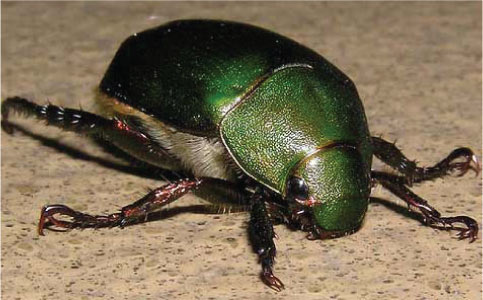
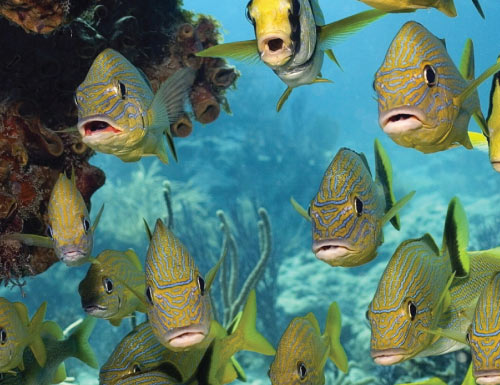
examples

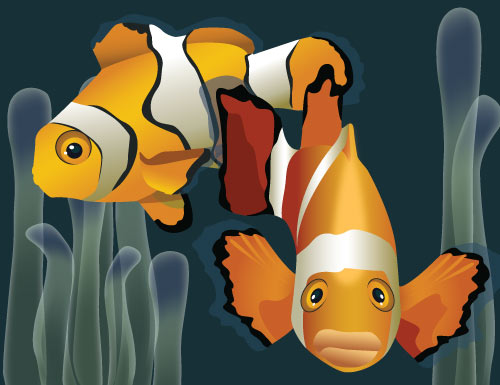



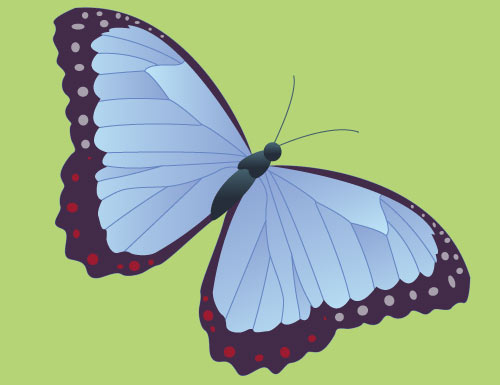
STEP
starting
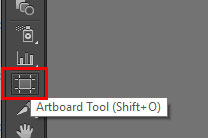
Once you found and saved a photograph – open it in Adobe Illustrator.
Set the artboard to fit the image you want to redraw.
Use Artboard tool.

You can use just a part of the photograph.
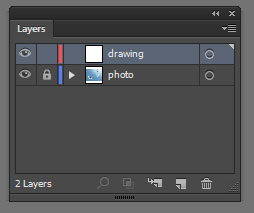
In Layers palette:
Lock the photo layer
Add a new layer to draw on
Analyze the shapes.
Have a plan before you start drawing.
What are the big shapes?
What are repeating elements?
Do you need multiple layers? Well, you probably do. This way it is easier to edit details.
color settings
Decide what type of color fill you are using for each shape. Most shapes will most likely have some type of Gradient fill. Smaller shapes van be solid color.
important:
If you are planning to use Gradient Mesh for a shape – you need to make sure you create a copy of the shape before you apply the mesh setting. Once a shape becomes a gradient mesh – it looses some shape editing options.
helpful tools:
There are few editing tools you might want to try to save some time.

Blob brush tool – use for free-hand drawing.
Creates enclosed shapes.
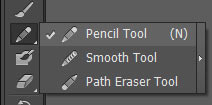
Pencil tool – use for free-hand drawing.
Creates paths (lines).

Warp tool – molds objects with the movement of the cursor.
Use to push shape in or out.
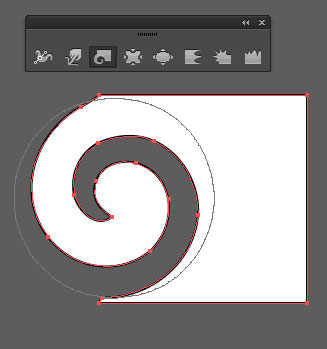
Twirl tool – creates swirling distortion within an object (and within the brush size cursor).
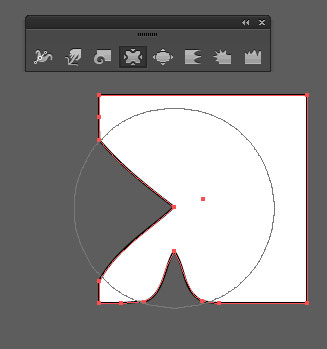
Pucker tool – deflates an object by moving control points towards the cursor.
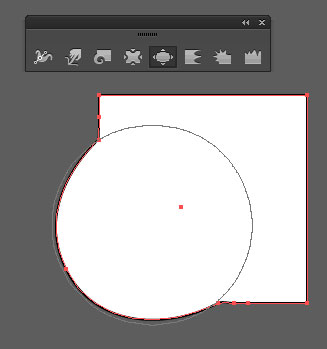
Bloat tool – inflates an object by moving control points away from the cursor.
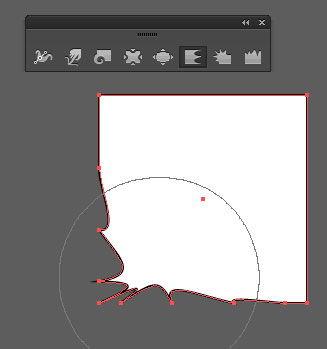
Scallop tool – adds random curved details to the outline of an object.
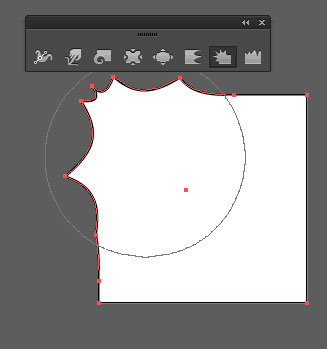
Crystallize tool – adds random spikes.
You can use it for "fur" effect.
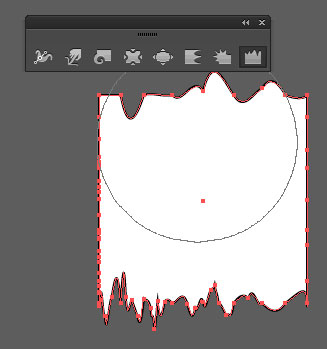
Wrinkle tool – adds wrinkle-like details to the outline of an object.
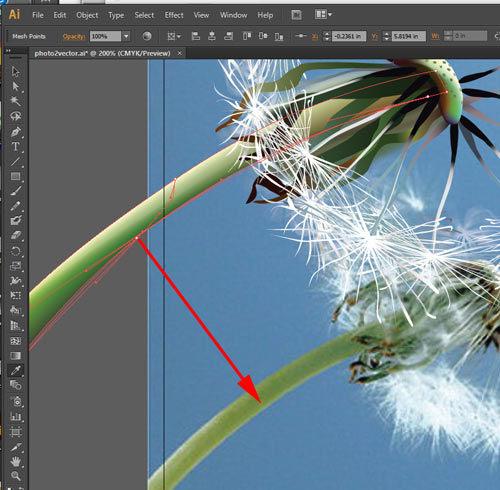

You can use the actual colors for gradient mesh points.
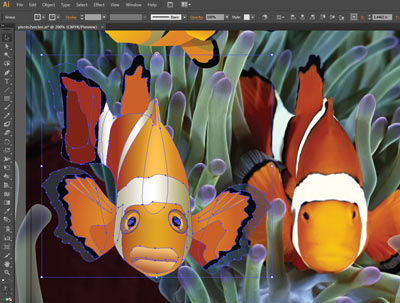
Once you created your drawing – move it aside to reference the original colors.
Eyedropper tool does not pick up gradients from bitmap images, but the color of a pixel. So you will need to create custom gradients yourself.
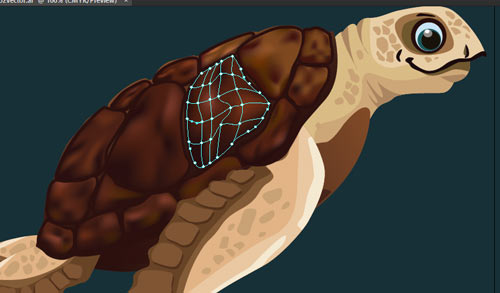
To speed up mesh coloring – select the entire mesh shape, them apply the dominant color.
In this case it is dark brown.
Then select a few points to apply darker or lighter values.

You can change the appearance of a shape by changing its opacity and blending mode.
Open Transparency palette to do so. Or you can do it directly from the menu bar.
photo vs. vector