


Paths Practice

WI State Standards:
- AA Cr11h
Plan: Formulate original concepts by practice, experimentation, and revision. (planning/experimentation) - AA Cr12h
Make: Create works of art that introduce students to media, care of tools, and basic craftsmanship skills.
(skills) - AA Pr10h
Develop meaning: Create s body of work incorporating personal, historical, and contemporary art to communicate one or morepoints of view.
(aesthetics / communication)
Learning objectives
- learning about vector graphics
- paths and anchor points
- straight paths
- curved paths
- combination paths
- corner points
- editing paths
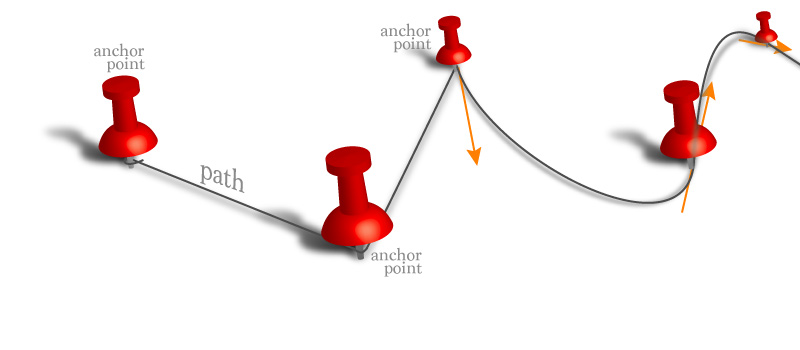
Paths are vector-based (line) drawings.
There are two types of lines: straight and curved. The rest are variations or combinations of these two types.
Same is true for paths – there are straight paths and curved paths.
So we are going to practice these two types. They require two different approaches to creating them.
STEPS
straight
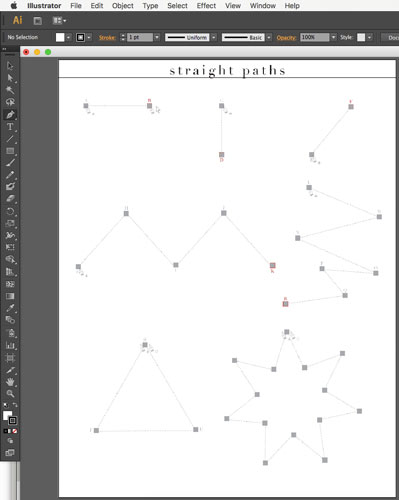
Open the straight file.
There is a template there that you need to follow.
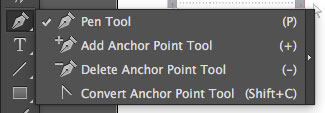
Most of the drawing and editing of paths can be done via the tools under the Pen tool icon in the Tools palette.
Click and hold the mouse button on this icon to view all tools.
Select the Pen tool.
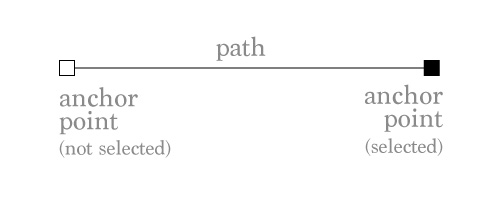
Path is an invisible line that connects two points. It holds information about the direction, the curve, the length the color and the thickness of the line..
To draw a straight path you need to place the start point and the end point – they are called anchor points.
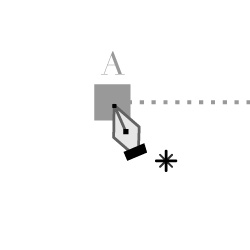
To draw a straight path AB:
click on A
When you click with a Pen tool – you are creating an anchor point with a straight path property.
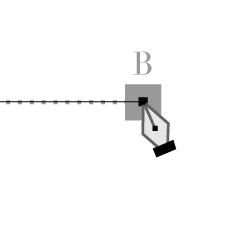
click on B
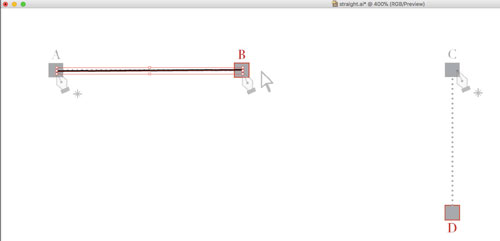
After you finish a path – you need to end it.
In other words – you need the tool "know" that the next anchor point will start a new path.
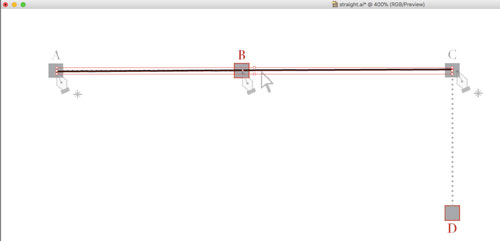
Unless you finish the path – Pen tool will continue to add segments to the existing one.
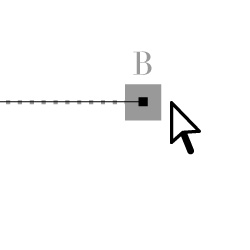
Command (Ctrl) click outside the path.
Your Pen tool will temporarily switch to Direct Selection tool.
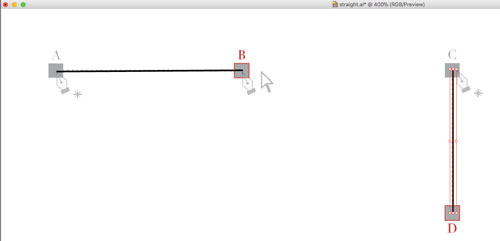
Now you are ready to start a new path.

There are two selection tools for paths:
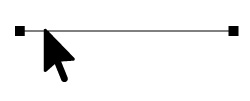
Selection Tool – selects the entire path with all anchor points.
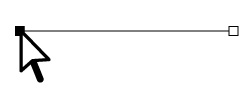
Direct Selection Tool – allows you to edit a path by selecting and (or) moving one or few anchor points, one or few segments of a path.

When you are closing a path (return to the start point), a small circle appears next to the cursor.
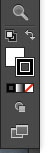
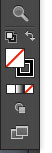
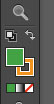
Default colors are: WHITE fill color and BLACK stroke color. You can change a type of fill/stroke setting to "no fill" or "gradient fill".
You can also change the Fill color by bringing Fill swatch to front and using Swatches palette or Color Picker window.
To remove fill color:
Click on fill color swatch
Choose "no fill" button in the tool box.
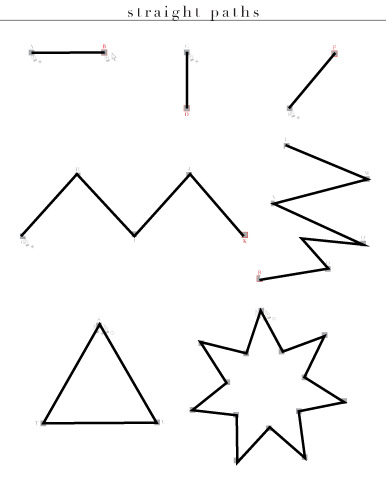
Follow the rest of the template and draw the paths.
Don’t forget to end paths!
Select Path Selection tool.
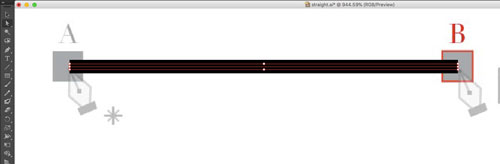
Select AB path.
You are going to apply a different color to the path.
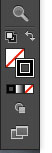
To change a path color: bring "stroke" swatch to front by clicking on it in the Tool box.
You can double-click on it to open a Color Picker window or use Swatches palette

If you don’t have Swatches palette open, go to:
Window > Swatches
To open extra swatches palettes: Click on the drop-down button in the upper-right corner of the palette and Choose Basic RGB or CMYK
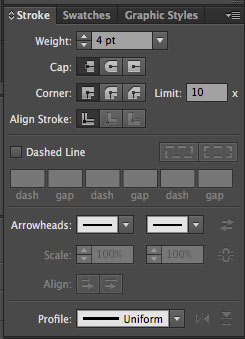
To change stroke properties (thickness, styles, etc) open Stroke palette:
Window > Stroke
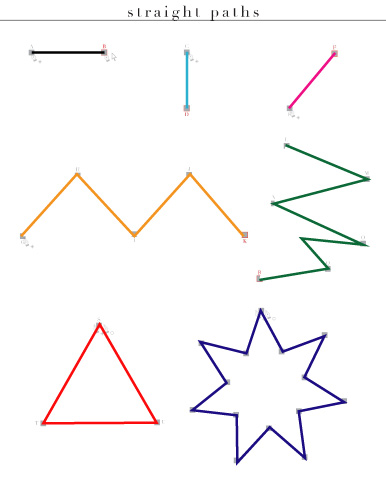
Apply different stroke colors to the paths.
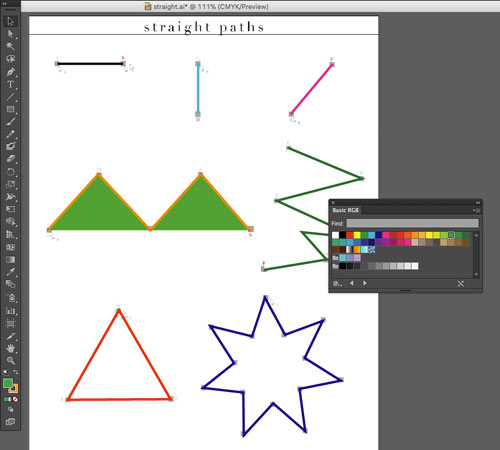
Select (with Selection Tool) the G-K path.
Choose a color from swatches palette.
You need to select a path first.
Try it.
Even though the path is not a closed shape, the fill was applied. The area within START and END points is filled in with a color.
The fill did not create extra paths between the points. It is still a zig-zag line, not a closed shape.
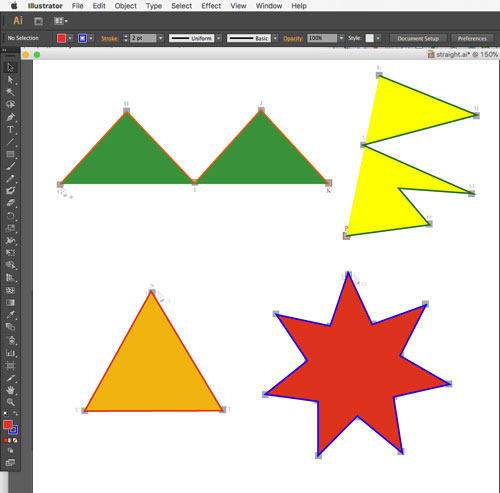
Apply different fill colors to the rest of the paths.
curves
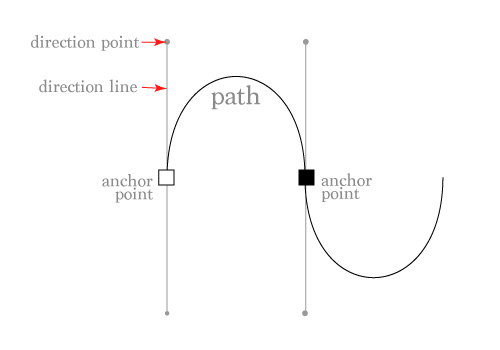
When you click and drag – you create an anchor point with direction lines.
Direction lines go in two directions.
Direction that you drag the direction line will be the direction the curve will go through this point.
When you click-and-drag with a Pen tool – you are creating an anchor point with a curved path property.
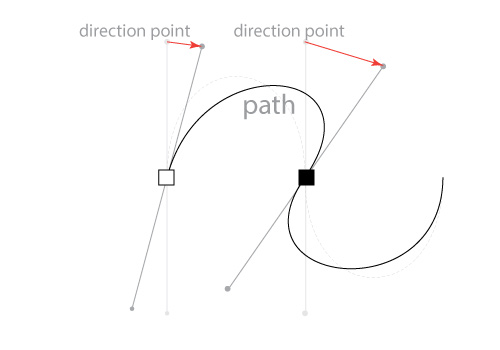
You can reposition the direction points and that will change the slope of your curve.
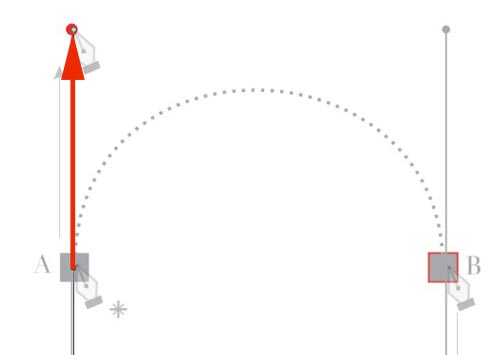
Drawing curves with the Pen tool requires some practice. Click on point A and drag up to the red dot.
This is how to start a curve that will go up through the anchor point.

To set the curve to go up through point A – you drag the direction line up; to set the curve go down through point B – you drag the direction line down.

Finish the curve CF. Drag the direction lines to the red dots.
Don’t forget to end the path (Command/Ctrl click).
Use Direct Selection tool to see how you can edit the curves by moving the direction lines.
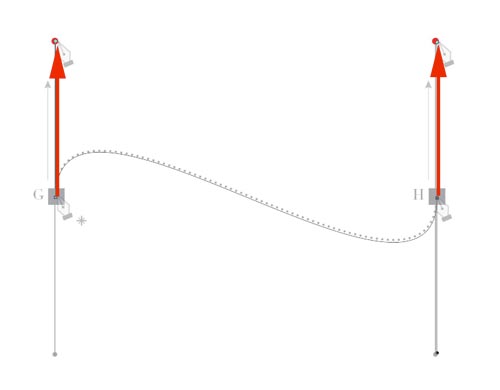
Draw the path GH
Note: The curve goes up through both anchor points.
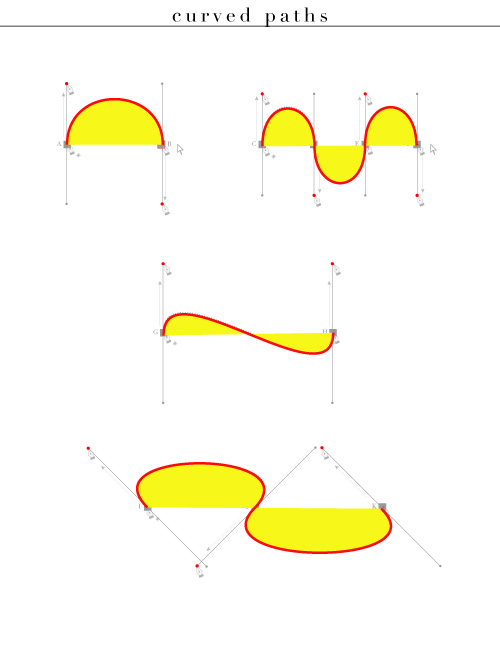
Complete all paths.
Apply stroke color and fill to all.
combination
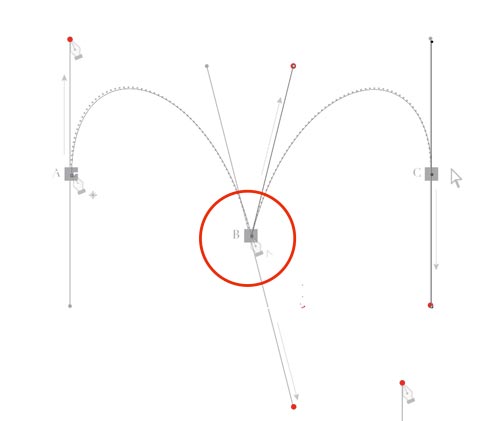
Look at this path.
Note that the curve goes down through point B; then it goes up through the same point B.
How is that possible? The answer is Corner Point!!!
By creating a corner point you stop one segment and start the next one fresh.
This is how you do it:
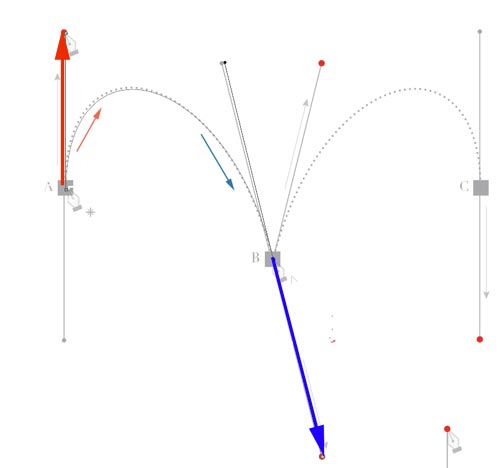
Click and drag up on A
Click and drag down on B
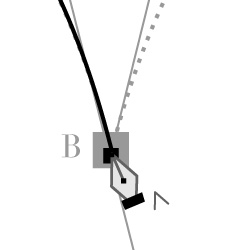
Option/Alt click on B (this stops the first segment and transforms B into a Corner point)
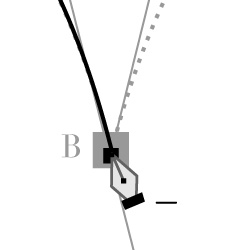
Click and drag up from point B
(The cursor like this one shows that you are picking up the same path).
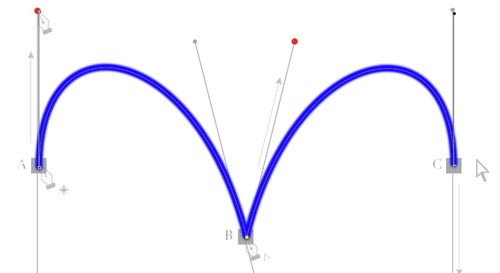
Click and drag down on C
End path by Command/Ctrl clicking outside the path.
Apply a nice stroke to the path.
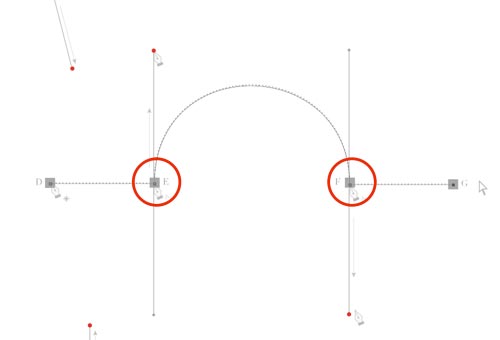
Create a path DEFG.
Note that there are two corner points there!
Click on D (don’t drag – the first segment is straight!)
Click on E (don’t drag – this is the end point for the straight segment)
Option/Alt click and drag up on E (to start the curve up)
Click and drag down on F (to have the curve go down through F) Option/Alt click on F to create a corner point for the next straight segment.
Click on F (don’t drag – it’s a straight segment again!)

Apply a stroke
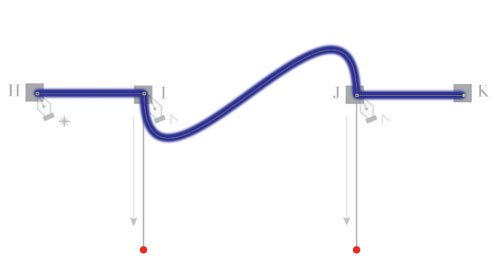
Draw a path HIJK.
Apply a stroke.
File > Save
Close the file.
edit
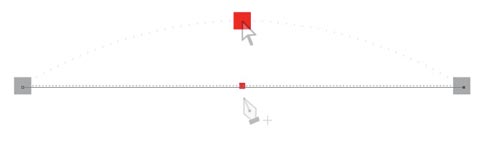
Draw the path.
End it (Command/Ctrl click)
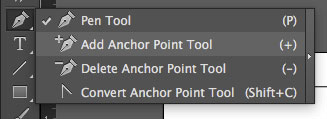
You are going to add an anchor point to this path.
Choose Add Anchor point Tool
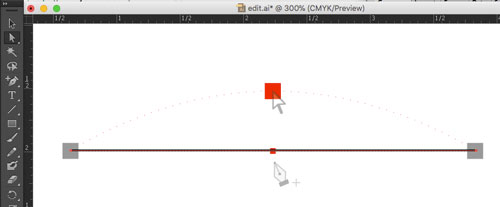
Click in the red dot (on the path).
You just added a point to your path. The Cursor changed to the Direct selection tool.
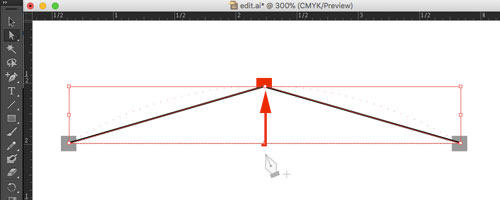
Grab the new point and drag it up to create a curve.
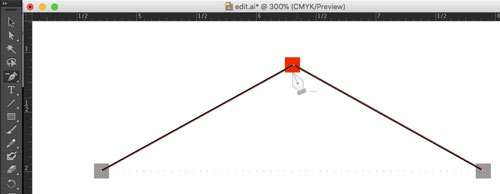
Draw the next path (three anchor points).
You are going to delete one anchor point from the path.
Choose Delete Anchor Point Tool.
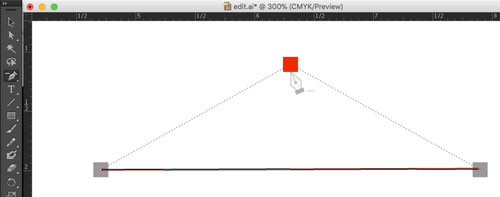
Click on the center (red) anchor point.
Now it’s a straight line
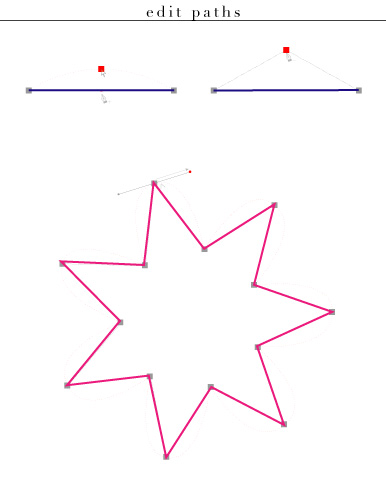
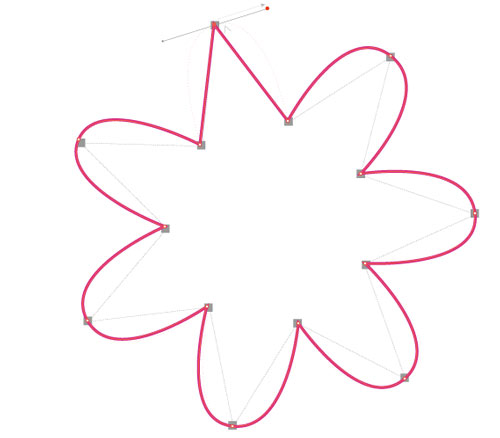
Use Pen tool to draw a Star.
You are going to convert corners into curves and curves into corners.
Choose Convert Anchor Point Tool.
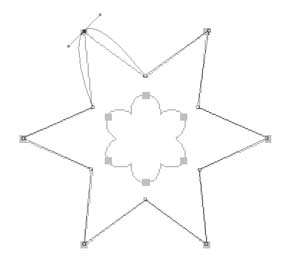
Place the cursor over an anchor point.
Click and drag it.
You just converted the corner into a curve!
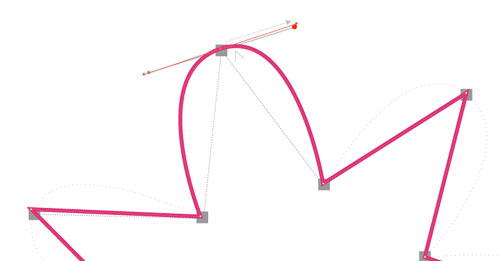
Repeat the steps with the rest of the corners and transform the star into flower.
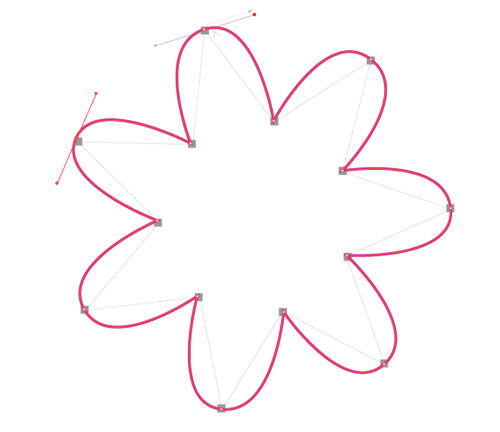
To convert a curve back in a straight corner – click on the anchor point with the Convert Point Tool.
File > Save.
Close the file.