


Pathfinder

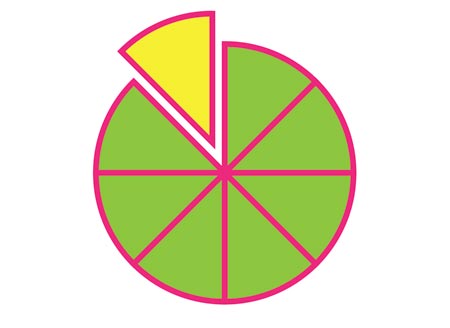
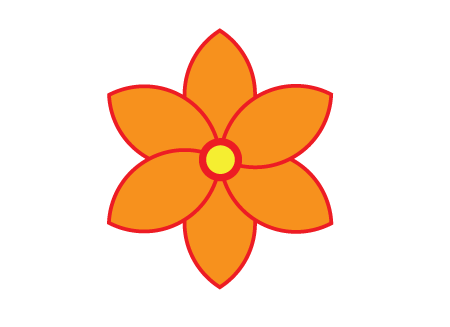
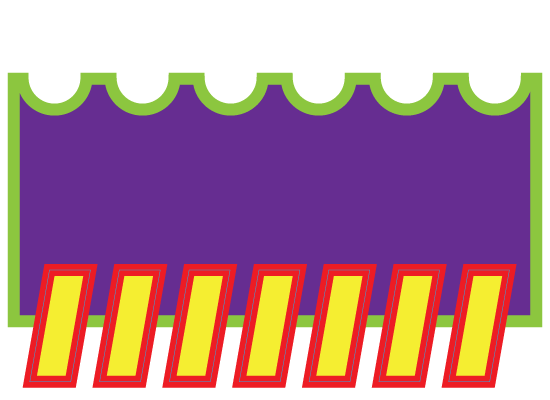
In this assignment you will recreate the following shapes using Pathfinder panel:


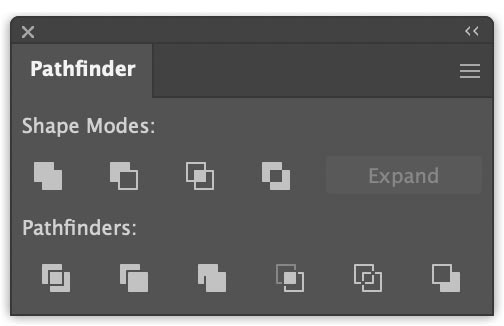
Window > Pathfinder
Pathfinder allows you to create new shapes by using overlapping shapes.
Pathfinder panel has 2 sub-options:
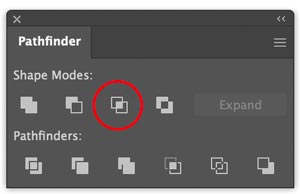
- Shape modes: create new shapes of a single color
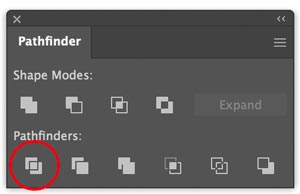
- Pathfinders: break existing shapes into distinct paths using the colors of the original objects.
Shape Modes:
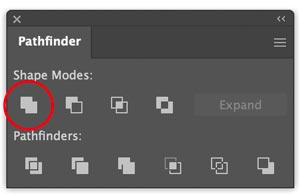
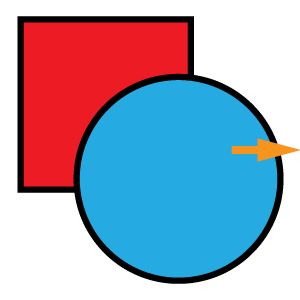
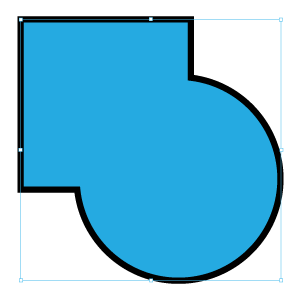
Unite
unites two or more objects as one with the same outline.
The final object gets the color of the object that is on top.

Minus Front
allows you to cut a piece of the object in the back by the object in the front.
The front object acts as a cookie cutter.

Intersect
A new shape is generated of an area that is a part of all overlapping objects.
Areas that are not overlapped are eliminated.
The resulting shape takes the properties of the top object.


Exclude
allows you to exclude the overlapped area and trace the rest of the objects together.
The resulting shape takes the properties of the top object.

Pathfinders:
Divide
all of the overlapped regions become their own independent shapes.


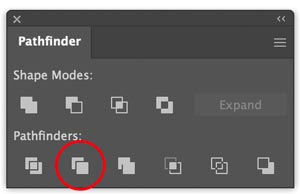
Trim
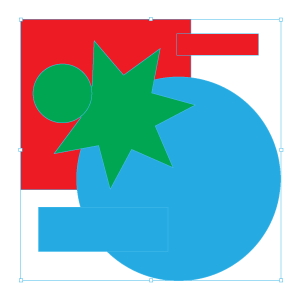
only removes the hidden part of the object in the back by the object at the top.
Both the objects still have their own individual colors as a result.


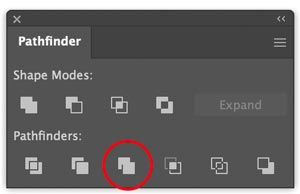
Merge
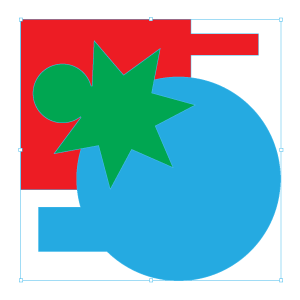
removes the hidden part of the object at the back by the object in the top like trim.
merges the objects with the same color and removes the stroke, like the trim option.


Crop
crops the bottom objects and deletes elements of the artwork that fall outside the top object.
It also gets rid of the strokes.


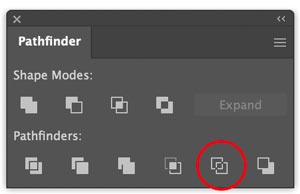
Outline
makes the objects into outlines or strokes.


Minus Back
subtracts the object at the top from the object in the back (the opposite of the minus front option).

STEPS
shape 1

Draw a rectangle.

Draw a circle overlapping the top side.
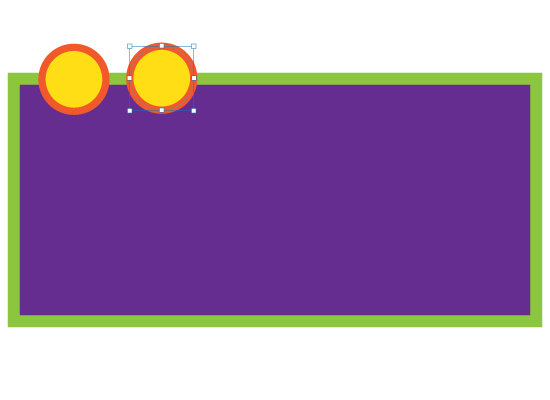
Option (Alt) drag the circle to the right to duplicate it.

To repeat the last action, use Command (Ctrl) D
Duplicate the circles few more times.
They will be spaced evenly!
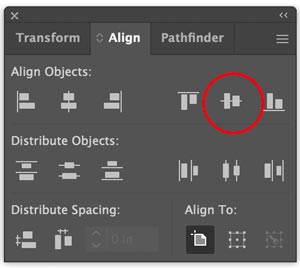
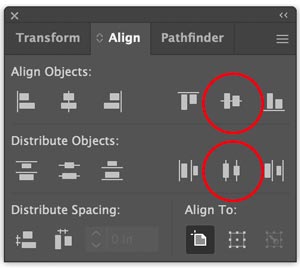
Select all circles and align them using Align panel.
Center them with the rectangle.
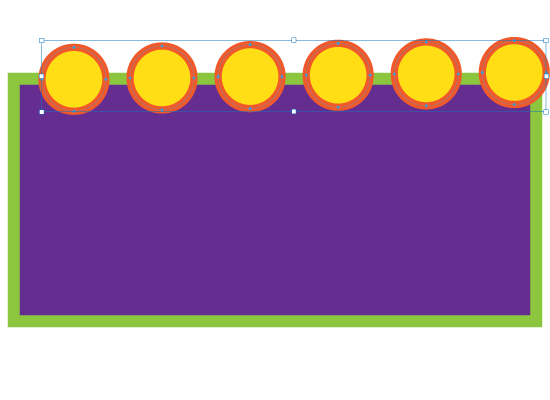


Select the rectangle and the circles
In Pathfinder panel: click on Subtract button

This will make the cuts in the rectangle.
The circles will be eliminated.
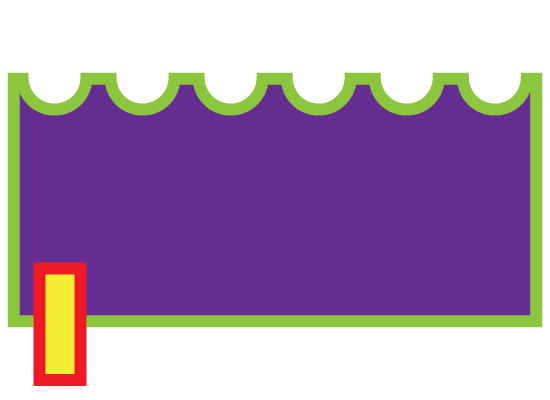
Draw a small rectangle at the bottom of the main shape.
Keep it selected.
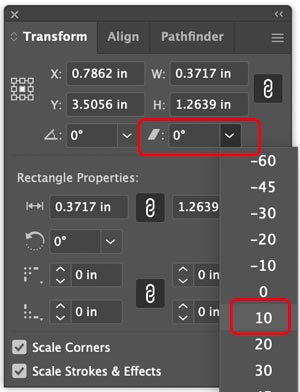
In Transform palette (Window > Transform) change Shear option to 10:

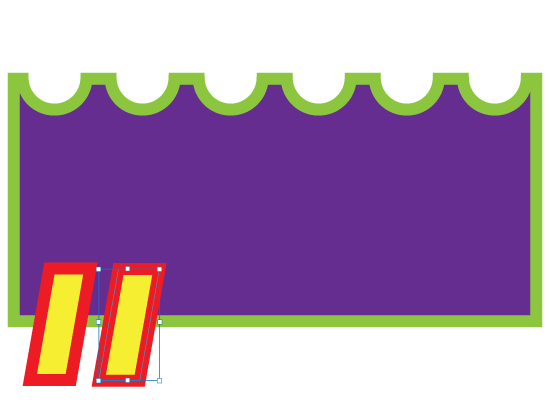
Duplicate the small rectangle by Option (Alt) dragging it
Command (Ctrl) D to add more rectangles:
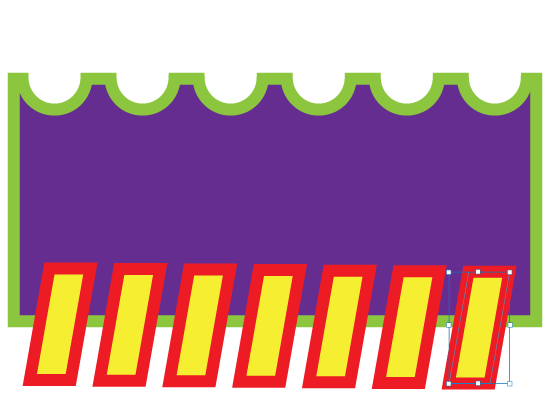
Select all small rectangles.
Align them with Align panel (there is also a "Distribute evenly" option that you can use):
Select all shapes.
Click on Unite button in Pathfinder panel.
Done!
shape 2

Draw a circle.
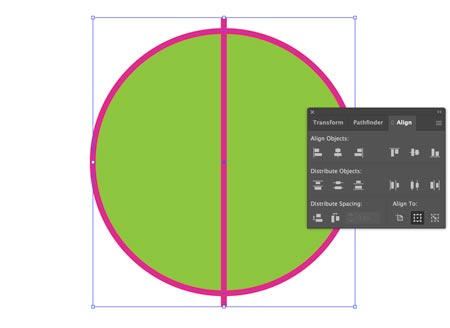
Draw a vertical line.
Use Align panel to center both objects (vertically and horizontally).

Select the line.
Copy it (Ctrl C)
Paste in Front (Ctrl F).
Rotate 90 degrees (hold Shift).
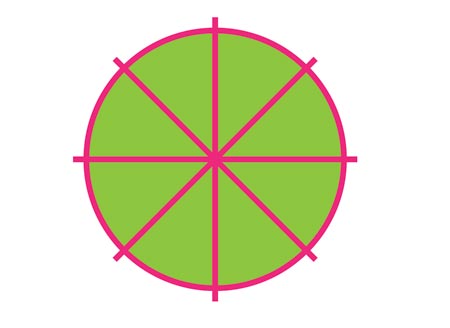
Copy both lines.
Paste in Front.
Rotate both lines 45 degrees (hold Shift).
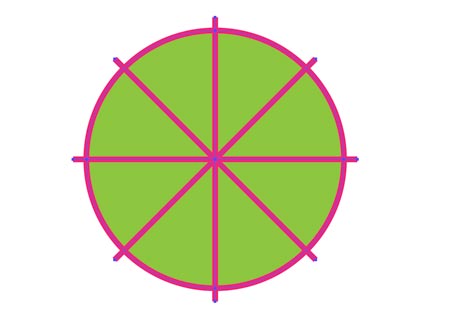
Select all lines and the circle.
Click on Divide button in Pathfinder panel.
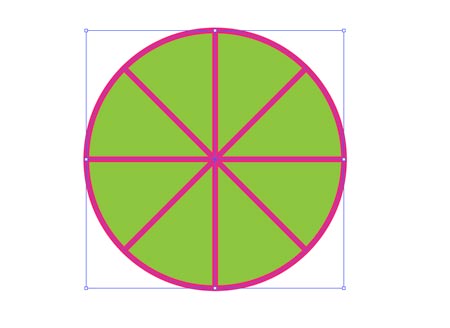
You will get 8 sectors.
They are grouped together .
You can ungroup them (Object > Ungroup).
Or double-click on a shape to get into Group editing mode.
Now you can move and edit each shape individually.
shape 3
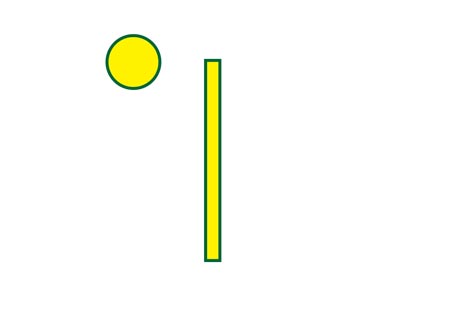
Draw a skinny rectangle and a circle.

Duplicate the circle.
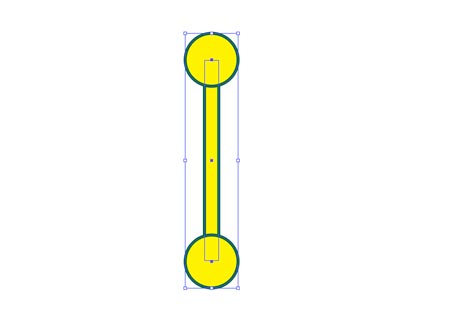
Select all objects.
Center them using Align panel.
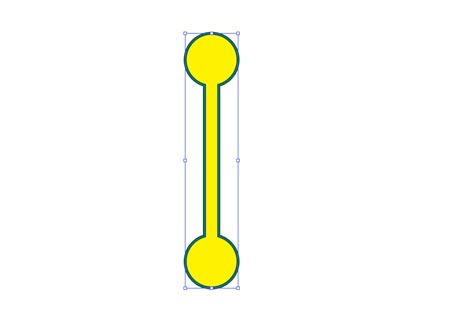
Use Unite command in Pathfinder panel.
Now it’s 1 shape.
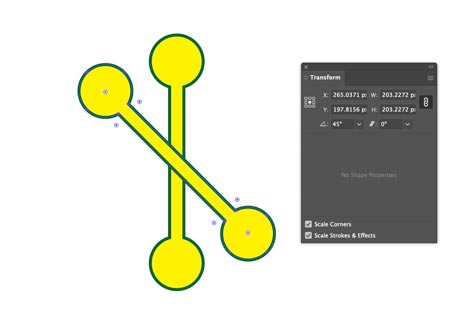
Copy and Paste in Front the shape.
Use Transform panel to rotate it 45 degrees.
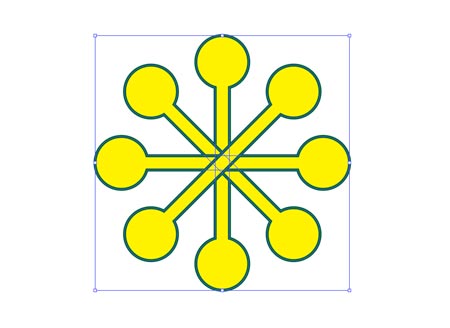
Continue copying, pasting, and rotating (90, 135) the shape.
Select all objects.
Unite them again.
shape 4

Draw a circle
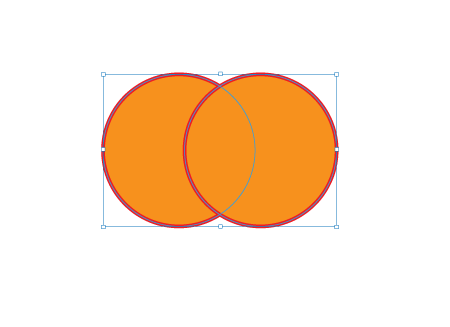
Duplicate it.
Slide the second circle and center both. Use Align panel.
Keep both circles selected.
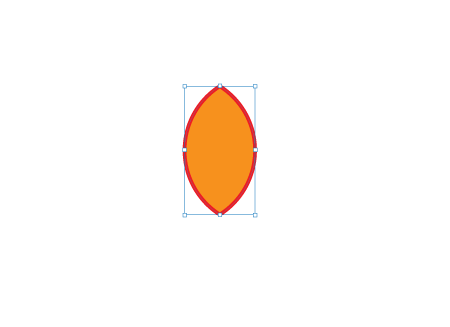
Use Intersect command in Pathfinder panel.
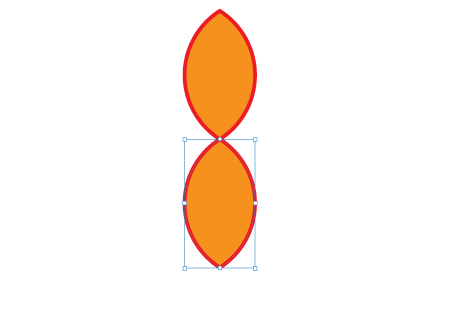
Copy, Paste in Front.
Select the top shape.
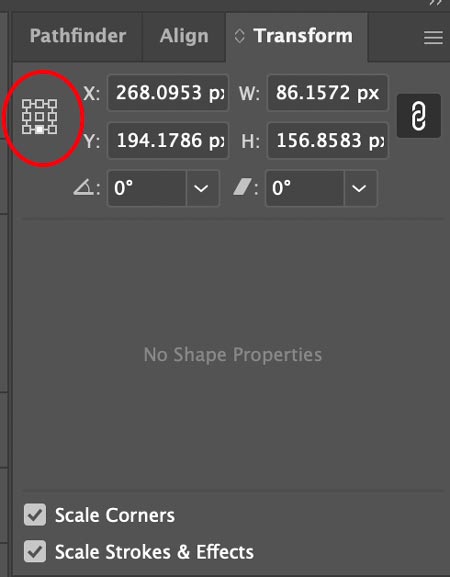
Assign the Reference point to the bottom center.
Rotate the 2nd shape 180 degrees.
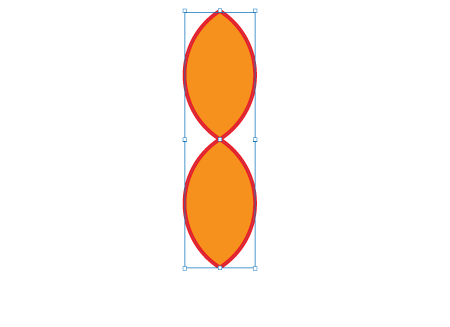
Select and group the two shapes together: Object > Group
Copy, Place in Front.
Change the reference point position back to center.

Rotate 45 degrees
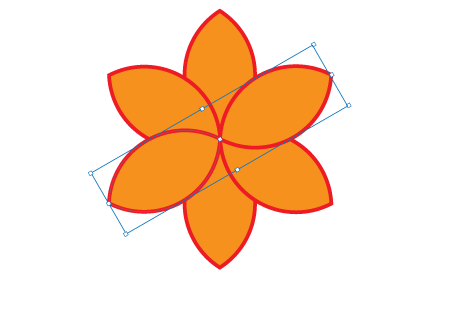
Complete the flower.
Add a center.
Done!