


Painting tools in Photoshop

WI State Standards:
- AA Cr11h
Plan: Formulate original concepts by practice, experimentation, and revision. (planning/experimentation) - AA Cr12h
Make: Create works of art that introduce students to media, care of tools, and basic craftsmanship skills.
(skills) - AA Pr10h
Develop meaning: Create s body of work incorporating personal, historical, and contemporary art to communicate one or morepoints of view.
(aesthetics / communication)
Learning objectives
- Students learn to use painting tools
- Learn the difference between Brush, Pencil and Paint Bucket tools
- How to save a color
- How to create a custom brush
examples:

STEPS
step 1 – remove background

Open the file in PhotoShop.
Convert the background layer into a regular layer:
Double-click on it and name it Drawing.

Choose Magic Eraser Tool

Set Tolerance to 32 and uncheck "Contiguous" option
This will make sure that we will erase ALL background pixels.

If you do not see the "contiguous" option – look for a shortcut button. Uncheck it.

Click anywhere on the orange background.
All orange pixels will be removed.
The checkerboard shows the transparent areas
step 2 – painting layer

Add a new layer.
Name it Painting.
This is where all artwork will be done.

Return to drawing layer.
You are going to make a selection before painting.
To make an accurate selection you need to be on the layer that has a drawing on.

Select the Magic Wand tool.

Set the options as shown.
Important: Check the "contiguous" setting – we are going to select the outlined areas inside the penguin.

Click inside the wing.
Then shift-click inside the other wing.
Both areas should be selected.

Choose the Brush Tool.

Set Hardness to 0.
Choose the size of the brush.

Open Swatches panel.
Window > Swatches.
Expand the folders for choosing colors.

Important:
Select the PAINTING LAYER. The selection is still on.
Choose different dark colors and start painting.
Soft edges of the brush will allow for blending colors.
Do not paint the entire area yet!!!

Set brush opacity to a lower number.
This is how we really are going to blend and mix colors.

Continue painting with different colors.
More strokes you apply – more solid the painting becomes.

Finish the areas.
Add some lighter colors to define the wings, add shadows where appropriate.
 Select inside the penguin’s belly. Use the drawing layer for selection.
Then switch to the painting layer.
Use lighter colors for painting.
Use Color Picker for additional color choices (Double-click on the Foreground swatch in the Tool Bar).
Then continue with the feet and the beak.

If you hide the drawing layer – your painting layer should look like this.

Move the DRAWING layer above the PAINTING layer.

And one more thing:
Transparency grid is very helpful 99% of the time, but it can be distracting when you are painting.
Let’s hide it for this assignment.
Let’s turn off the transparency checkerboard:
Edit > Preferences > Transparency & Gamut
Grid size: None
The transparent areas are still transparent – we just don’t see the checkerboard. It will make it easier to paint without distraction.
(the checkerboard is still visible in the layers palette thumbnails)
Normally you want the checkerboard option to be on – it helps to spot the transparent areas. So return the grid after you are done with this painting.
step 3 – pencil tool

Click and hold on the Brush tool.
Select the Pencil.
Choose a size (8-10).
Compare Brush strokes (with three different hardness settings) and a Pencil stroke:
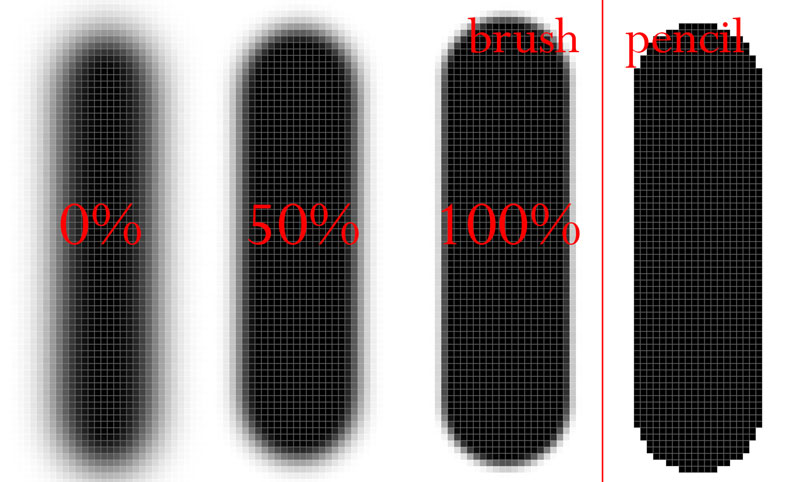

Click on Default colors icon (to have black as our foreground color)
Next – you’ll be adding missing horizon line to the drawing layer.

So… select the drawing layer.
Align the pencil with the start of the horizon.
Click, then press SHIFT (to draw a perfectly straight line).
Draw the first segment. Release Shift. Move the mouse and draw the next two segments.
step 4 – gradients

In the drawing layer – select the ground area with the Magic Wand.

Choose Gradient tool.

Choose Gradient options:
Gradient type: Linear
Gradient colors: pick something light for the ice.

Click and drag.

You will see a new layer in the Layers panel.
It has the gradient style thumbnail and the layer mask thumb (your selection ).

If you double-click on the gradient thumb – you can change the gradient colors.

Move the Gradient layer UNDER the painting layer.
step 5 – texture brushes

Switch to the Brush tool.
Click on Brush options.
Scroll down and choose a texture brush that you think will work well.
Pick a nice color (Using Swatches or Color Picker).

Select Painting Layer!!!
Start adding texture to the picture by clicking (not stroking).

When done – select the default soft round brush
step 6 – watercolor effect

With the Brush tool still active – click in the “Brush Folder” icon in the Options bar.

This will open the Brush panels.
Check the Wet Edges setting.

Still in the Painting layer – apply strokes to paint the icebergs. Note how colors are overlapping and blending.

Use a variety of colors.
Do not worry if the colors bleed outside the outlines.

When done – uncheck the Wet Edges option.

Select Eraser tool.
Clean the edges where needed.

Do you have something like this?
step 6 – swatches

Zoom in the bottom part of the image.
we are going to save some colors from here.

Select Eyedropper tool.

Click anywhere in the blue part with the eyedropper.
The cursor will temporally turn into a grey circle with the top part – showing the currently selected color, and the bottom half – the previous color.
This new selected color will become the Foreground color (in the Tool bar).
But you can also save it for the future use.

At the bottom of the Swatches panel click on “new swatch” button.
In a pop-up window – name the color.
Uncheck the "Add to Current Library" button if you want to keep it outside the existing folders.
You can also create a new folder to keep your swatches.

The new swatch will appear at the bottom of the panel.

Save a purple color from the same color stripe.
step 7 – airbrushing

Brush tool.
In the Options bar: enable the airbrush effect.
Airbrush is time sensitive. It works as a spray can: longer you spray – more coverage you get. Try it!

Make sure you are in the Painting layer.
Start with blue (saved) color.

Continue with the (saved) purple.
When done – disable the Airbrushing effect!
step 8 – smudging

Choose Smudge Tool.
What it does is pushes paint. Use it as you would use your own finger to smear the wet paint. Move it back and forth to mix colors. Move it to one side to create a moving effect. Move it into the paint spot to clean the edges.
You can change the strength of the effect in the Options bar.

Clean the edges bu pushing paint inside the cloud.
Mix the colors inside.

Finish the clouds.
step 9 – more gradients

Choose Elliptical Marquee tool.
In the Options bar: set Feathering to about 40 pixels.
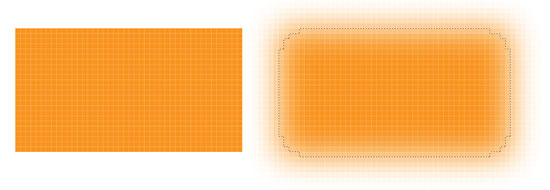
Feathering setting adds a fading effect to the selection

Zoom in the area with the sun.
Draw a circle around the sun.

In the Tool bar – choose Foreground and Background colors for the sun.

Choose Gradient tool.
Type: Radial Gradient
Style: Basics > Foreground to Background

Drag the gradient starting from the center.

You can adjust the amount of each color.
Note a new layer in the Layers panel.
The sun is done.
step 10 – even more gradients

Use Rectangular Marquee tool to select the sky area – all the way to the horizon line.

Gradient tool.
Type: Linear Gradient.
Colors – choose anything you like for the sky.

Drag the gradient.
Remember that your first click starts the first color.
The last color starts where you release the mouse.

Move this new gradient layer UNDER the painting layer.
step 11 – brush modes

Brushes, like layers have their own modes.
Choose the Brush tool.
Choose "Behind" mode. This setting allows you to paint only over empty and translucent areas.

Choose a color to paint water.
Make sure you are in the Painting layer.
Start painting.
Careful next to the horizon and the ground line – these are not parts of the Painting layer.

When done painting – restore the Normal Mode for the brush.
step 12 – custom brush

Hide all the layers, except for the drawing layer.
Select the Drawing layer.
Use Rectangular Marquee tool to select the waves as shown.

Edit > Define Brush Preset

In a pop-up window – name your brush.

Restore all layers visibility.
Select Painting layer.
Choose a nice color to paint more waves (lighter or darker than water, or both).

In the Brushes Options:
Scroll all the way down to find your new brush.
Your new brush follows the same rules as a regular brush. That means you can manipulate its size ( using [ and ] keys).

Paint bigger waves in the foreground and smaller in the back.
You are done!!!!