Cyber Animal
WI State Standards:
- AA Cr10h
Investigate: Engage in critical thinking, problem solving, and research through elements and principles of art and design studio practices and processes.
(aesthetics / problem solving) - AA Cr12h
Make: Create works of art that introduce students to media, care of tools, and basic craftsmanship skills.
(skills) - AA Pr10h
Develop meaning: Create s body of work incorporating personal, historical, and contemporary art to communicate one or morepoints of view.
(aesthetics / communication)
Learning objectives
- creative project: planning and executing
- manipulating images
- editing tools
- communicating ideas and concepts
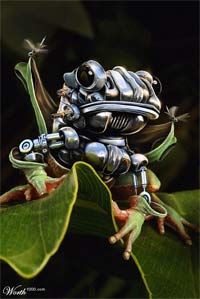
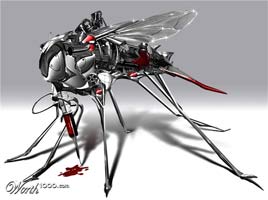
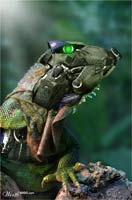
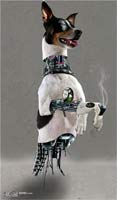
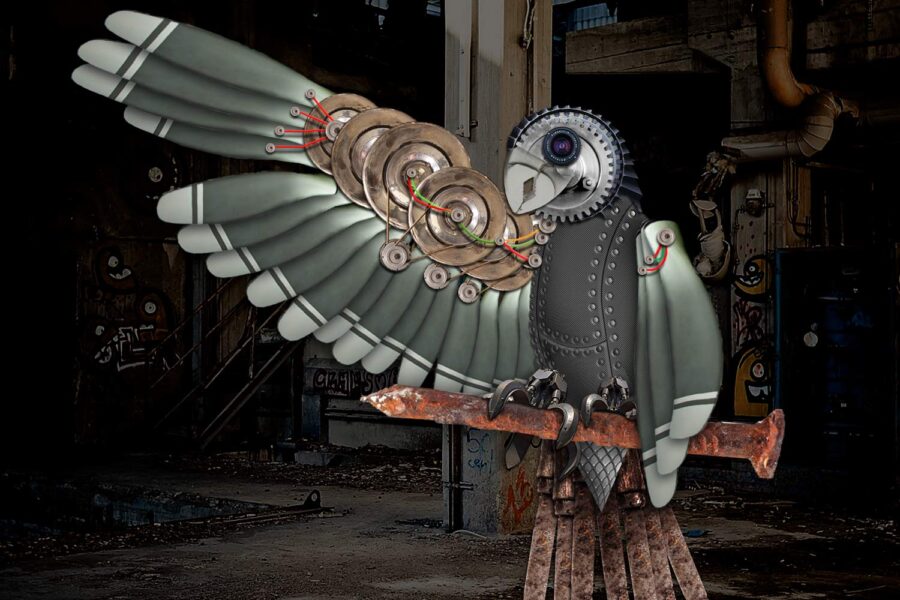
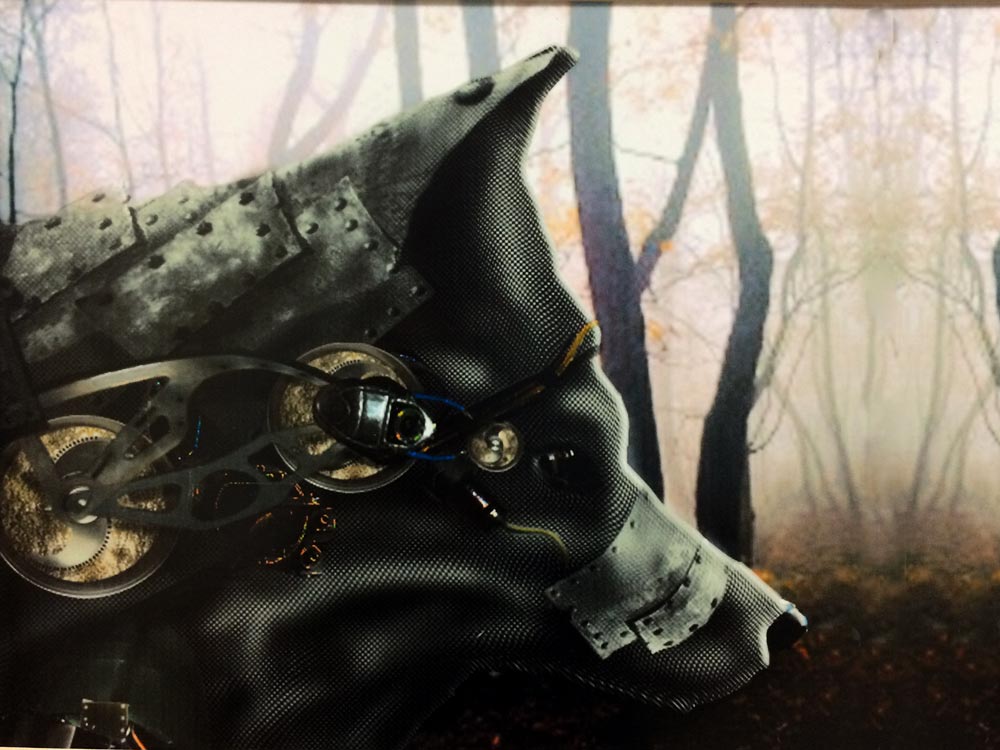
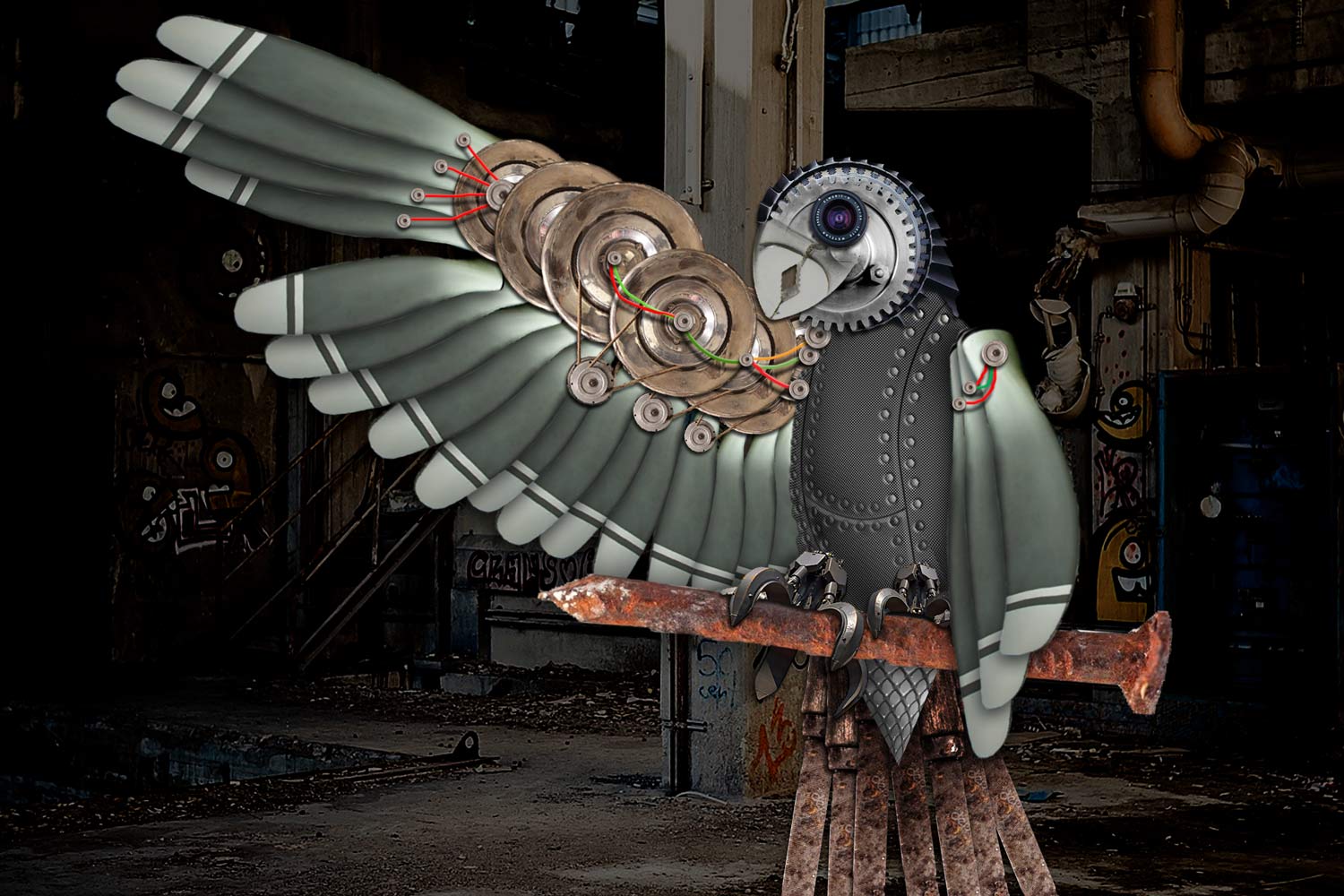
Turn a live animal into a cyber robot creature. Part animal, part mechanical.
It’s up to you now to see what you can come up with.
Here is what you do:
- You are to take any animal (no humans) and give it some machine-like parts.
- The background of the image can be original or your own.
- More details and parts you have – more interesting it will look.
examples



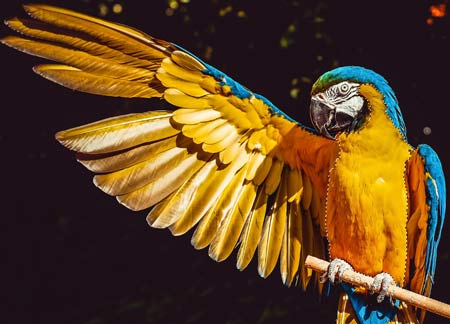
Find a picture of an animal. Make sure it’s a good quality!!!.
Save it as a .psd file.
helpful tips:
carbon texture skin
Start with creating a displacement map.
You will create a carbon texture and use the Displace filter to “wrap” it around the body. You will also create a displacement map file of the body shape so the Displace filter will use it for that wrapping effect.
You will have to experiment with the filter settings for a perfect fit for your particular animal.
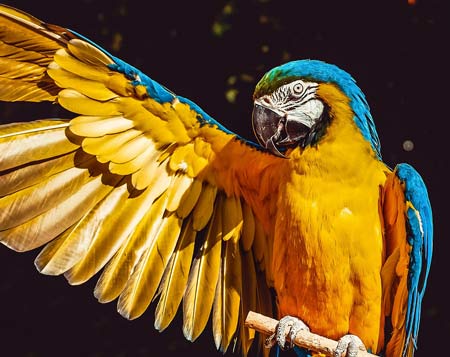
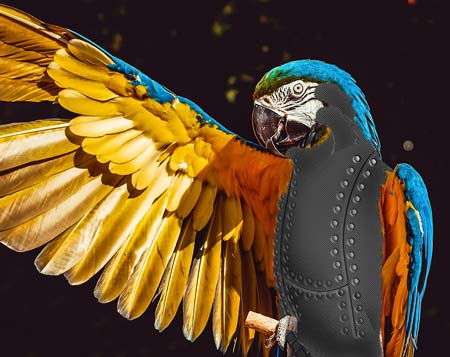
Select the animal body or a part that you want to apply the texture to. Make sure to subtract the eyes and nose from the selection…

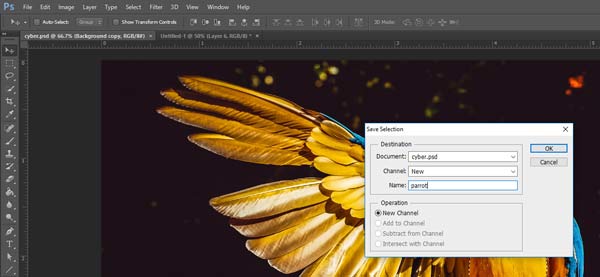
Save the selection:
Select > Save Selection
Copy > Paste
This will paste the selection onto a new layer
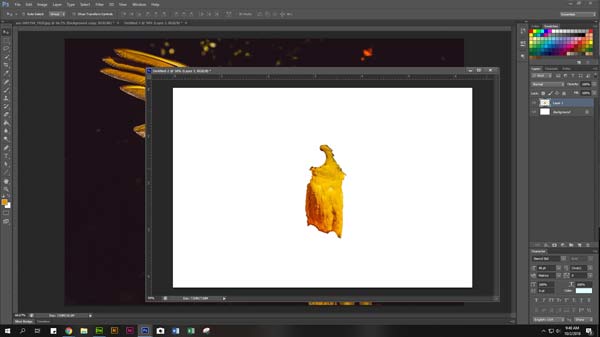
Remove all colors
Image > Adjustments > Desaturate
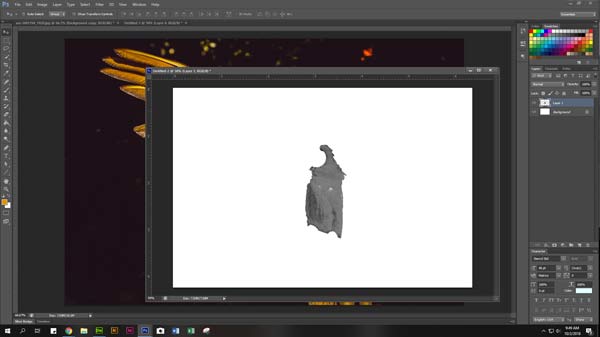
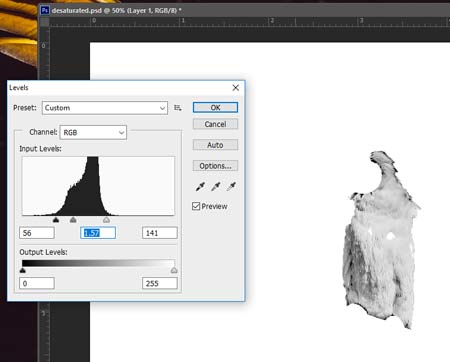
Increase contrast:
Image > Adjustments > Levels
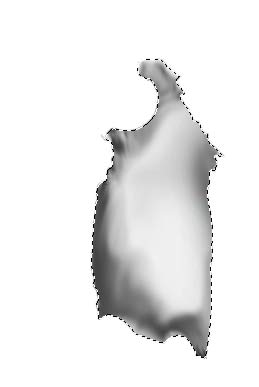
To make it work as a displacement map, we need to simplify the image, remove all details, and make tonal transitions smoother.
So we need to get rid of the texture.
Apply Gaussian Blur filter
File > Save
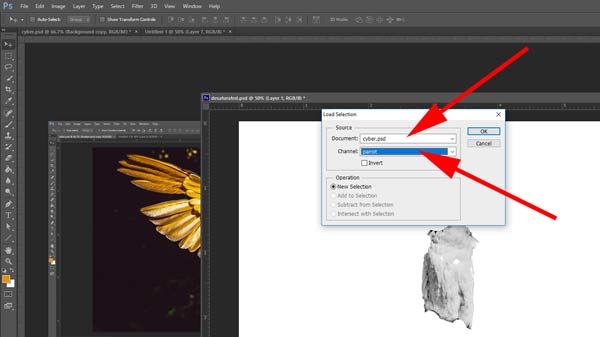
Your selection now looks like a smeared painting…

Use Smudge tool at 75% strength blend your lights and darks.….
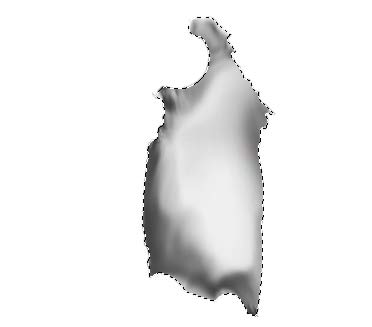
Try imagining where is the light source and where the shadows will fall.
Use Burn tool to emphasize the shadows if the selection is not contrasted enough.
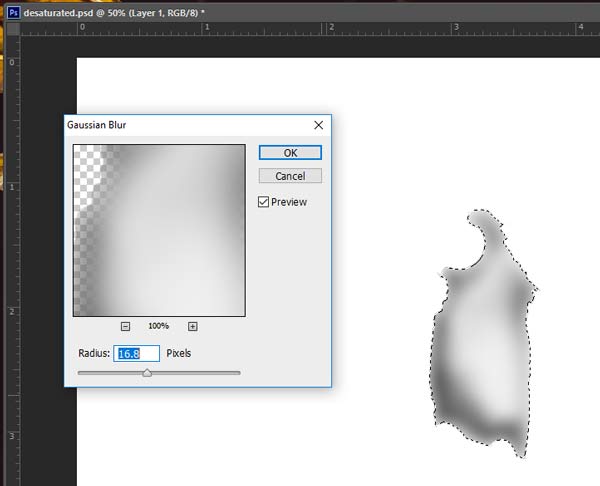
Select the finished shape.
Try to get as close to it as possible.
Edit > Cut
Leave the empty layer in place – you are going to use it for the carbon texture.

Create a new PS file
Choose Clipboard settings for the dimensions.

Edit > Paste

Layers > Flatten Image
Save as .psd file
Close it.

You should have 2 files.
carbon fiber texture
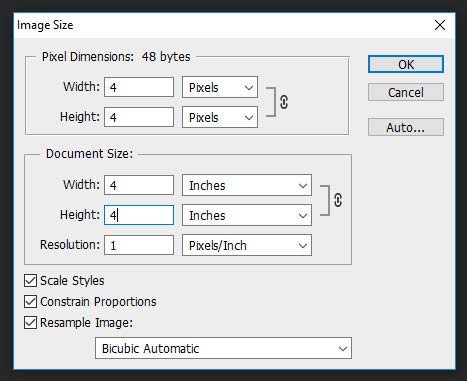
We are to create the carbon fiber texture using the displacement map.
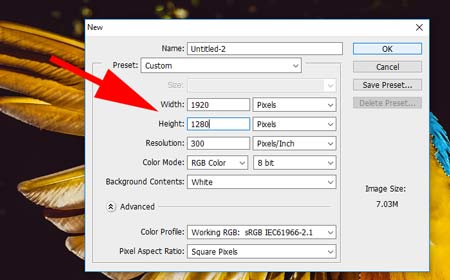
To create a new texture – start with a new document. Copy the settings from the image.
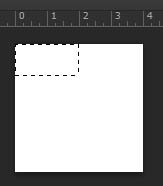
Step 1.
Using Rectangular Marquee tool:
Select the first 2 pixels (selection lines will snap to the pixel grid).
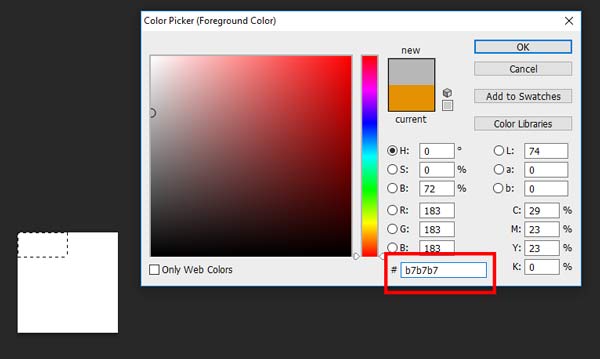
Step 2.
Fill it in with the color: B7B7B7
Move the selection as shown and fill it in with the same color.
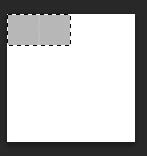
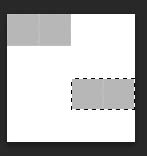
The next 2 sets of pixels are filled in with color: 131313

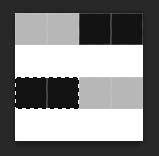

Continue filling in the pixel sets.
There are two of each color.
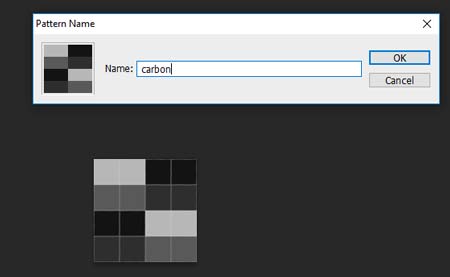
Now that is done we can define the pattern.
Go to Edit > Define pattern.
Name as you wish.
You can save it and close now.

Step 3.
Back to your main file. Stay on the empty layer.
Make a rectangular selection slightly larger than the body of the animal.
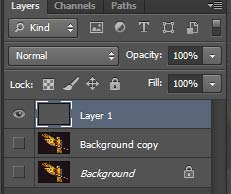
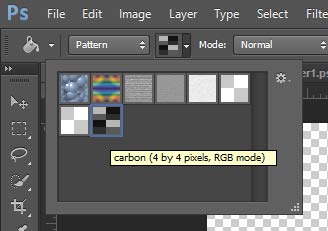
Edit > Fill
Choose Pattern.
Browse to the custom pattern that you have created.
Apply the Displace filter
Filter > Distort > Displace
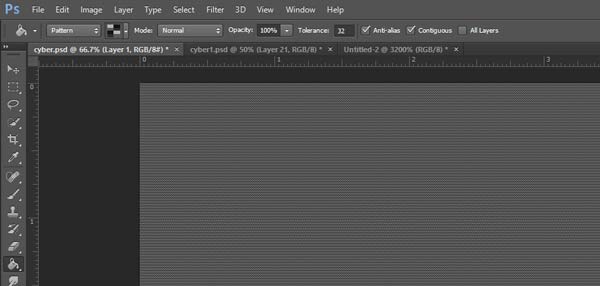
You will have to experiment with the settings.
Then click OK
Choose displacement map.psd file.
Click OK
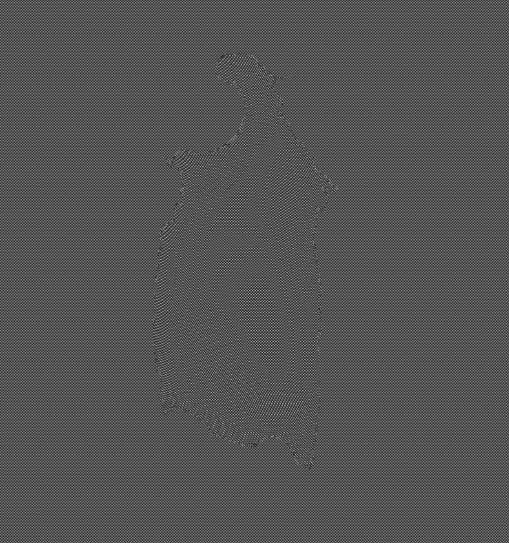
Your carbon fiber texture should have distorted slightly and reveal your animal part contours (its very subtle).

Change the opacity and resize the carbon layer to match the animal body.
Restore the opacity back to 100%
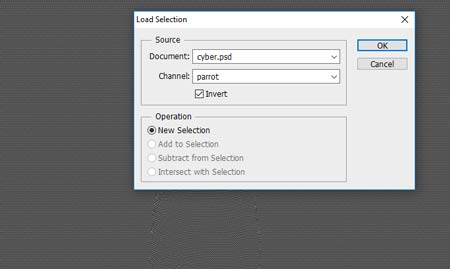
Remove the background around the body shape
Load the selection onto the carbon texture layer.
Select > Load selection
Select > Inverse
Delete or Edit > Clear
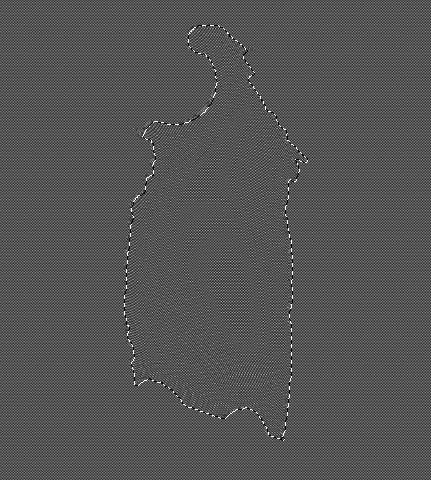
Deselect
Drag the displacement map image onto the main file.
Position it carefully.
Load selection
Select > Inverse
Delete or Edit > Clear
Deselect
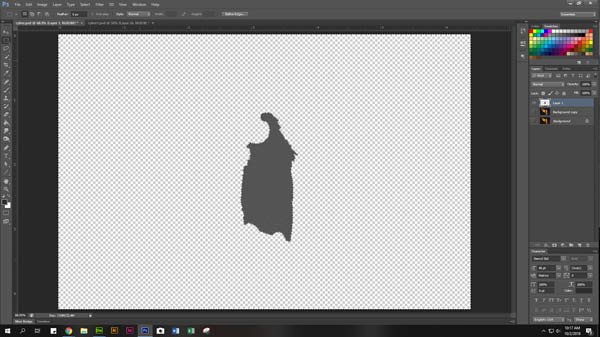
Experiment with the top layer blending modes to add depth to the carbon layer.
I used “Overlay” in this image. You can also try “Multiply” mode.
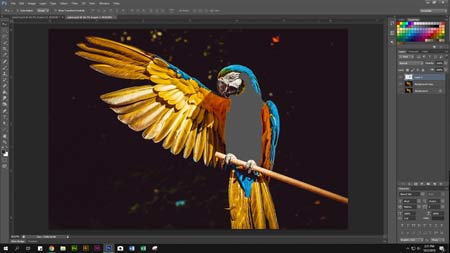
Save.
shut lines, pins & screws
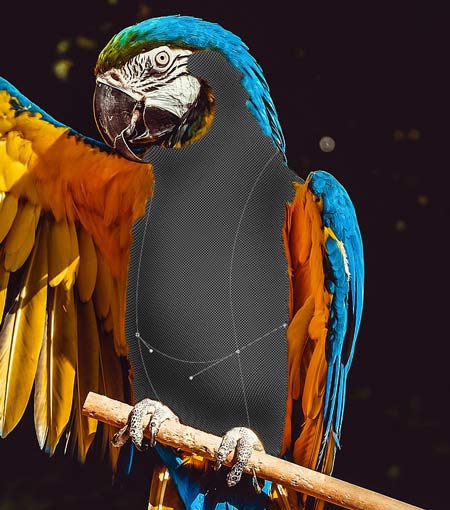
All robots have to be taken apart, right? If they are to be repaired and all. The lines in-between the different panels are called shut lines.
To create them we need to use the path tool.
Work path will appear in Paths palette. You can save it by double-clicking and renaming it.
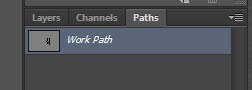
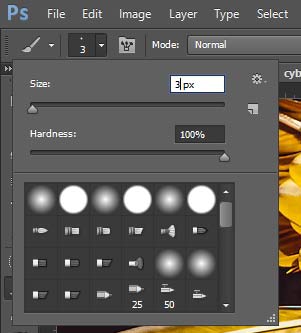
Before applying stroke to the path – set the Brush tool options.
You can use my settings to adjust them to your image.
Hardness 100%
Size – depends on your image size.
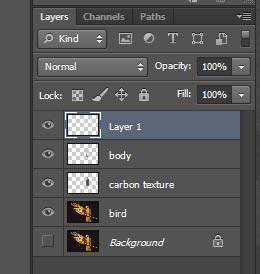
Create a new layer for the wires.

Choose a color.
Then apply stroke to the path.
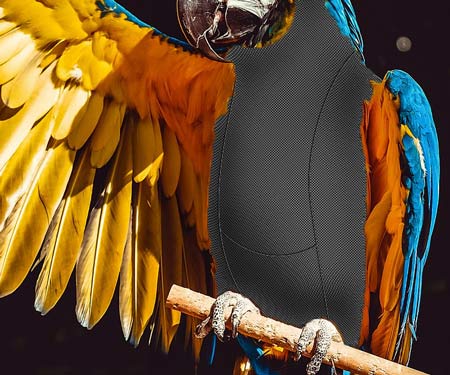
You can deselect the path now.
To apply 3-D effect – use Layer Style.
Layer > Layer Style > Bevel & Emboss
Choose Pillow Emboss and experiment with settings.
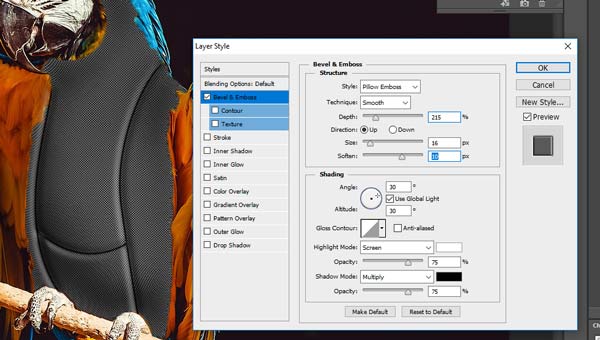
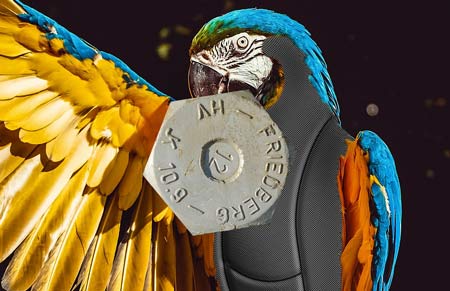
Move an image that you want to use for the pins.
Save a copy of it as a backup.
Resize the image to fit your plan.
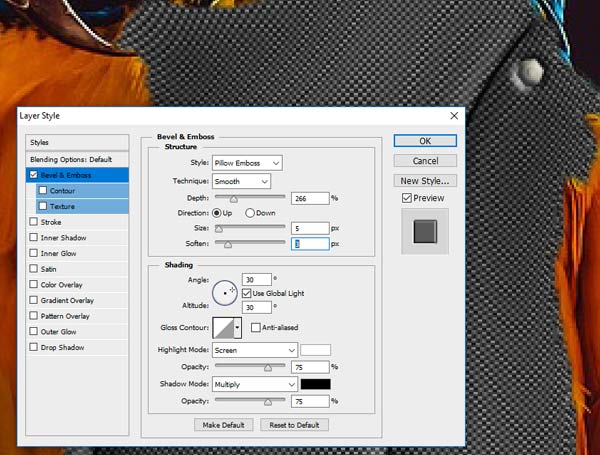
Apply Pillow Emboss Layer style to the pin.
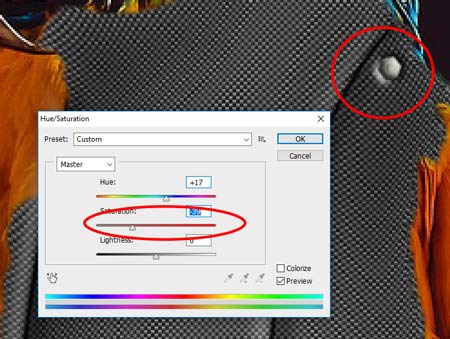
If the initial image of the pin does not fit your color scheme – you can adjust the color or color saturation:
Image > Adjustment > Hue/Saturation
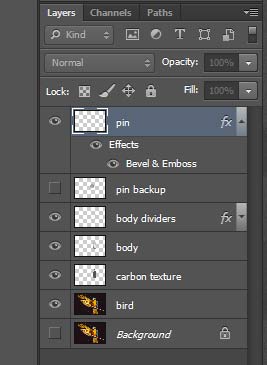
This is what my Layers palette looks like now.
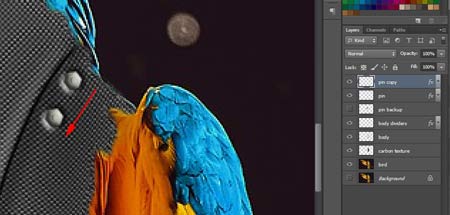
Duplicate the pin by choosing Move tool.
Hold Alt (Option) key and drag.
Continue duplicating the pins.
Each pin will be on its own layer. Layer style will be also duplicated.

Continue further.
You can distort certain pins as the surface curves.
You can also change layer opacity or values (levels) in the areas that are in a shade.
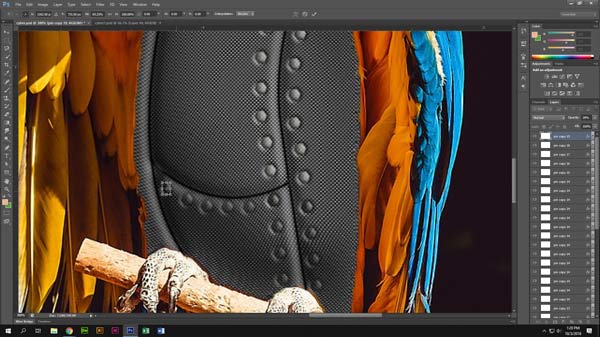
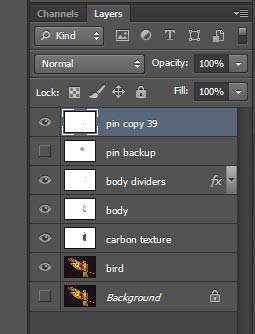
Merge all pin layers together:
Shift-select the layers in the palette, right-click, Merge Layers.
Continue adding parts
Add Drop shadow Layer style to the parts when needed.
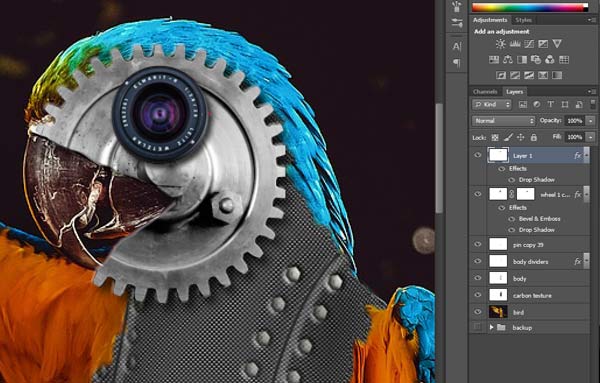
modifying selections
When you quick-select a part – the selection edge will most likely need some modifying.
You can reduce or expand the selection edge to get rid of background leftovers:
Select > Modify > Expand or Contract
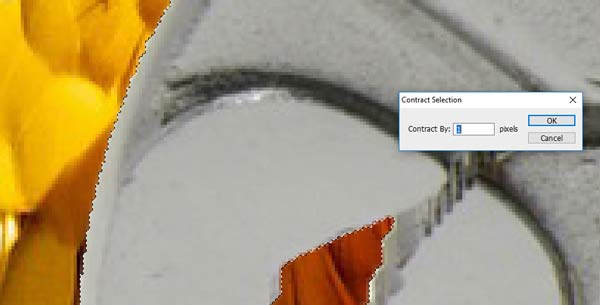
You will see how the selection edge moved.
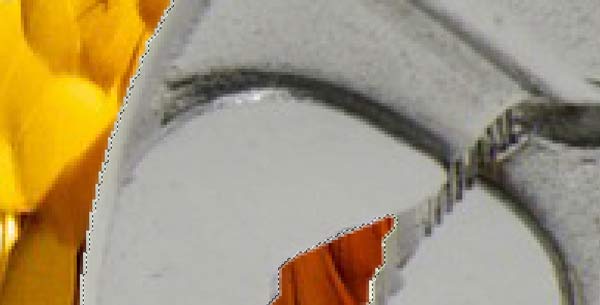
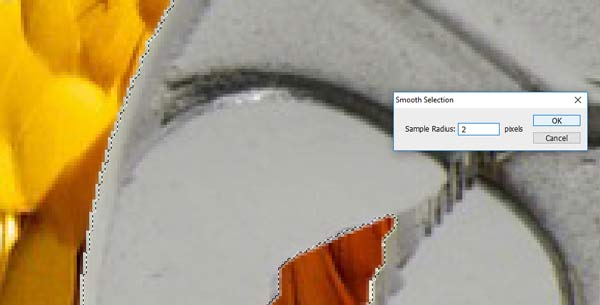
You can also smooth the selection edge to get rid of pixelated edge:
Select > Modify > Smooth
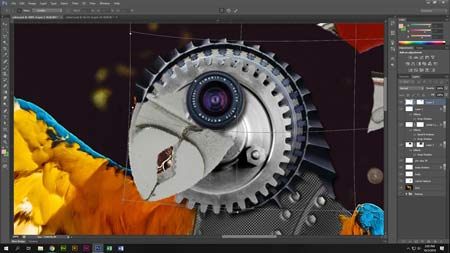
Do not forget that you can use Warp or Distort commands to reshape the selection:
Edit > Transform > Warp

A good idea is to use Groups (folders) in your Layers palette.
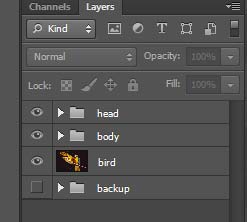

wiring
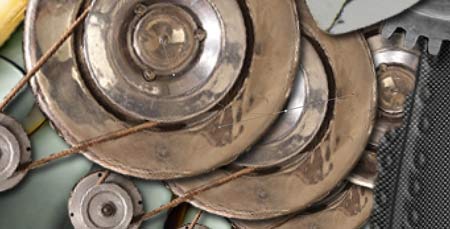
There are few ways to add wires to the project.
Option 1 – for smooth curves – use paths with Pen tool, then apply a stroke.
Option 2 – use Brush tool with hard edges to draw the lines freehand.
Now – the fun part:
Apply Layer styles:
Bevel & Emboss (Inner Bevel)
Drop Shadow ( change Distance setting to move the shadow away from the wire)
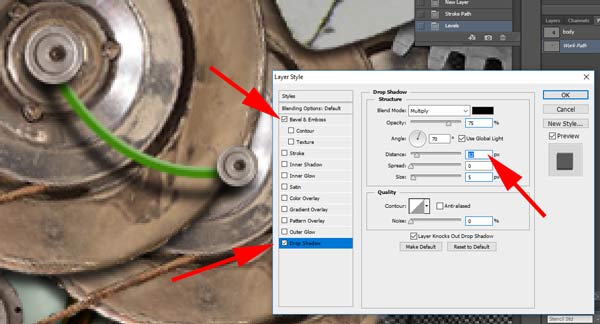
You can draw multiple wires on the same layer – they all will have the same 3-D effect.
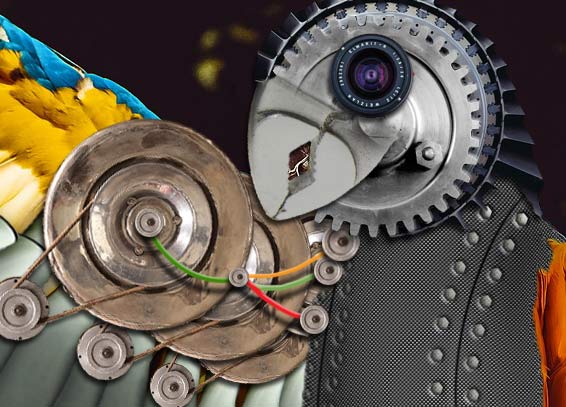
Continue to have fun!