


Character Panel
Type panels
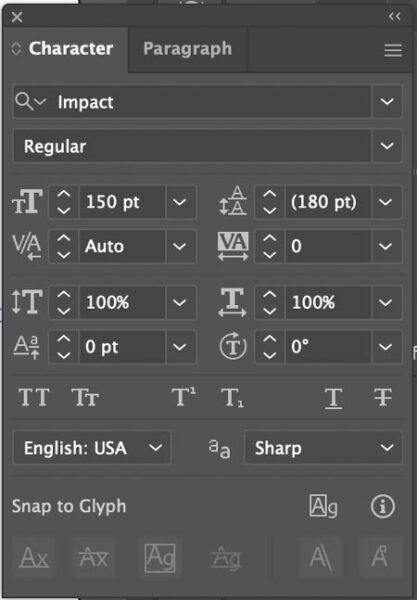
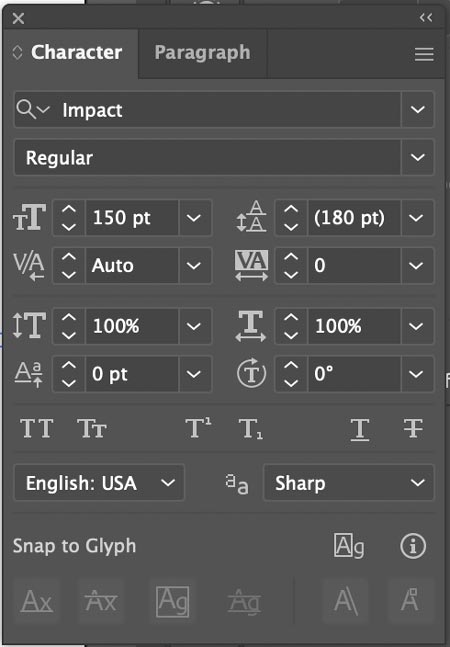
Two of the most common type panels in Illustrator are Character and Paragraph panels.
Window > Type > Character
These are your text control panels.
To view all available options – click on the drop down menu button (upper right corner) and choose "Show Options".
To access Paragraph panel – click on Paragraph tab.
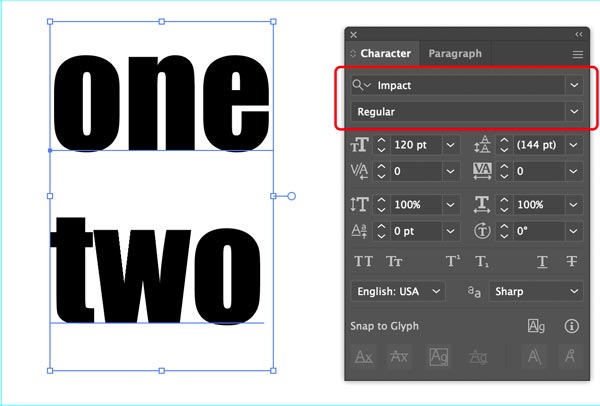
Choose Font family and font style.
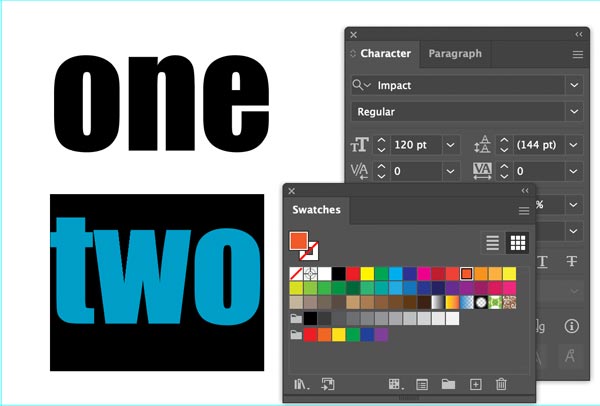
To change type color – use Swatches panel or Fill swatch in the Tool bar.
You can also apply stroke to type.
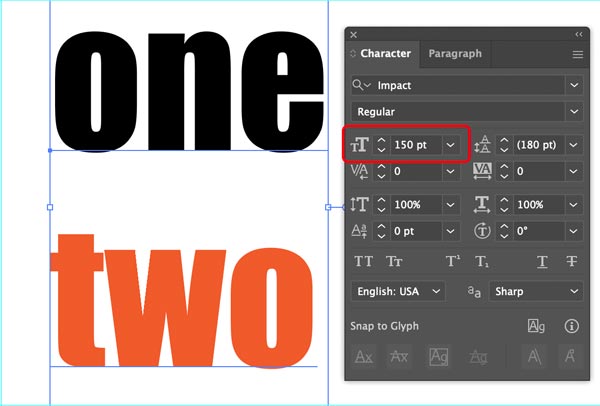
This is simple – choose type size.
Type has to be selected to change the settings. Duh……
You can choose size from presets or type in a number.
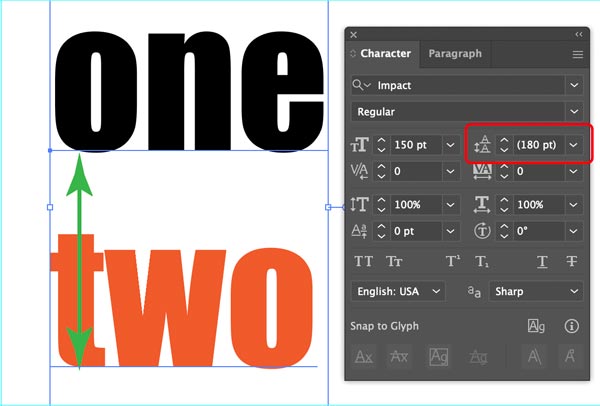
Leading – is a distance between baselines.
Also called "line spacing" in some applications.
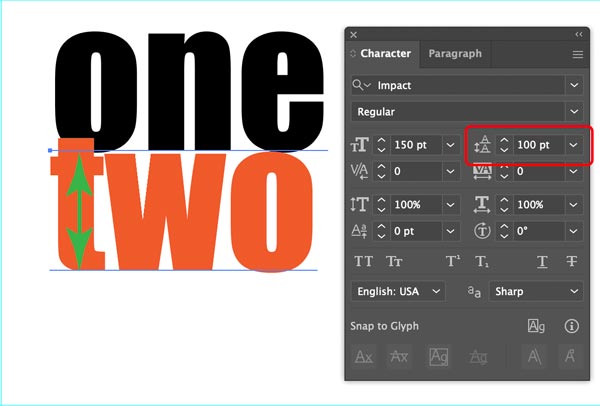
You can overlap lines if the leading number is small enough.

Kerning – is a distance between two characters.
Click between the two letters to apply the setting. Think of is as a "fine tuning".
This setting is mostly used on headers and short text lines.

Tracking – sets space between characters in the entire selected text.

Vertical scale – adjusts the height of the characters.
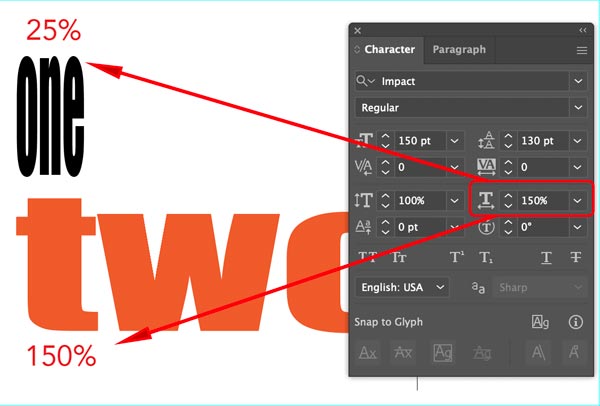
Horizontal scale – adjusts the width of the characters.
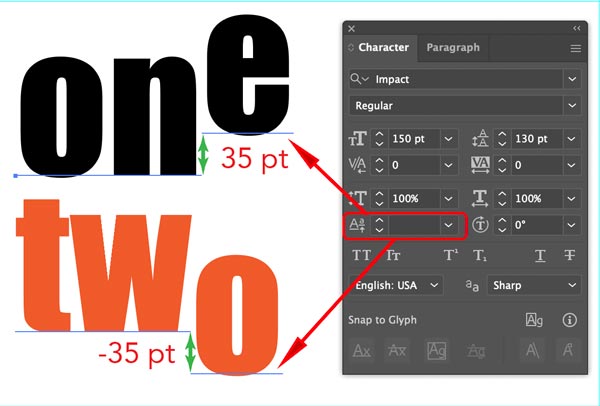
Baseline shift – shifts text above or below the baseline.

Character Rotation – surprise!!! – rotates characters….

All Caps – capitalizes all characters in the text.
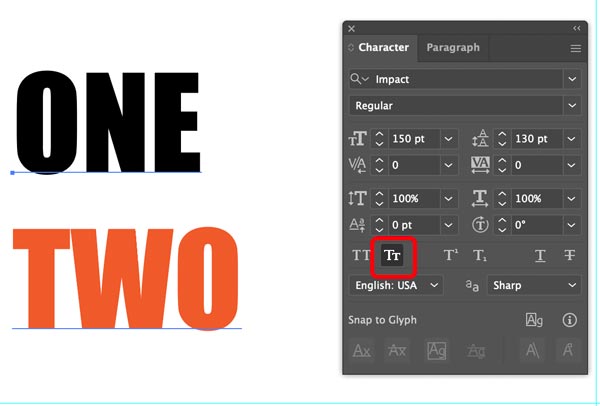
Small Caps – capitalizes all characters in the text, but…. scales them down.
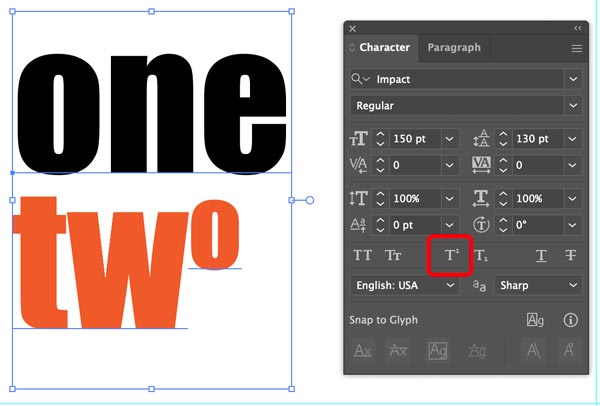
Superscript – sets a character above the baseline and scales it down.

Subscript – sets a character below the baseline and scales it down.
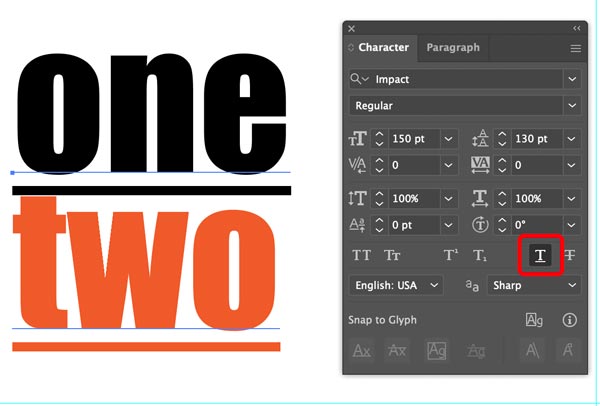
Underline – underlines!
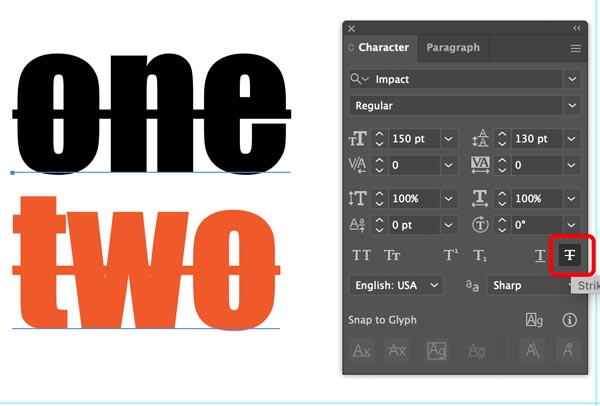
Strikethrough – crosses text out.
If you want to use type as a part of your design or logo – you might want to convert it into edit-friendly format.
"Outlined" text is a font that has been converted into a vectored format. In other words: type characters become shapes.
Once the text is outlined, it looses ability to be edited (text, font), but….
You can edit your text as you would edit a shape (by anchor points).
You can open and print your artwork correctly without needing the actual font file used.
STEPS

Open a new file.
Select Type tool.
Open Character panel (Window > Type > Character).
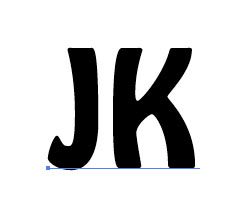
Click and type your name.
Pick a font you like. Resize if necessary.
Keep the text selected.

From the menu bar: Type > Create Outlines
The letters will be grouped together.
To ungroup: Object > Ungroup

Now you can select one letter at a time.

Use Direct Selection tool.
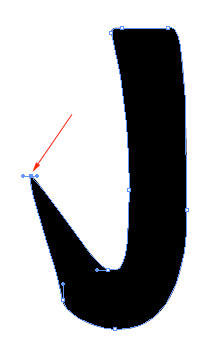
You can select one ore more anchor points and edit them.
Experiment with the shapes.

Overlap the letters.

Select them both.

Exclude
