After Effects: Solids vs. Shapes

solids
The Solid Layer is a less complex version of a Shape Layer. It lacks editable Content Properties (like fill and stroke, etc) and does basic Transform applications.
You can use a Solid when you need a simple graphic that is a solid color that can change size, move, change opacity, or rotate. Great for backgrounds.
Because it is limited in its properties, it gets processed faster.
Unlike Shape Layers, Solids have specific pixel dimensions.
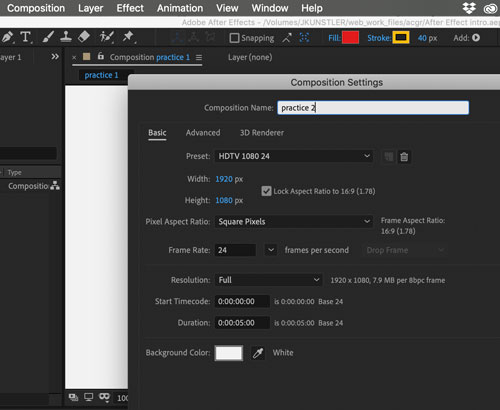
Create a new Composition.
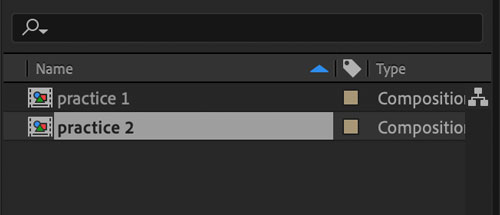
You will see it right away in the project Panel.

Create a new Solid Layer.
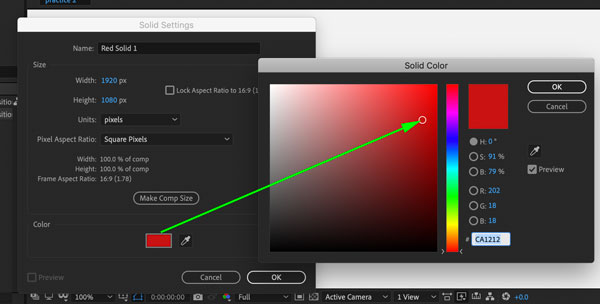
You can set the dimensions for your solid and a color.
I kept the default dimensions – the Composition size.
Choose a color.

Click OK

In the Project Panel – a folder Solids will get automatically created.
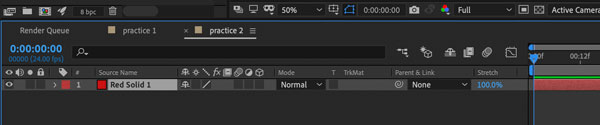
In the Timeline:
you will see a layer created. The name of the layer will be based on the color you chose for your solid.
You can:
Rename the layer by right-clicking on it and choosing Rename.
Hide the layer by clicking on the Eye symbol
Lock the layer by clicking on the Lock symbol.

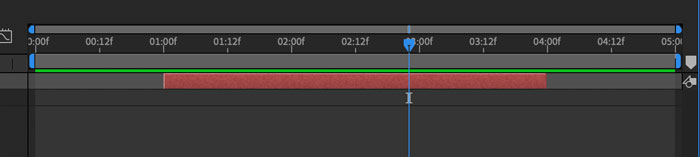
Red bar will appear in the timeline part of the panel.
By default – it spans for the entire composition duration (in our case: 5 sec.). That means that the solid will be visible from start to finish.
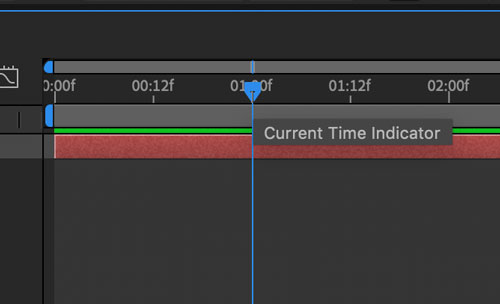
To change the visibility of your solid:
Drag the Time Indicator to 1 second mark. This will define the start of this solid’s presence.
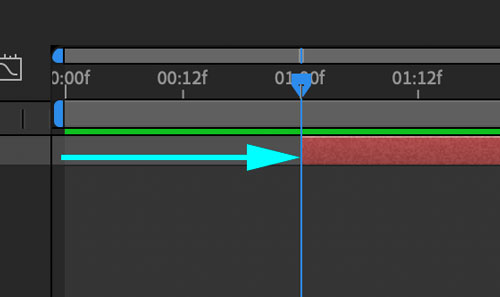
Drag the red bar to the right until it snaps to the Time Indicator.
You could, technically, do so without moving the Time Indicator, but this approach makes it more accurate.
Now, if you play your video – the screen will be blank for the first second. Then the solid will appear.

To end the solid’s performance – drag the Time Indicator to the 4 sec. mark.

Then drag the red bar till it snaps to the Time Indicator.
This is what your timeline should look like.
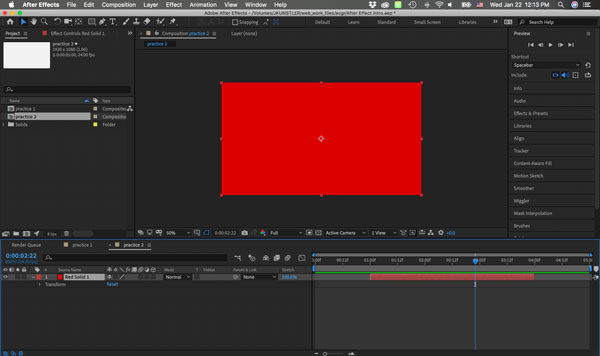
Play the composition to preview your video.
Use Preview Panel or just hit the spacebar (hit again to stop).
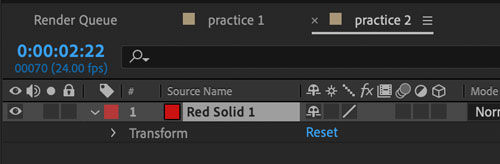
Keep the layer selected.
You can view the position of the time indicator in the upper left corner of the timeline.
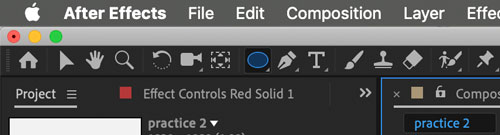
Now let’s see what happens if you draw a shape on a solid layer.
Choose an Ellipse tool.
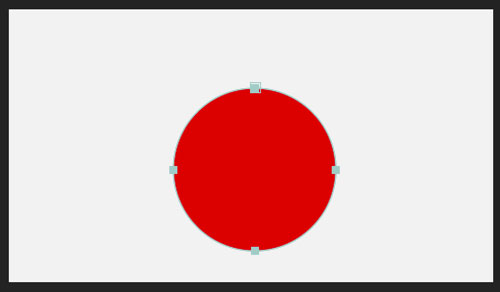
Draw a circle in the composition.
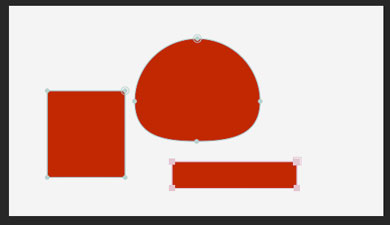
Now you see solid only inside of the circle and do not see the rest of the layer.
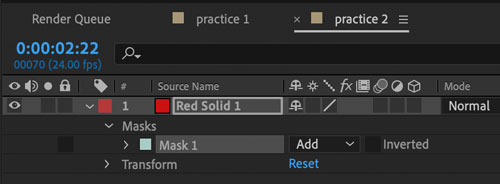
That is because you created a "mask".
Mask reveals what is inside it .
It also appears in the layer’s properties.
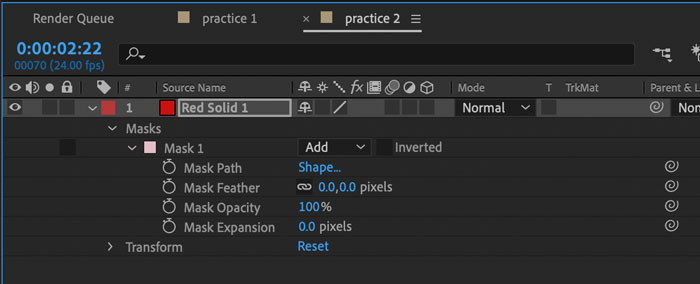
Masks can be animated as well.
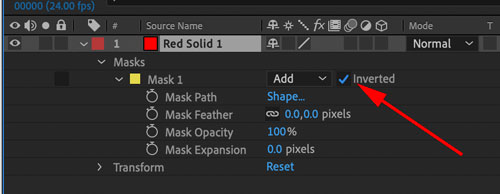
You can invert the mask.
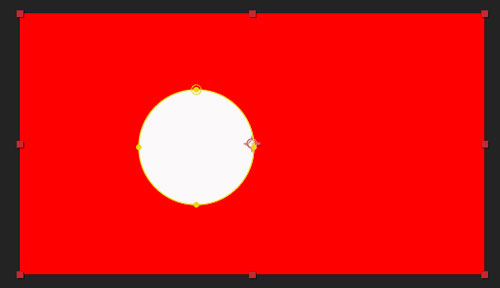
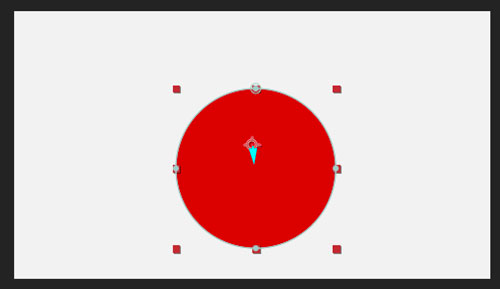
You can edit mask as you would edit any vector object.
You can reposition the solid’s anchor point. Use Anchor point Tool.
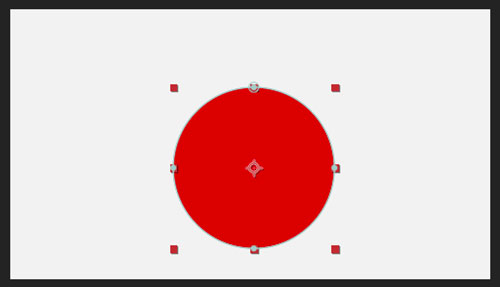
To position it in the center or at the bounding box points – hold Ctrl/Command key.
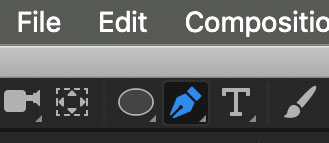
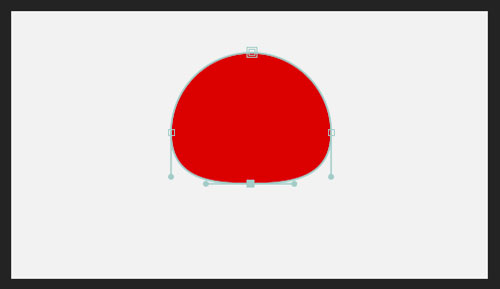
You can use the Pen tools group to edit the path of the mask.
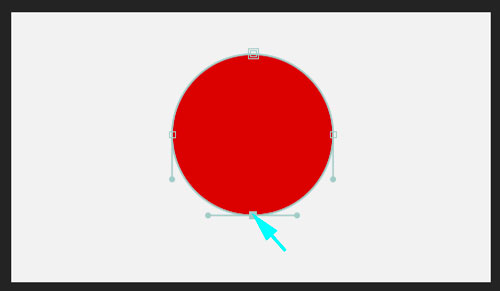
You can animate the path transformation too.
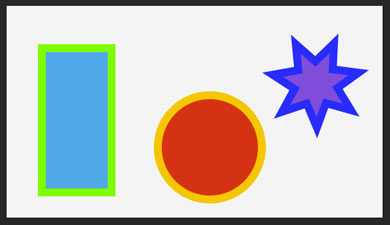
Solids vs. Shapes
| shape | solid |
|---|---|
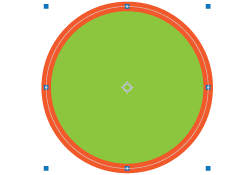
Shape is created similar to Adobe Illustrator. |
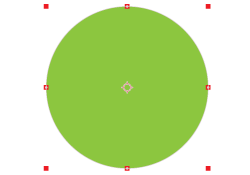
Shape is created by applying a mask to a solid color layer. |
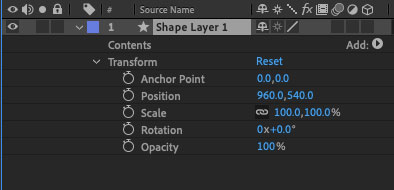
When shape layer is created – it has a content option – you can add a shape or a group of shapes. Shape layer has standard Transform options. |
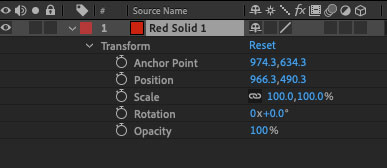
When solid layer is created – it creates a solid color rectangle with defined dimensions. The solid layer has standard Transform options. |
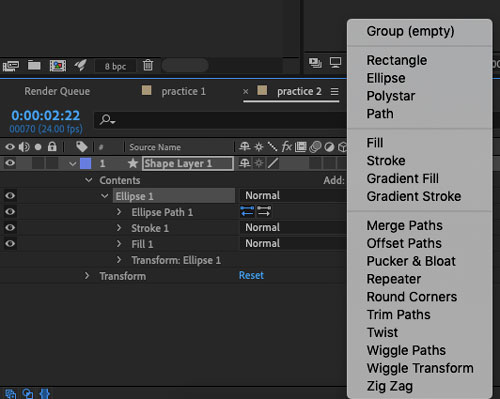
Shape is created by using one of the Shape Tools. Each shape has multiple appearance options: fills, strokes, effects, gradients, etc. |
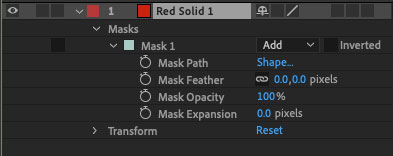
Shape is created when mask is added to the layer, revealing a desired shape. Solid "shape" does not have an option to change color, add strokes, gradients, etc. |
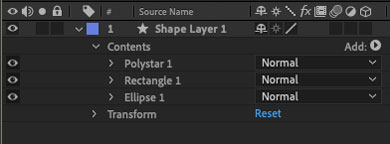
You can add multiple shapes to a Shape layer. You can apply different appearance options to each shape. |
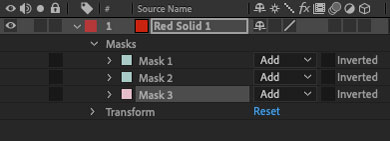
You can add multiple masks to a solid layer. All "shapes" will have the same solid color.
|